

1. Batch Convert Files to PDF: The Fastest Way to Handle Multiple Documents
If you have ever needed to convert a folder full of contracts, reports, invoices, or student assignments into PDFs, you know the pain. Opening each file individually, printing to PDF, saving it, moving on to the next one. For a folder with 20 or 50 files, that process can eat up an entire afternoon.
Download as PDF by cloudHQ solves this with batch conversion. Select an entire folder in Google Drive, or select as many individual files as you want, and convert them all to PDF in a single click. The extension processes multiple files in parallel, so a folder of 50 mixed documents finishes in roughly the time it would take to manually convert five.

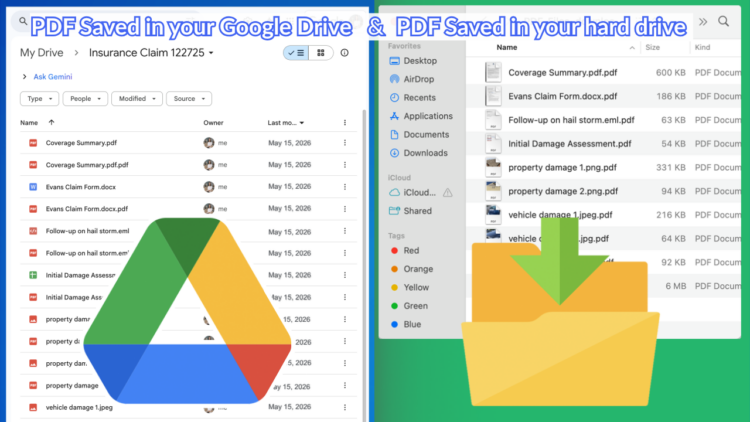
Every converted file is automatically saved back to your Google Drive and downloaded to your computer at the same time. You always have two copies: one in the cloud for sharing and collaboration, one on your hard drive for immediate use.



For teams that regularly archive project folders, prepare audit documentation, or distribute finalized reports, this single feature can save hours every week.
2. How It Works: One Click, Any File, Instant PDF
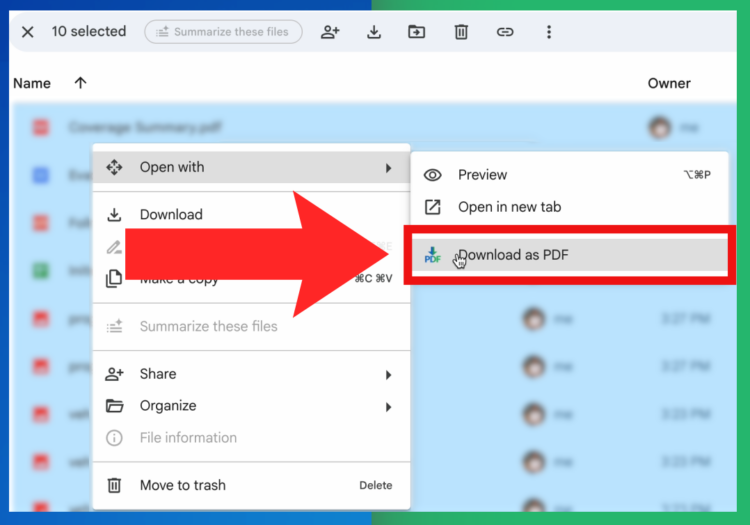
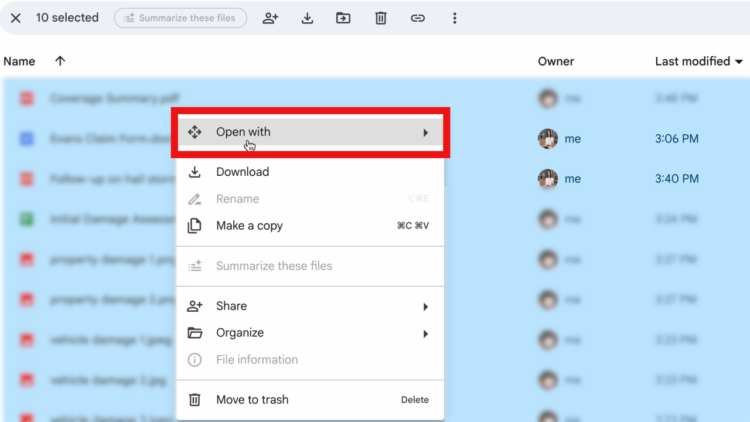
The process is simple. Right click any file (or multiple files) in Google Drive, go to “Open with,” and select “Download as PDF.” The extension converts the file instantly and downloads the PDF to your computer while simultaneously saving it to your Google Drive.
There is no separate application to open, no file to upload to a third party website, and no waiting for an email with your converted file. The entire conversion happens within your existing Google Drive workflow. You never leave your browser.
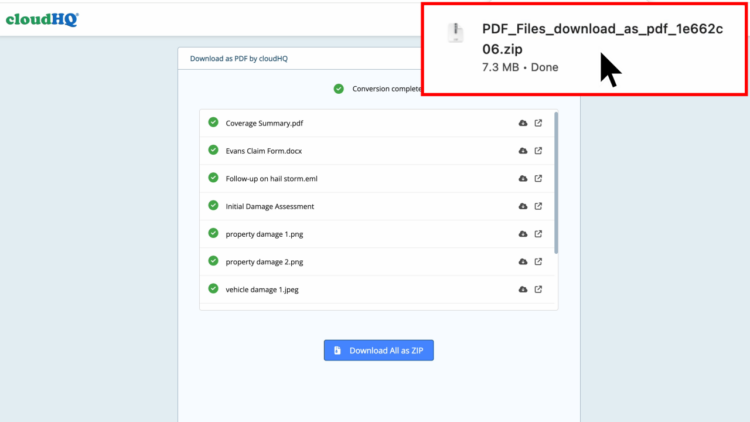
You can also use the conversion wizard to upload files directly from your computer if they are not stored in Google Drive. Drag and drop your files into the wizard, click convert, and the PDF downloads to your hard drive instantly.
3. How to Download a Word Document as a PDF
Converting a Word document to PDF is one of the most common file conversion tasks in any office. Whether you need to send a contract that cannot be edited, share a report with a client, or archive a finalized proposal, PDF is the format that ensures your document looks exactly the same on every device.
With Download as PDF, here is how to convert a Word document to PDF:
- Open Google Drive in your Chrome browser
- Right click the .doc or .docx file
- Select “Open with” then “Download as PDF”
- The PDF is created instantly and downloaded to your computer
The conversion preserves all formatting, images, tables, and headers from the original Word document. The resulting PDF looks identical to the original file.
If your Word file is on your computer rather than in Google Drive, you can upload it directly to the conversion wizard and download the PDF in seconds.
4. How to Download a Google Doc as a PDF
Google Docs has a built in “Download as PDF” option, but it requires opening the document first, navigating to File, then Download, then selecting PDF. If you need to convert multiple Google Docs, this process becomes tedious quickly.
With the Download as PDF Chrome extension, you can convert any Google Doc to PDF without opening it. Right click it in Google Drive, select “Open with” then “Download as PDF,” and the conversion happens instantly. This also works with Google Sheets and Google Slides.
The real power shows up when you need to convert multiple Google Docs at once. Select all the files in a folder, right click, and batch convert them all to PDF in one action. Every converted PDF preserves the original formatting, charts, images, and layout.
5. How to Download an Email as a PDF
Emails saved as .eml files are notoriously difficult to open outside of email clients. If someone forwards you an email as an attachment, or if you have exported emails from Outlook or another platform, those EML files often display as garbled text or raw code.
Download as PDF converts EML files into clean, readable PDFs that preserve the email headers, body text, formatting, and metadata. This is invaluable for legal professionals who need to archive correspondence, HR teams documenting employee communications, or anyone who needs a permanent, shareable record of an email.
To convert an email file to PDF:
- Save or upload the .eml file to Google Drive
- Right click the file and select “Open with” then “Download as PDF”
- The email is converted to a professional, formatted PDF instantly
You can also batch convert an entire folder of saved emails to PDF in one click, making it easy to create complete archives of email correspondence for a case, a project, or compliance requirements.
6. How to Convert JPG and PNG Images to PDF
Converting images to PDF is a common need for anyone dealing with scanned documents, receipts, property photos, medical records, or design assets. Whether you have a single JPG or a folder full of PNG screenshots, Download as PDF handles it.
The extension supports all major image formats including JPG, JPEG, PNG, GIF, BMP, TIFF, and WebP. Each image is converted to a clean PDF that preserves the original resolution and quality.
For batch conversion, this is especially useful. Select a folder containing 30 property photos or 50 scanned receipts, convert them all to PDF in one click, and have organized, shareable documents ready in minutes instead of hours.
7. How to Convert Spreadsheets and Slides to PDF
Spreadsheets and presentations often need to be shared as PDFs so recipients can view them without needing Excel, Google Sheets, or PowerPoint installed. Download as PDF handles these conversions seamlessly.
Spreadsheets: Convert Google Sheets or Microsoft Excel files (.xls, .xlsx) to PDF with formatting, cell borders, charts, and formulas preserved in their calculated state. The PDF output maintains the layout you see on screen.
Presentations: Convert Google Slides or PowerPoint files (.ppt, .pptx) to PDF with all slides, transitions removed, and visual elements preserved. This is ideal for distributing presentation handouts or archiving finalized decks.
Both file types can be batch converted alongside other documents in a single operation.
8. Upload Files from Your Computer and Convert to PDF Instantly
Not everything lives in Google Drive. Sometimes you have files on your desktop, in your Downloads folder, or on an external drive that need to be converted to PDF quickly.
The Download as PDF wizard lets you upload files directly from your computer. Drag and drop one file or many, click convert, and the PDFs download to your hard drive instantly. No Google Drive required for this workflow.
You can also mix and match: select some files from Google Drive and upload others from your computer in the same batch. Every output is treated the same way, converted to PDF and delivered to your machine ready to use.
9. Every File Format You Can Convert to PDF
Download as PDF supports a comprehensive range of file types. Here is the full list of formats you can convert:
Documents: Google Docs, Microsoft Word (.doc, .docx), Rich Text (.rtf), OpenDocument Text (.odt)
Spreadsheets: Google Sheets, Microsoft Excel (.xls, .xlsx), CSV (.csv), OpenDocument Spreadsheet (.ods)
Presentations: Google Slides, Microsoft PowerPoint (.ppt, .pptx), OpenDocument Presentation (.odp)
Email files: EML (.eml)
Text files: Plain text (.txt), Markdown (.md), HTML (.html, .htm), XML (.xml), JSON (.json)
Image files: JPEG (.jpg, .jpeg), PNG (.png), GIF (.gif), BMP (.bmp), TIFF (.tif, .tiff), WebP (.webp)
Other: Pre existing PDFs can also be included in batch downloads for consolidated output.
This means you can point the extension at a folder containing a mix of all these file types and convert everything to PDF in one pass. No separate converters needed for different formats.
Need to go the other direction? You can also convert PDF to text directly in Google Drive, which is especially useful for cutting token costs when uploading documents to AI tools.
10. How to Install the Chrome Extension
Installing Download as PDF takes less than a minute:
- Visit the Download as PDF website or find it directly in the Chrome Web Store
- Click “Add to Chrome”
- Confirm the installation
- Open Google Drive and right click any file to see “Download as PDF” in the “Open with” menu
The extension also works in Microsoft Edge. No desktop software is installed on your computer. Everything runs in your browser.

11. Deploy for Your Entire Team
If you manage a team or work in IT, you can deploy Download as PDF across your entire Google Workspace domain from the admin console. One click installs it for every user in your organization, ensuring everyone has access to the same conversion tools from day one.
This eliminates the need for employees to find and install their own converters (which may be unreliable or pose security risks) and standardizes how your organization handles document conversion. New hires are instantly equipped with the tool and can start converting files to PDF the moment they log in.
12. Who Uses This and Why
Legal teams use batch conversion to turn entire case folders containing contracts, depositions, correspondence, and evidence photos into organized PDF archives for court filings and client records.
Accountants and finance teams convert folders of invoices, receipts, financial statements, and tax documents to PDF for audit trails, client deliverables, and regulatory compliance.
Educators batch convert student assignments submitted in various formats into PDFs for consistent grading and archiving. Teachers also convert lesson plans and worksheets to PDF so students cannot edit them.
Real estate professionals convert property photos, inspection reports, contracts, and closing documents to PDF for organized transaction files that can be shared with lenders, escrow, and clients.
Healthcare administrators convert patient records, referral letters, and compliance documents to PDF for secure sharing and archiving in accordance with HIPAA requirements.
Project managers consolidate project proposals, spreadsheets, and presentations from multiple team members into PDF archives for client delivery and internal documentation.
HR departments convert offer letters, onboarding paperwork, employee records, and policy documents to PDF for consistent formatting and secure distribution.
Any professional who works with files in multiple formats and needs them in PDF will find this extension useful.
13. Frequently Asked Questions
Is it free?
Yes. Download as PDF offers a free tier. Premium plans are available for users who need unlimited conversions and batch processing at scale.
Do I need to install any software on my computer?
No. The extension runs entirely in your Chrome or Edge browser. Nothing is installed on your hard drive.
Where do my converted files go?
Every converted PDF is saved to your Google Drive and downloaded to your computer at the same time. You always have two copies.
Can I convert files that are not in Google Drive?