

Table of Contents
Let’s be honest, collecting files by email can turn into a tiny administrative nightmare.
“Can you resend it?”
“Wrong version.”
“No attachment.”
“Can you upload it somewhere else?”
And suddenly, what should have been one simple file turns into a 14 email thread with three versions, two confused people, and one attachment that somehow never arrived.
That is exactly why Email File Request by cloudHQ exists. It lets you send one simple upload link from Gmail so anyone can send files directly into your chosen Google Drive folder.
No messy email threads. No missing attachments. No chasing people down.
Just send the link. Get the file.


Stop asking people for files over and over again.

With Email File Request by cloudHQ, you can send one upload link directly from Gmail.
The recipient clicks the link, uploads the file, and the file goes straight into your selected Google Drive folder.
They do not need a Google account. They do not need special software. They just upload the file.
No missing attachments. No wrong versions. No messy email threads.
Email File Request by cloudHQ. Send one upload link and get the files you need directly in Google Drive. cloudHQ, helping your productivity one click at a time.
Why File Requests Get So Messy
Asking for a file sounds simple until it is not.
Maybe you are waiting for a signed document. Maybe you need a client photo, a vendor invoice, a job application file, a project asset, a legal document, or a batch of images.
The problem is not always the file itself. The problem is the process.
Most file collection happens through messy email threads where people:
- forget to attach the file
- send the wrong version
- send files to the wrong person
- upload files to the wrong folder
- reply in old threads
- send large files that bounce
- make you organize everything manually afterward
That is not file collection. That is inbox archaeology.
You should not have to dig through email threads just to figure out which attachment is the final version.
What Is Email File Request?
Email File Request by cloudHQ is a Chrome extension that lets you request files directly from Gmail.
Instead of asking someone to attach a file in a reply, you send them a secure upload link. They click the link, upload the file, and the file goes straight into the Google Drive folder you selected.
That means you can:
- request files from anyone by email
- choose the exact Google Drive folder where uploads should go
- keep files organized automatically
- avoid missing attachments
- avoid confusing email threads
- receive files from people who do not have a Google account
It is one of those tools that feels obvious the second you use it.
Because once you can send an upload link, why would you ever ask someone to “please attach the file” again?
How Email File Request Works
Email File Request works right inside Gmail, which is exactly where file requests usually begin.
Here is the simple version:
- Open Gmail and start your email.
- Click the Email File Request button.
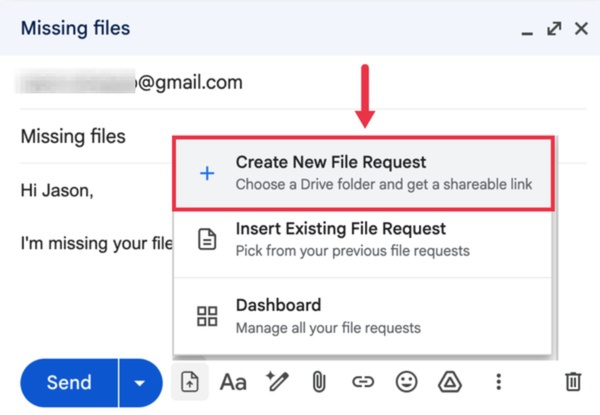
- Choose the Google Drive folder where you want the files to go.
- Insert the upload link into your email.
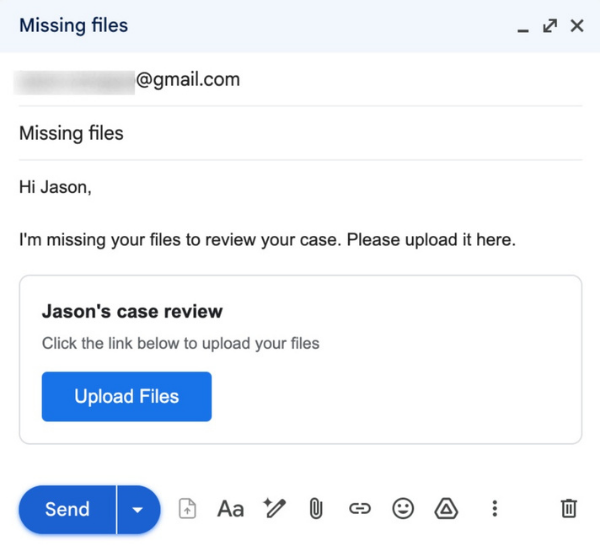
- Send it.
- The recipient uploads the file through the link.
- The file appears directly in your selected Google Drive folder.


That is it.
No extra instructions. No “please rename the file exactly like this.” No “make sure you upload it to the shared folder.” No “actually, that was the old link.”
The file goes where it is supposed to go.
Send a Google Drive Upload Link
The best part about Email File Request is that it makes Google Drive file collection feel completely natural. You are not asking someone to navigate your folder structure. You are not inviting them into your entire Drive. You are not sending a complicated set of upload instructions. You are sending one link. They click. They upload. You receive the file in Google Drive. This is especially useful when you need files from people outside your organization:
- Clients sending contracts or project materials
- Customers submitting documents or photos
- Vendors providing invoices or deliverables
- Contractors sharing completed work
- Job applicants uploading resumes and portfolios
- Students submitting assignments
- Event participants sharing media or forms
- Partners sending agreements or assets
You do not need to explain Google Drive permissions. You do not need to ask whether they use Gmail. You do not need to manually move files into the right folder after they arrive. Email File Request gives the sender a simple upload path and gives you an organized destination. Every time.
File Sharers Do Not Need a Google Account
This is one of the most useful features of Email File Request, and the one people are most surprised by. The person uploading the file does not need a Google account. That matters because not everyone you work with uses Gmail. Not everyone understands Google Drive permissions. And not everyone wants to create an account or sign in just to send you one file. With Email File Request, the sender simply clicks your Google Drive upload link and uploads. That is it. You can request files from someone who uses Outlook, Yahoo, a company email, or any other provider. They do not need to join your workspace. They do not need to be added to a shared folder, and no tutorial is needed. They just upload the file and move on with their day.
Why Email File Request Is Better Than Chasing Attachments
The old way looks like this:
- send an email asking for a file
- wait
- get a reply with no attachment
- ask again
- get the wrong version
- download the attachment
- rename it
- move it into Google Drive
- hope you chose the right folder
The Email File Request way looks like this:
- send one upload link
- receive the file in your chosen Google Drive folder
That is the whole point.
It reduces the amount of manual work after the file arrives.
No downloading. No dragging. No wondering which folder it belongs in. No hunting through threads later.
The upload link does the organizing for you.
Great for Shared Drives Too
If your team uses Google Shared Drives, Email File Request can help there too.
Instead of having files land in your personal inbox first, you can request files into a folder connected to the team’s workflow.
That makes it easier for the right people to access the right files without waiting for you to forward attachments around.
This is especially helpful for:
- team projects
- client folders
- department folders
- case files
- campaign assets
- finance documents
- HR onboarding folders
When files arrive in the correct shared location from the beginning, your whole team saves time.
Email File Request Keeps File Collection Simple
There are plenty of tools that let people upload files.
The difference is that Email File Request starts where the request actually happens: Gmail.
You are already writing the email. You already know who needs to send the file. You already know where the file should go.
Now you can create the upload link right there.
No separate portal. No extra tool to explain. No complicated process.
Just one clean request from Gmail to Google Drive.
Frequently Asked Questions
What is Email File Request by cloudHQ?
Email File Request by cloudHQ is a Chrome extension that lets you send upload links from Gmail so people can upload files directly into your chosen Google Drive folder.
Does the file sender need a Google account?
No. The person uploading the file does not need a Google account. They can use the upload link you send them.
Can I choose where the uploaded files go?
Yes. You choose the Google Drive folder where the uploaded files should be saved.
Can I use Email File Request with clients and vendors?
Yes. It is especially useful for collecting files from people outside your organization, including clients, vendors, contractors, applicants, and partners.
Does this help avoid missing attachments?
Yes. Instead of asking someone to reply with an attachment, you send an upload link. The file goes directly into your selected Google Drive folder.
Can this be used for Google Shared Drives?
Yes. You can use Email File Request to collect files into Google Drive folders, including Shared Drives when available.
Is this only for large files?
No. It is useful for any file collection workflow, whether you are asking for one document or many files.
Final Thought: Stop Asking for Files the Hard Way
There is nothing glamorous about chasing attachments.
Nobody enjoys sending the third “just checking in on that file” email. Nobody wants to sort through a thread called “final final updated version.” Nobody wants to download attachments one by one and move them into folders manually.
Email File Request by cloudHQ gives you a cleaner way.
Send one upload link. Let people upload files directly into your Google Drive folder. Keep your inbox cleaner, your folders organized, and your file collection process much less annoying.
Try Email File Request by cloudHQ and make file collection feel like it should have felt all along: simple.