

Somewhere around the second week of October, I start noticing it. Every marketing email in my inbox has a pumpkin in the subject line, a “spooky savings” banner up top, orange everywhere. And then I scroll to the bottom and the signature is the exact same gray text block the sender has been using since March.
That’s the gap a Halloween email signature fills. Not the newsletter, which people half-read. The signature on the normal, one-to-one emails you send all day: the reply to a customer, the quote, the “following up on this.” Those get opened. Put a seasonal banner under your name and every one of them does a little marketing for you, and the whole thing takes about as long as it takes to read this paragraph.

Video transcript
Is your email signature looking a little… dead?
Don’t let your emails haunt your recipients. CloudHQ’s email signature generator just dropped a massive tree. We’ve added brand new pre-designed templates. No tricks here, just instant magic. Just pick a signature template. And boom, you’ve got a professional Halloween themed signature in seconds. It’s scary how easy it is! Get creative and make your mark. Spookify your signature today with CloudHQ. Try it free. CloudHQ, helping your productivity one click at a time.


Table of contents
- What is a Halloween email signature?
- How to create a Halloween email signature in Gmail
- Halloween email signature templates that work
- Halloween email sign offs to pair with your signature
- Using a Halloween email banner to promote an offer
- Email Signature Generator features
- Why a seasonal signature is worth 30 seconds
- Frequently asked questions
What is a Halloween email signature?
It’s your regular signature, name and title and phone and all that, with October dropped on top of it. Usually that means a banner image with a seasonal design and a button, sometimes just a pumpkin next to your name. It sits in Gmail’s signature settings like any other signature, so once it’s saved you forget about it and it goes out on everything.
I used to think these were a bit silly. Then I watched our support team swap theirs in one year and saw the click numbers on the banner. People notice when the thing they’ve seen fifty times suddenly looks different. That’s the whole trick.
How to create a Halloween email signature in Gmail
Here’s the process using the Email Signature Generator by cloudHQ. The video above shows it in real time, and it really is under a minute, most of which is typing your phone number.
- Open the generator and fill in your details on the left: name, title, email, phone, address. If you want a headshot or your company logo in there, upload them here. Watch the preview on the right, it updates as you type.
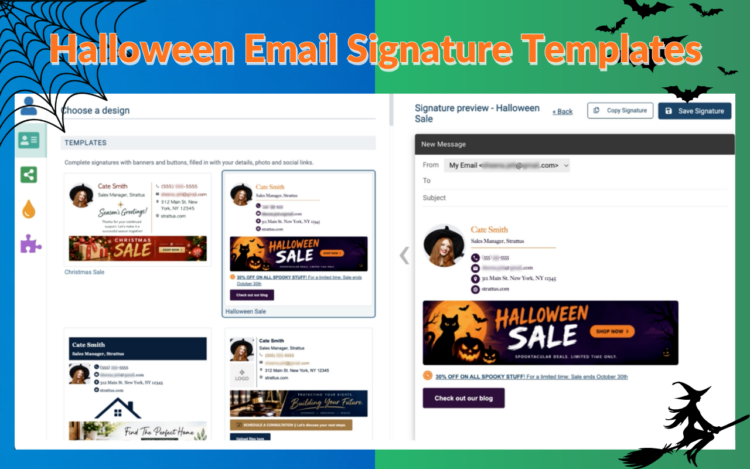
- Click Choose a design. You’ll see the template gallery. Pick Halloween Sale. Your details jump into the layout and the banner and button show up already placed.
- Change the promo line and the button link. This is the step people skip, and then the button points at the homepage, which is a waste. Point it at the actual offer.
- Click Save Signature. Done. It’s in Gmail now, on new emails and replies.

On November 1, come back and switch to your normal template. Or, honestly, go straight to the Thanksgiving Sale one. I know. But it’s right there in the same gallery, and it buys you another month before the Christmas one takes over.
Halloween email signature templates that work
The one in the video is the Halloween Sale template: dark background, a big orange headline, a “Claim my discount” style button under it. If you’re running any kind of October promotion that’s the one to use. It’s the loudest, and loud is fine in a signature because it’s small.
If you’re not selling anything this month, a plain happy Halloween email signature is better. Same layout, no offer, just a seasonal greeting under your name. Consultants and account managers tend to go this way because a discount button in a check-in email feels off.
Then there’s the cute Halloween email signature approach, which is basically a tiny ghost or pumpkin icon and nothing else. Lawyers and accountants, this one’s for you. It says “we’re human” without saying anything else.
And if you’re hosting something, swap the promo button for an RSVP button. Works for a Halloween party, a webinar, an open house, whatever.
Two things regardless of which you pick: keep the banner under about 600 pixels wide so it doesn’t blow out on mobile, and make the button go somewhere specific. A banner that links to your homepage is a banner nobody clicks twice.
Halloween email sign offs to pair with your signature
The signature does the visual part. A sign off right above it finishes the thought. A few I’ve seen that don’t make people cringe:
- Happy haunting,
- Stay spooky,
- No tricks, just treats this month,
- Have a frightfully good Halloween,
- Boo! (sorry, had to)
“No tricks, just treats this month” is the one I’d give to a sales team, because the Halloween Sale banner sits directly under it and the two read as one line of thought. The rest are fine for anyone. Pick one and don’t rotate, the point is that it’s not a thing you have to think about.
Using a Halloween email banner to promote an offer
The banner is where this actually pays off, so it’s worth being a little deliberate.
One offer. One button. “20% off through October” with a “Shop the sale” button will beat three stacked promotions every single time, because nobody is studying your email signature. They glance.
Put the end date in the banner. “Ends October 31” does two things: it gives people a reason to click today, and it tells you exactly when to swap the signature out so you’re not the company still advertising a Halloween sale on November 9. (This happens more than you’d think.)
Add UTM parameters to the button link. It takes thirty seconds and it means that in Google Analytics you can see “email signature, halloween” as its own source and know what it did. Without that, the clicks just blend into direct traffic and you’ll never know whether the banner worked.
And roll it out to everyone. One person with a Halloween email banner is cute. Every customer-facing email from the company carrying the same banner for three weeks is a campaign, and it costs nothing.
Email Signature Generator features
A quick rundown of what’s in the tool, since a few of these matter for the Halloween use case specifically:
- Seasonal and industry templates: Halloween Sale, Thanksgiving Sale, Christmas Sale, Season’s Greetings, Real Estate Agent, Lawyer, and a bunch more, all with the banner and button already placed.
- A live preview that shows the signature inside a Gmail compose window, so what you see is what goes out.
- Photo and logo upload, resized for you.
- Social icons that match the template style instead of looking pasted on.
- Compact and full layouts. Compact for replies, full for the first email in a thread.
- Save straight to Gmail. No copying HTML into Gmail settings and hoping the line breaks survive.
- Team deployment for Google Workspace admins, so everyone gets the same signature with their own details filled in.
Why a seasonal signature is worth 30 seconds
I didn’t think much of email signatures until I looked at the numbers. A few that stuck:
- The average professional sends 30 to 40 work emails a day, and the signature rides on every one of them. For a 100-person company that’s 60,000 to 80,000 impressions a month on emails people actually open, because a real person sent them.
- In a 2023 Censuswide survey of 1,000 US consumers, 58% said a professional, branded signature makes them trust an email from a business. 70% said they get annoyed when a company’s contact details are missing from it.
- The same research found recipients felt more positive about the company (43%) and more inclined to reply (37%) when the signature was branded.
- One signature vendor ran a holiday signature across 72,000 of its own users in December 2024 and counted 3,460 clicks on roughly 75,000 emails. Nobody built a campaign. The signature just went out, the way it always does.
- An industry survey puts 43% of professionals above a 5% banner click rate. A typical marketing email lands between 2% and 5%.
So the case isn’t complicated. Your signature is already going out. The only question is whether it’s doing anything while it’s out there. Pick the Halloween Sale template, click Save Signature, and it’s doing something until October 31. Then switch it back, or go straight to the Thanksgiving one. Same 30 seconds.
Frequently asked questions
Is the Halloween email signature template free?
Building and previewing is free. Saving to Gmail, team rollout, and some of the premium templates are on the paid plan. Current pricing is on email-signature-generator.com.
Does it work with Outlook or Apple Mail?
It’s built for Gmail and Google Workspace. You can copy the HTML out and paste it into another client, and it’ll mostly work, but the one-click save and the team features are Gmail only.
Can I add a Halloween email signature GIF?
Yes, upload an animated GIF as the banner. Keep it under a megabyte. And know that Outlook on Windows only shows the first frame, so make sure frame one looks good on its own.
Will the Halloween banner show up in email replies?
If Gmail is set to include your signature in replies and forwards, yes. That’s what the compact layout is for. The banner stays visible without turning a long thread into a wall of pumpkins.
How do I switch back after Halloween?
Open the generator, pick your regular template (or the next seasonal one), click Save Signature. The old one is replaced right away.
Can my whole company use the same Halloween email signature?
Yes. A Google Workspace admin can push one template to every user, and each person’s name, title, and contact details get filled in automatically.

