

Table of Contents



Webpage Lifespan Statistics
- Studies show that 50% of all web links break within a few years.
- The average webpage is updated or removed within 2-3 years.
- PDF is the international standard for document sharing, readable on any device.
- Web-based contracts, receipts, and confirmations must be saved for compliance and legal records.
- Most websites use dynamic content that can change or disappear without notice.
- A bookmark saves the link, not the content. If the page changes, your bookmark is useless.
Why Webpages Change, Disappear, and Print Poorly
Bookmarks break. Webpages get updated. Content disappears. When you need to reference something you found online, it may no longer exist or may look completely different.
Printing a webpage directly from your browser often results in a mess: ads, pop-ups, sidebars, cookie banners, and broken formatting. The result is an unreadable document that wastes paper and fails to capture what you actually needed.
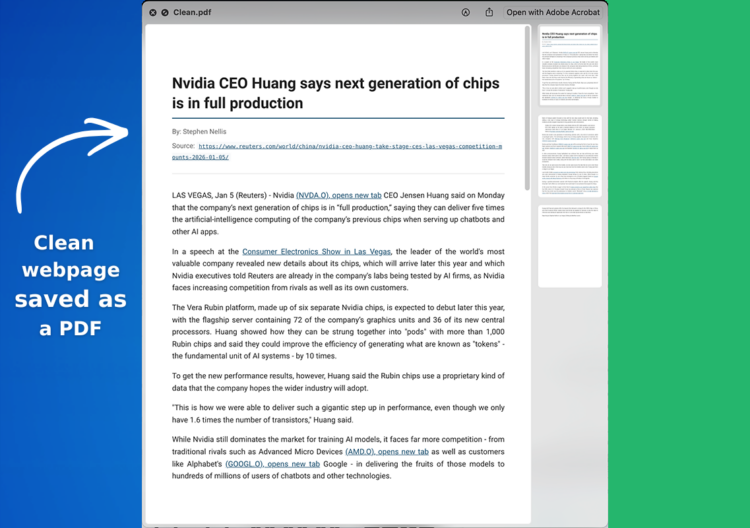
Converting a webpage to PDF solves this problem. A PDF preserves the exact content and formatting of a webpage at a specific moment in time. It can be stored, shared, and referenced forever, regardless of what happens to the original webpage.

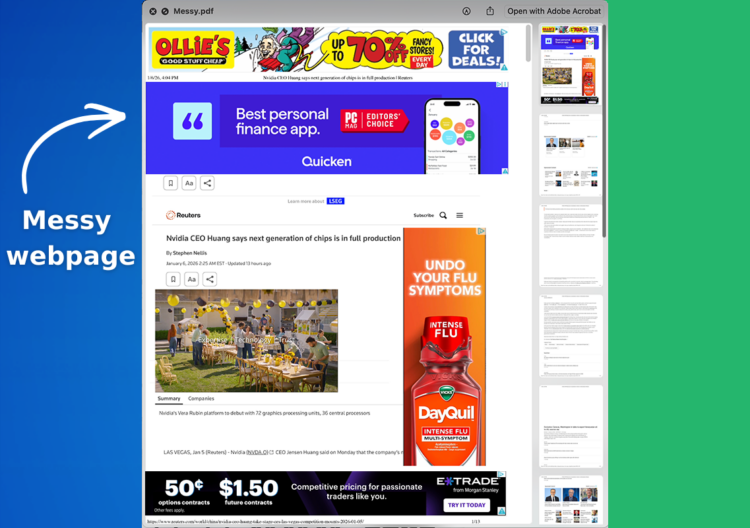
Webpage to PDF: Save Any Page in One Click
Webpage to PDF is a browser extension that lets you convert any webpage to a clean, formatted PDF with one click. It removes ads, pop-ups, and clutter so you get only the content you need.
- Convert any webpage to PDF instantly
- Remove ads, pop-ups, banners, and unnecessary elements
- Save PDFs directly to Google Drive, Dropbox, OneDrive, or Box
- Upload directly to YouTube
- Share via email or social media
- Preserve perfect formatting every time
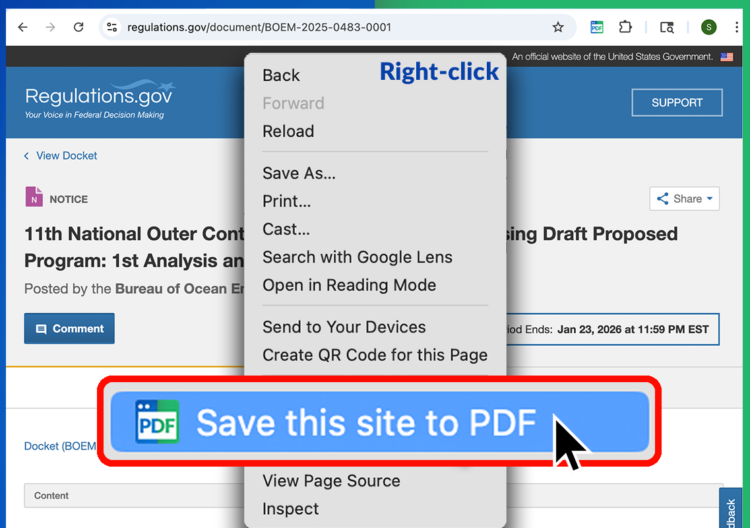
The extension works directly inside Chrome. Right-click on any webpage, select Save as PDF, and you’re done. No additional software required.
Support documentation is available here: Getting Started With Webpage to PDF
How to Save a Webpage as a PDF
- Install Webpage to PDF on Google Chrome
- Navigate to any webpage you want to save
- Right-click anywhere on the page
- Select “Save as PDF” from the menu
- Convert your webpage to PDF.
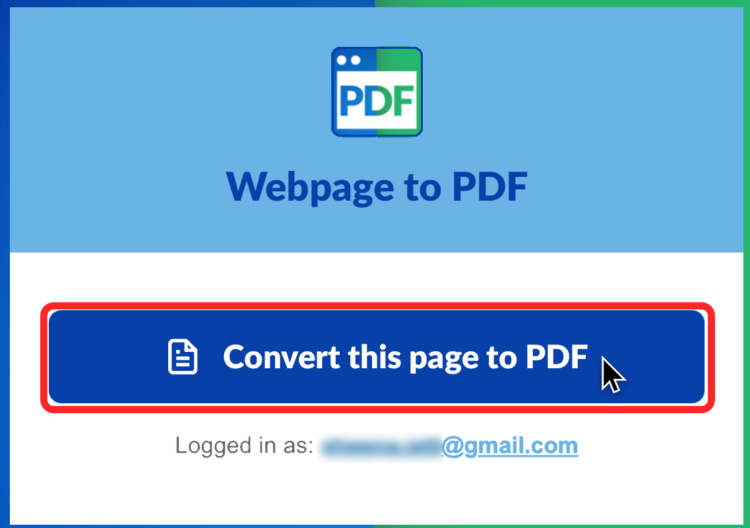
- Open or download your PDF.
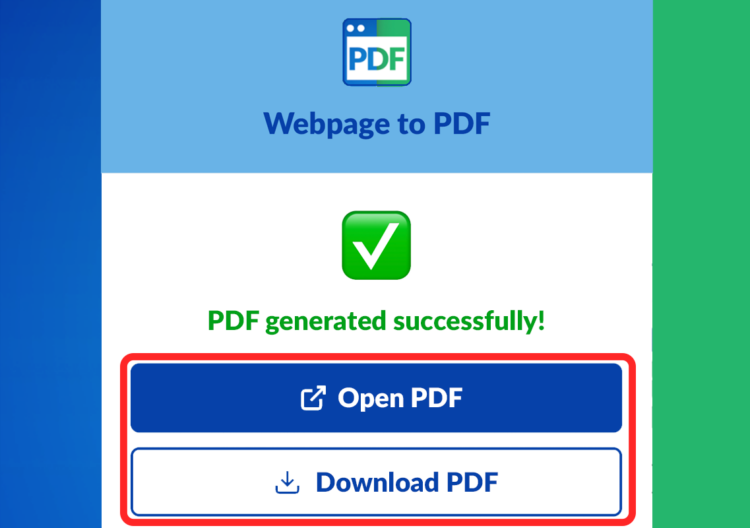
- Your clean, formatted PDF is ready to use. A copy of your PDF will also automatically be stored in your Google Drive for safe keeping.
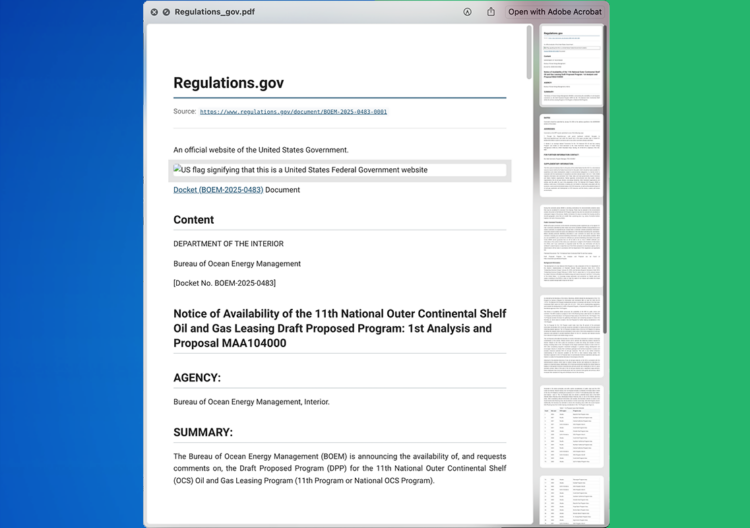

Save Webpages as Clean PDFs Without Ads, Pop-ups, or Clutter
Webpage to PDF automatically removes distracting elements from the page before converting. You get a clean, readable PDF that includes only the content you care about.
What gets removed:
- Advertisements and banner ads
- Pop-up windows and overlays
- Cookie consent banners
- Sidebars and navigation menus
- Social media widgets
What gets preserved:
- Article text and headings
- Images and graphics
- Tables and data
- Links (clickable in the PDF)
- Original formatting and layout
The result is a professional-looking PDF that you can share with colleagues, save for compliance, or reference later without distractions.
Who Uses Webpage to PDF?
- Researchers and students use it to save articles and academic sources for citations. When a link breaks months later, they still have the original content.
- Legal and compliance teams rely on it to preserve contracts, terms of service, and policy documents. When you need a paper trail, a PDF beats a bookmark.
- Sales and marketing professionals save competitor pages, pricing info, and campaign examples. It is easier to share a clean PDF than a cluttered link.
- Customer support teams use it to document web content, capture error pages, and save confirmation screens for troubleshooting.
- Anyone who browses the web can benefit. Recipes, travel itineraries, receipts, event confirmations, anything you might need later is worth saving as a PDF.
Frequently Asked Questions
1. How do I convert a webpage to PDF?
Install the Webpage to PDF Chrome extension, navigate to any webpage, right-click, and select “Save as PDF.” Your clean PDF is ready in seconds.
2. Can I save the PDF directly to Google Drive?
Yes. Webpage to PDF lets you save directly to Google Drive with one click, and you can download it instantly to your hard drive as well.
3. Does the PDF include ads and pop-ups?
No. Webpage to PDF automatically removes ads, pop-ups, banners, and other clutter. You get only the content you need.
4. Can I convert a website to PDF on any browser?
Webpage to PDF currently works on Google Chrome or Microsoft Edge. Install the extension from the extension to get started.
5. Is Webpage to PDF free?
Yes. The extension is free to install and use. Premium features are available for advanced users.
6. What’s the difference between web to PDF and printing to PDF?
Printing to PDF from your browser includes all the clutter: ads, sidebars, and broken formatting. Webpage to PDF removes distractions and preserves only the clean, readable content.
A Smarter Way to Save Web Content
Webpages are temporary. PDFs are permanent. Every time you find something valuable online, you risk losing it if you don’t save it properly.
Webpage to PDF makes it easy to convert any webpage to a clean, formatted PDF in one click. No ads. No pop-ups. No clutter. Just the content you need, saved exactly as it appears.
Stop bookmarking pages that might disappear. Start saving them as PDFs you can keep forever.
Try it today at www.webpage-to-pdf.com