

Google Drive makes file sharing incredibly easy. That is exactly why people love it.
But when a file contains sensitive information, easy sharing can become risky sharing.
A regular file link can be copied, forwarded, saved, reopened, or sent to someone you never meant to include. That might be fine for a lunch menu or a public flyer. It is not fine for a direct deposit form, tax document, contract, payroll file, legal document, Excel spreadsheet, Word document, or confidential PDF.

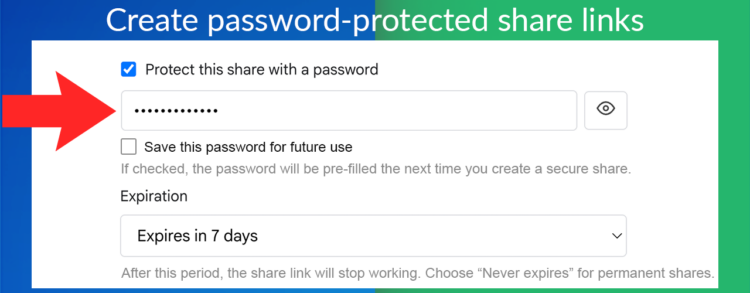
According to Verizon’s 2024 Data Breach Investigations Report, the human element was involved in 68% of breaches. That includes mistakes, misuse, stolen credentials, and social engineering. In plain English: many security problems do not start with a hacker. They start with someone sharing the wrong thing, with the wrong person, in the wrong way.
You can read the Verizon report here: 2024 Data Breach Investigations Report.
That is why password protected file sharing matters.
With Secure Document Sharing by cloudHQ, you can password protect Google Drive files, set expiration dates, restrict access by location, track downloads, and manage shares after you send them.
The goal is simple: make file sharing easy for the right person, and harder for everyone else.
Table of Contents
- What Is Password Protected File Sharing?
- Why Regular File Links Are Risky
- How Password Protection Helps
- How to Password Protect Any Google Drive File
- Password Protect a PDF, Excel File, or Word Document
- Why Expiration Dates Matter
- Why Download Tracking Matters
- Secure File Sharing Tips
- Who Should Use Secure Document Sharing?
- Frequently Asked Questions

What Is Password Protected File Sharing?
Password protected file sharing means the link alone is not enough to open the file.
The recipient also needs the password you provide.
That extra step matters because links are easy to forward. A password gives you another layer of control, especially when the file contains private, legal, financial, employee, or customer information.
Secure Document Sharing by cloudHQ lets you create password protected share links for files stored in Google Drive. You can use it for PDFs, Excel files, Word documents, Google Docs, Google Sheets, forms, reports, contracts, HR files, payroll records, and more.
You can use it to:
- Password protect Google Drive files
- Create secure share links
- Set expiration dates
- Restrict access by location
- Track downloads
- Manage active shares
- Pause or revoke access when needed

Why Regular File Links Are Risky
Regular file links are built for speed. Secure file sharing is built for control.
The difference matters because a shared link can travel much farther than expected.
Here is a very normal example:
- You send a financial document to one client.
- The client forwards it to an assistant.
- The assistant forwards it to an accountant.
- Someone saves the email thread.
- The file link still works weeks or months later.
No one hacked anything. No one meant to create a problem. But the document quietly moved outside the original audience.
The Federal Trade Commission advises businesses to know what personal information they have, where it is stored, who has access to it, and how it is protected. That same idea applies to shared files. If you do not know where a document can go, you cannot fully control its risk.
Read the FTC’s business guide here: Protecting Personal Information: A Guide for Business.
Simple trick: before you send a file, ask yourself, “Would I be comfortable if this link was forwarded to three more people?” If the answer is no, use password protection.
How Password Protection Helps
Password protection adds a second gate between the file link and the document itself.
Without a password, anyone who can open the link may be able to access the file, depending on the sharing settings. With password protection, the link alone is not enough.
This is useful because links and passwords can be sent separately.
For example, you can send the secure file link by email and send the password by text, phone, or a separate message. That way, if the email is forwarded, the file still has another layer of protection.
A password is not magic. A weak password can still be guessed or shared. But a strong password can meaningfully reduce accidental access.
The National Institute of Standards and Technology recommends allowing longer passwords and passphrases instead of forcing confusing character rules. Longer passwords are usually easier for people to remember and harder for others to guess.
Read NIST’s password guidance here: NIST Digital Identity Guidelines.
Simple trick: use a passphrase instead of a tiny password. Something like green invoice folder 82 is easier to type than random symbols and harder to guess than a short word.
How to Password Protect Any Google Drive File
Secure Document Sharing works directly from Google Drive, so you do not need to move your files into a different system.
Here is how to password protect a Google Drive file:
- Open Google Drive.
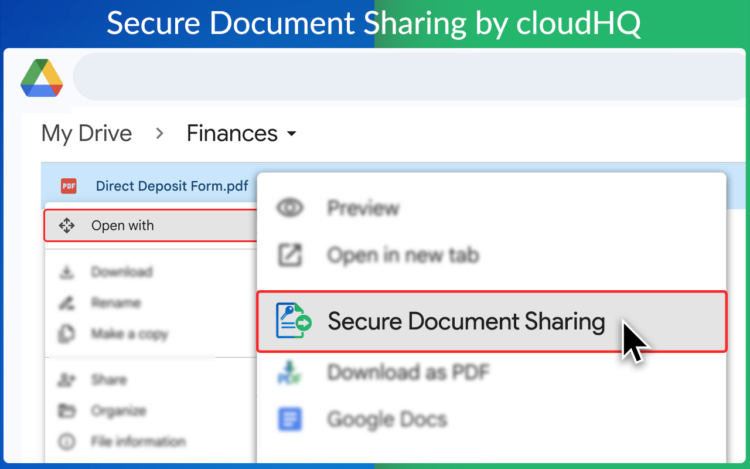
- Right click the file you want to share securely.
- Choose Open with.
- Select Secure Document Sharing.
- Add a password.
- Set an expiration date if the file should not stay available forever.
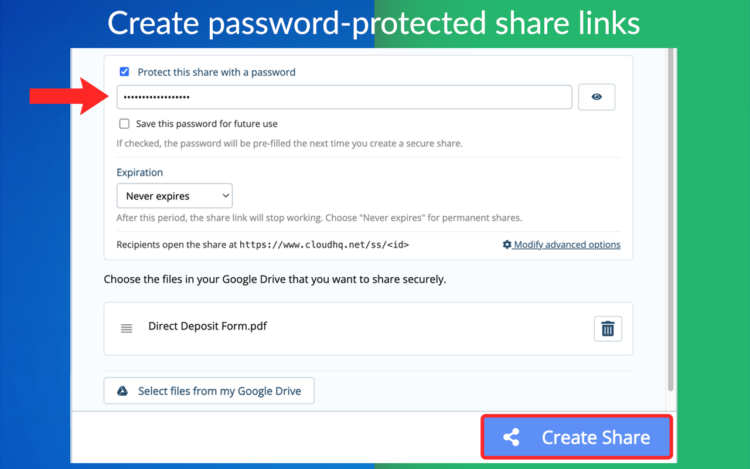
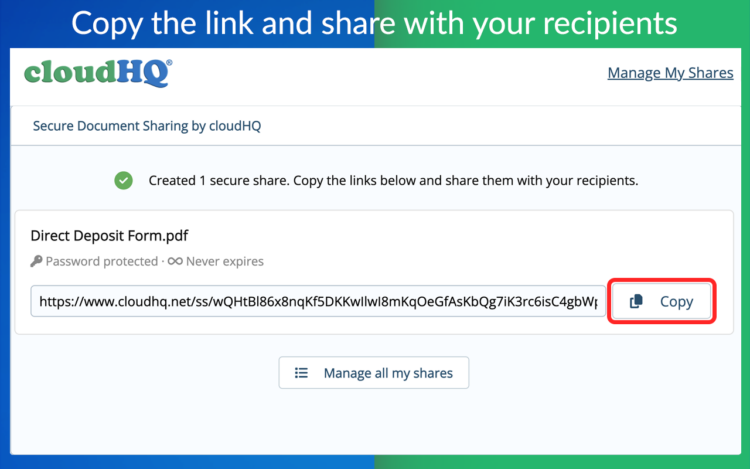
- Create the secure share link.
- Copy the link and send it to your recipient.
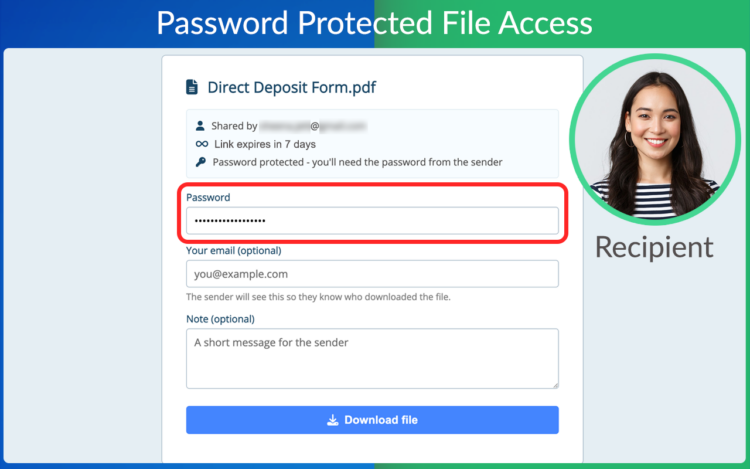
Your recipient opens the secure link and enters the password you provide. No additional software is required.


Password Protect a PDF, Excel File, or Word Document
People often search for different versions of the same question:
- How do I password protect a PDF?
- How do I password protect an Excel file?
- How do I password protect a Word document?
- How do I password protect a file in Google Drive?
The answer depends on what you want to protect.
If you only protect the file itself, you may need to edit settings inside Acrobat, Excel, Word, or another desktop app. That can be useful, but it can also be slow, inconsistent, and confusing when you work with many file types.
Secure Document Sharing protects the sharing link instead. That means you can use one simple workflow for many Google Drive files, including PDFs, Excel files, Word documents, Google Docs, Google Sheets, and more.
This is helpful when you need a fast way to share sensitive documents without opening each file in a separate program.
Simple trick: if you are sharing a file with someone outside your company, protect the share link even if the file itself already has some protection. Layered controls are safer than relying on one setting.
Why Expiration Dates Matter
One of the most overlooked security risks is old access.
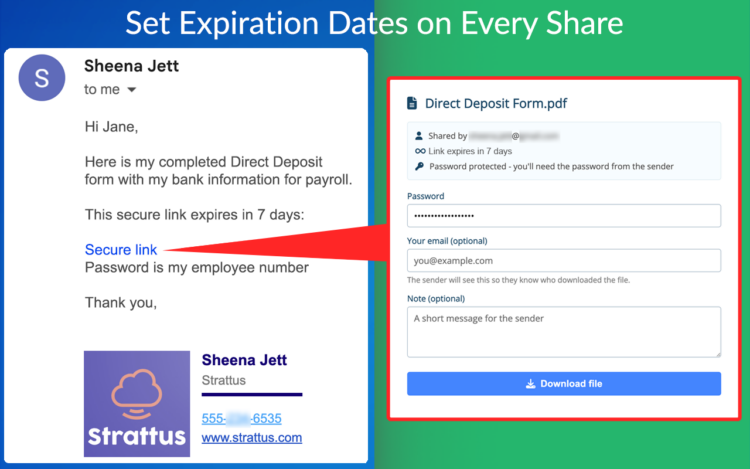
A file may only need to be available for a few days, but the link can remain active much longer than necessary. That creates unnecessary exposure.
Expiration dates help solve this by making access temporary.
This is especially useful for:
- Contract review
- Payroll forms
- Tax documents
- Client onboarding files
- Vendor paperwork
- Legal documents
- Financial reports
- Time sensitive proposals
A good rule: if the recipient does not need the file forever, the link should not work forever.
Why Download Tracking Matters
Download tracking gives you visibility after the file is shared.
That matters because the real question is not only “Did I send the file?”
The better questions are:
- Was the file opened?
- Was it downloaded?
- When did access happen?
- Where was it opened from?
- Should the share still be active?
- Should access be paused or revoked?
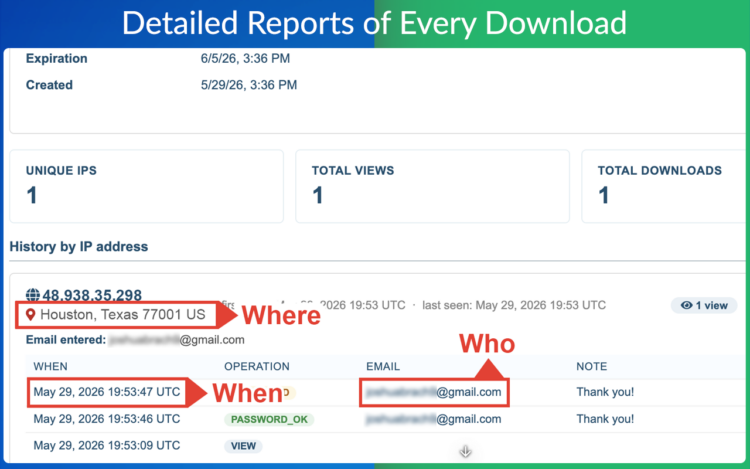
For sensitive files, visibility is part of security. It gives you a better record of what happened after the document left your Drive.
Stay in control after you share. Track downloads, monitor access locations, and update or pause access whenever you need to.
Secure File Sharing Tips
Here are a few simple habits that make secure document sharing much stronger.
1. Send the password separately
Do not send the link and password in the same message if the file is highly sensitive. Send the link by email and the password through another channel.
2. Use longer passphrases
Longer passwords are usually better than short complicated ones. Use a phrase that is easy for the recipient to type but hard for others to guess.
3. Set expiration dates by default
If a file only needs to be reviewed this week, do not leave access open for months.
4. Review active shares
Old shared links are easy to forget. Make it a habit to review active shares and remove access when it is no longer needed.
5. Avoid personal email addresses for business documents
Whenever possible, share sensitive business files with verified work email addresses, not personal inboxes.
6. Be careful with files that contain personal information
Names, addresses, phone numbers, Social Security numbers, bank details, medical information, payroll data, and tax documents should always be handled with extra care.
7. Match the protection to the risk
A public brochure may not need a password. A direct deposit form absolutely should.
Who Should Use Secure Document Sharing?
Secure Document Sharing is useful for anyone who shares sensitive files from Google Drive.
Legal teams
Share contracts, settlement documents, case files, agreements, and confidential paperwork with stronger access control.
Finance and accounting teams
Share tax forms, payroll files, invoices, bank documents, financial statements, and reports with password protection and expiration dates.
Human resources
Share employee documents, offer letters, onboarding paperwork, internal policies, identity files, and salary information more securely.
Real estate professionals
Share leases, applications, disclosures, inspection reports, purchase documents, and client records with controlled access.
Healthcare and wellness offices
Share intake forms, billing documents, patient records, and administrative files with extra protection.
Consultants and small businesses
Share proposals, client reports, contracts, project files, and confidential business documents without relying on ordinary links alone.
Frequently Asked Questions
How do I password protect a Google Drive file?
Right click your file in Google Drive, choose Open with, and select Secure Document Sharing. Then add a password, set your access options, and create a secure share link.
Can I password protect a PDF in Google Drive?
Yes. Secure Document Sharing lets you create a password protected share link for a PDF stored in Google Drive.
Can I password protect an Excel file in Google Drive?
Yes. You can use Secure Document Sharing to create a password protected share link for Excel files stored in Google Drive.
Can I password protect a Word document in Google Drive?
Yes. You can create a secure share link for Word documents and require recipients to enter a password before accessing the file.
Can I set an expiration date on a shared file?
Yes. You can set an expiration date so the secure link stops working after a selected period of time.
Why is a password protected link safer than a regular link?
A regular link may be opened by anyone who has access to it, depending on the sharing settings. A password protected link adds another step, so the link alone is not enough to open the file.
Should I send the password in the same email as the link?
For highly sensitive files, it is better to send the password separately. For example, send the link by email and the password by text or phone.
Can I track downloads?
Yes. Secure Document Sharing lets you track downloads, review access details, and manage active shares.
Can I pause or revoke access later?
Yes. You can manage active shares and pause or remove access when a file should no longer be available.
Do recipients need special software?
No. Recipients open the secure link and enter the password you provide.
Start Password Protecting Google Drive Files
Google Drive makes sharing fast. Secure Document Sharing makes it safer.
Secure Document Sharing by cloudHQ helps you password protect PDFs, Excel files, Word documents, Google Drive files, and other sensitive documents before you share them.
Use it when a regular sharing link is not enough.