

Google Drive makes sharing files easy. That is exactly why so many teams use it for white papers, reports, checklists, brochures, and other downloadable content.
The problem is that a regular Google Drive link gives you almost no information about who downloaded the file. You also lose control once the link is forwarded.
Secure Document Sharing by cloudHQ turns that same Google Drive file into a lead generation tool. You create a secure link, place it on your website, Linktree, email signature, or social profiles, and require the visitor to enter their email (and a password if you want) before they can download the file. Every download becomes a potential lead you can see in your dashboard.

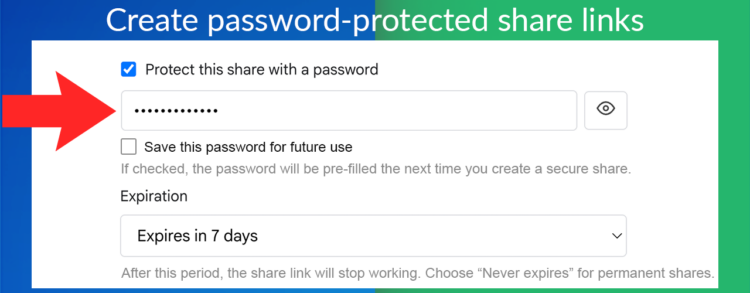
Table of Contents
Why Use Secure Document Sharing for Lead Generation?
When you share a valuable document the usual way, you give away the content and hope people will remember to contact you later. With a gated secure link you get:
- The visitor’s email address before they receive the file
- A clear record of who downloaded what and when
- The ability to set an expiration date so the offer does not live forever
- Full control to pause or delete the share at any time
This works especially well for:
- White papers and research reports
- Free templates and checklists
- Product brochures and one-pagers
- Case studies
- Webinar follow-up materials
- Pricing sheets or proposal samples
You can put the secure link on a Linktree, a landing page, a website resource library, or even in your email signature.
How to Turn a Google Drive File into a Lead Magnet
Here is the full process from start to finish:
- Install Secure Document Sharing from the Google Workspace Marketplace.
- Open Google Drive and right-click the file you want to use as a lead magnet.
- Choose Open with → Secure Document Sharing.
- Add a password if you want an extra layer of control (optional).
- Set an expiration date so the offer automatically ends.
- Create the secure share link.
- Copy the link and place it on your website, Linktree, landing page, or social bio.
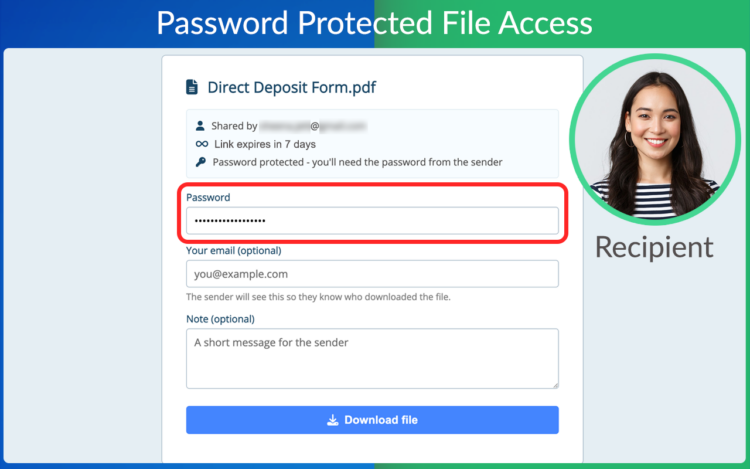
When a visitor opens the link they enter their information (and the password if you required one). They then receive the file, and you receive a new lead plus detailed activity data in your dashboard.
Watch the short walkthrough below to see the process in action:

Video Transcript
cloudHQ Secure Document Sharing add-on lets you password-protect and securely share any file directly from Google Drive. Add a password to any file, add an expiration date, and create a secure share link in seconds. Share it anywhere. Send it by email, add it to your website, or send it in a chat. When someone opens your link, they enter the password and provide their information before accessing the file. And when you go to your dashboard, you can monitor downloads and review detailed activity reports. When you click on the info button, you can see who accessed your file, when it was opened, and where it was accessed from. Sharing a white paper, report, brochure, or other downloadable content? Every download can help you identify interested prospects and generate qualified leads. Whether you’re sharing sensitive documents or collecting leads from downloadable content, secure document sharing helps you stay in control. Try secure document sharing for Google Drive by cloudHQ, available on the Google Workspace marketplace. Share smarter today. cloudHQ, helping your productivity, one click at a time. Don’t forget to hit the like and subscribe button if you want to know about all the latest apps that make you more productive at work.
This is what the visitor sees when they open your secure link and are asked to provide their information before downloading the file:

Tracking and Follow Up
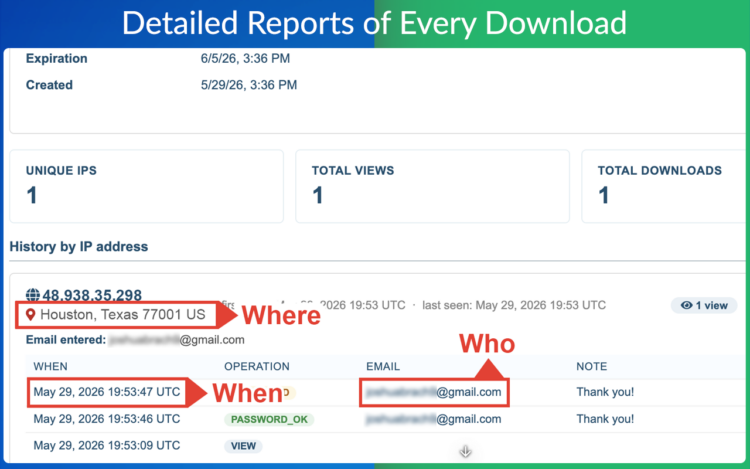
After the file is shared you are not left in the dark. The dashboard shows:
- Who downloaded the document
- When the download happened
- Location information
- The ability to pause or permanently delete the share
This turns a simple document download into a measurable lead generation activity. You know which resources are performing and you have the contact details of the people who found them valuable enough to request.
Practical Tips for Lead Generation
- Place the secure link on a dedicated landing page or in your Linktree under a clear call to action such as “Download the free guide”.
- Use a short, memorable password if you decide to require one, or skip the password and rely only on the email capture.
- Set an expiration date that matches the campaign length.
- Review the activity reports regularly so you can follow up with the most engaged people.
- Combine the download with a short thank-you email sequence once the lead is captured.
Who This Works Especially Well For
- Marketing teams running content upgrades
- Consultants and coaches offering free resources
- SaaS companies sharing product guides or templates
- Agencies providing checklists or frameworks
- Anyone who currently shares valuable files via regular Google Drive links and wants better visibility and lead data
Frequently Asked Questions
Can I collect email addresses with this tool?
Yes. When someone opens your secure link they can be asked to provide their information before accessing the file. That information appears in your activity reports.
Can I use this with Linktree or my website?
Yes. Create the secure link and place it anywhere you normally share links: Linktree, website resource pages, landing pages, email signatures, or social bios.
Do I have to use a password?
No. You can require only the visitor’s information, or you can add a password for extra control.
Can I set an expiration date?
Yes. You can make the download link stop working after a chosen date so the offer does not stay open indefinitely.
Can I see who downloaded the file?
Yes. The dashboard shows who accessed the file, when it was opened, and related activity details.
Can I pause or delete a share later?
Yes. You can pause or permanently remove access at any time from your dashboard.
Start Generating Leads from Your Google Drive Files
You already create useful documents. Secure Document Sharing lets you turn those documents into a controlled lead generation channel without leaving Google Drive.
Create a secure link, put it on your website or Linktree, and start collecting the emails of people who actually want what you are offering.
Try Secure Document Sharing by cloudHQ — available on the Google Workspace Marketplace.
cloudHQ. Helping your productivity one click at a time.