
cloudHQ

Helping your productivity, 1 click at a time.

  • LinkedIn
  • Facebook
  • Twitter
Log in Sign up
MENUMENU
  • Home
  • Featured Apps
    • Export Emails to Google Sheets
    • Export Emails to Google Docs
    • Gmail Email Templates
    • Save Emails To PDF
    • Multi Email Forward
    • Email Campaigns and Mail Merge
  • Productivity
    • Auto Follow Up for Gmail
    • AutoBCC for Gmail
    • Email Signature Generator
    • Free Email Tracker
    • Free HTML Editor for Gmail
    • Free Screencast recording for Gmail
    • Gmail Label and Email Sharing
    • Gmail Phone
    • Gmail Screenshot
    • Gmail SMS Text Alerts
  • Google Workspace
    • Gmail
    • Google Apps
    • Google Docs
    • Google Sheets
    • Google Slides
    • Google Drive
    • Google Shared Drives
    • Google Contacts
  • Categories
    • Artificial Intelligence
    • Cloud Computing
    • Dropbox
    • Education
    • Egnyte
    • Google Chrome Web Store
    • More ...

Bulk Email Reply in Gmail: Reply to Multiple Emails at Once

cloudHQ ·
How to Reply to Multiple Emails at Once in Gmail Using Bulk Email Reply


Table of Contents

  1. Key Stats: Why Responding at Scale Improves Results
  2. The Real Problem: Inbox Overload
  3. Meet Bulk Email Reply by cloudHQ
  4. How to Reply to Multiple Emails at Once in Gmail
  5. Automated Replies That Still Feel Human
  6. A Better Way to Manage Email Replies


Get Bulk Email Reply by cloudHQ button to install the Gmail extension

How to Reply to Multiple Emails at Once in Gmail Using Bulk Email Reply Video Transcript

This video shows how to reply to multiple emails at once in Gmail using Bulk Email Reply by cloudHQ. Most professionals receive too many emails to answer by hand. Replying one email at a time wastes hours each week and slows down customer responses. Bulk Email Reply lets you select up to one hundred emails and respond to all of them in a single action.

To begin, go to your Gmail inbox and check the messages you want to respond to. Then click the Bulk Email Reply button. A new reply window opens, and you write one message that applies to all the selected conversations. You can choose to keep the same reply for everyone or turn on AI personalization. AI helps rewrite the message so that each reply matches the content from the original sender, while you stay in control of tone and instructions.

Bulk Email Reply allows you to save every generated reply in the Gmail Drafts folder so you can review them before sending. This ensures that each message remains helpful and accurate. When ready, click send, and Gmail delivers each reply as if it were written one at a time.

With this tool, teams can quickly respond to new leads, support tickets, customer questions, and job applicants. The result is faster communication, better customer satisfaction, and more time to focus on high value work instead of repetitive writing. Bulk Email Reply works directly inside Gmail and does not require learning a new platform. This is a simple and efficient way to handle email overload and keep inbox backlog under control.

Install Bulk Email Reply today and start replying to multiple emails at once in Gmail with personalized, human replies that save hours every week. Learn more at bulk-reply.com.

Key Stats: Why Responding at Scale Improves Results

  • Daily email volume is expected to reach 376 billion messages in 2025.
  • Gmail is responsible for more than one third of global email traffic.
  • The typical office worker receives around 117 to 121 emails every day.
  • Email consumes up to 28 percent of a standard workweek, which is more than a full day spent inside the inbox.
  • Many important emails never receive a reply, often because people do not have enough time.
  • cloudHQ research shows that unread emails increase stress and reduce productivity levels.

Source: Workplace Email Statistics Report

The Real Problem: Inbox Overload

Email is still the primary communication channel in business. Sales leads, support requests, job applicants, and partner inquiries all arrive in Gmail. Replying manually is slow and repetitive, especially when many messages are similar. As email volume grows, response times slow down and opportunities slip away.

Most people want to reply quickly, but they simply do not have enough hours in the day. The real issue is not the messages themselves. It is the time spent rewriting the same answers over and over.

Bulk email replies inside Gmail solve this efficiency problem. You can respond to multiple emails at once while ensuring that each person receives a message that feels personal.

Meet Bulk Email Reply by cloudHQ

Bulk Email Reply is a Gmail extension that allows you to reply to many emails at once in a single action. It is built for people with busy inboxes who still want to maintain a personal and friendly tone in communication.

  • Reply to up to one hundred emails at the same time
  • Use AI prompts to personalize each reply based on the original message
  • Send replies immediately or save them in Drafts to review first
  • Use professional email templates
  • Automatically BCC email replies to your CRM

The extension works directly inside Gmail. There is nothing new to learn and no new interface to manage. It simply makes Gmail more efficient.

Support documentation is available here: Getting Started With Bulk Email Reply

How to Reply to Multiple Emails at Once in Gmail

  1. Install Bulk Email Reply on Google Chrome or Microsoft Edge
  2. Select up to 100 emails in your Gmail inbox
  3. Click the Bulk Email Reply button
  4. Write the reply you would normally send
  5. Choose to apply AI personalization or keep the same message for everyone
  6. Send immediately, or save each reply as drafts to review before sending
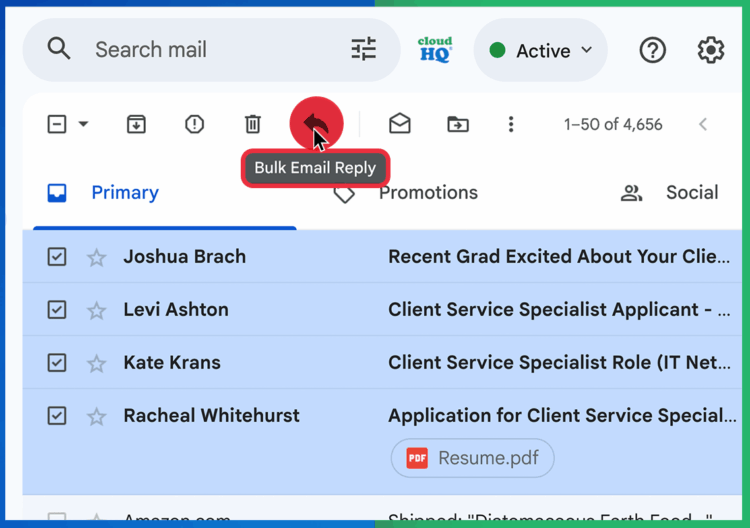
Selecting multiple emails inside Gmail to reply all at once using Bulk Email Reply by cloudHQ
AI prompt interface showing personalized replies inside Gmail with Bulk Email Reply by cloudHQ
Draft replies button visible in Gmail using Bulk Email Reply by cloudHQ to review responses before sending

Automated Replies That Still Feel Human

Bulk Email Reply lets AI help without replacing your judgment. You decide what the reply should say and the style it should use. AI simply adjusts the message to match the context of each email.

Prompt example:

Answer the email. The answer should start with nice welcome and thanks. Be polite and very nice. 

Follow these rules:

* If it is about product info, answer with that information
* If it is about pricing, share the pricing page and offer help choosing a plan
* If it is a support request, offer help and ask for details
* If the email is not question about product, about pricing or not a support request, then politely ask for more information.
* Keep the message friendly and clear
* Use simple English

All replies appear in your Drafts folder if you choose to review them. You stay in control at every step.

Frequently Asked Questions

1. Will people notice that my replies are automated?
No. Each reply is sent from your own Gmail account as if you wrote it yourself. AI can personalize replies based on each email so that every message feels natural.

2. Do I get to review the replies before sending?
Yes. You can save all replies in your Drafts folder to approve or edit them before anything goes out.

3. Is Bulk Email Reply safe to use inside Gmail?
Yes. It works with Gmail in a secure way and does not store your email content. It simply helps you write and send replies faster.

A Better Way to Manage Email Replies

Email will continue to grow as a communication channel. Teams that respond quickly build stronger relationships and close more opportunities.

Bulk Email Reply helps you respond faster while still sounding personal and helpful. The tool removes repetitive writing so you can focus on the conversations that matter most.

Try it with just ten similar emails and feel the difference. Learn more at www.bulk-reply.com

Posted On: 12/8/2025By: Naomi Assaraf

Filed Under: Bulk Email Reply

View AMP version

Footer

cloudHQ Backup, Migration & Sync
cloudHQ Backup, Migration & Sync product can sync, back up, copy, migrate, convert, and replicates data between different cloud service providers.
GET STARTED
cloudHQ Apps

We all hate email, but still, spend most of our day there. Because of that, we created over 60 Gmail productivity tools to help keep you be productive in the email.
All cloudHQ Apps
Contact Us
  • Contact
  • Terms Of Service
  • Privacy
  • Security
  • Table of Content
Subscribe
©2026 cloudHQ - All Rights Reserved.

Categories

  • Amazon S3 (5)
  • Artificial Intelligence (33)
  • Auto Follow Up for Gmail (1)
  • Cloud Computing (213)
  • cloudHQ Apps (450)
    • Attach and Embed YouTube Video in Gmail (2)
    • Auto Follow Up for Gmail (6)
    • auto gmail follow up (4)
    • AutoBCC for Gmail (8)
    • Bulk Email Reply (1)
    • chatgpt for Gmail (13)
    • ChatGPT for Google (1)
    • ChatGPT Sidebar (2)
    • Combine Files to PDF (1)
    • Convert Google Docs To Gmail Drafts (1)
    • Convert PDF to MS Word (2)
    • Display Email Time by cloudHQ (1)
    • Download as PDF (1)
    • Email List Builder (20)
    • Email Privacy Protector: Is My Email Tracked? (4)
    • Email Reply Status (1)
    • Email Sender Icons (1)
    • Email Signature Generator (20)
    • Email Templates for Outlook and Gmail (14)
    • Email Tracking Blocker (2)
    • Email Zoom text Reader (2)
    • Export Emails to Google Docs (7)
    • Export Emails to Google Sheets (58)
    • Formatted Email Subject Lines (4)
    • Free Email Tracker (20)
    • Free HTML Editor for Gmail (3)
    • Free Mail Tracker (5)
    • Free Pause Gmail (4)
    • Free Screencast recording for Gmail (11)
    • Get My Receipts (2)
    • Gmail Auto Label (4)
    • Gmail Button (5)
    • Gmail Conversation Thread Reversal (1)
      • Gmail conversation view (1)
    • Gmail Copilot (8)
    • Gmail Email Links (3)
    • Gmail Email Templates (89)
    • Gmail Free Online Polls & Surveys by cloudHQ (4)
    • Gmail Inbox Zero (1)
    • Gmail Label and Email Sharing (25)
    • Gmail Message Preview (1)
    • Gmail Notes (3)
    • Gmail Phone (2)
    • Gmail Screenshot (13)
    • Gmail SMS Text Alerts (13)
    • gmail snippets (2)
    • Gmail Tables (3)
    • Gmail Tabs (5)
    • Gmail Time Tracker (3)
    • Gmail URL Link Preview (5)
    • Gmail Web Clipper (1)
    • Google Docs Templates (15)
    • Google Forms Templates (2)
    • Google Slides Theme Templates (1)
    • Happy Mother's Day Cards (5)
    • Highlight Emails in Gmail (1)
    • Hubspot Templates in Gmail (1)
    • MailKing Email Campaigns and Mail Merge (67)
    • mailking: send mass text from email text message SMS marketing campaigns (16)
    • mailto: (1)
    • meeting scheduler (32)
    • Multi Email Forward (8)
    • Multi Email Forward for Gmail (21)
    • Resize Gmail Sidebar (2)
    • save and backup my emails (1)
    • Save Emails To Box (2)
    • Save Emails To Dropbox (3)
    • Save Emails To Egnyte (3)
    • Save Emails To Google Drive (8)
    • Save Emails To OneDrive (2)
    • Save Emails To OneDrive Business (2)
    • Save Emails To OneNote (2)
    • Save Emails To PDF (43)
    • Save Emails To Salesforce (3)
    • Save Emails To SharePoint (6)
    • Save My Email (1)
    • Save My Emails (3)
    • Send Your Email to SMS (text) (6)
    • Share & Attach Files In Gmail (2)
    • Simple email view (4)
    • Sort Gmail inbox by (5)
    • Sync Google Drive With Dropbox (3)
    • Sync Salesforce Contacts To Google (2)
    • Tiny Sketchbook (3)
    • Unique URL Links for Email Conversations (4)
    • Valentines Day (2)
    • Video Email (9)
    • webspage to pdf (1)
  • cybersecurity (1)
  • Dropbox (73)
  • Education (8)
  • Egnyte (9)
  • Email Templates Gmail (4)
  • Email Templates Outlook (4)
  • Google Chrome Web Store (4)
  • Google Sheets Templates (3)
  • Google Workspace (195)
    • Gmail (69)
    • Google AI (3)
    • Google Apps (40)
    • Google Contacts (1)
    • Google Docs (56)
    • Google Drive (73)
    • Google Shared Drives (1)
    • Google Sheets (17)
    • Google Slides (9)
  • Happy Easter Cards (1)
  • HTML editor for Google Drive (1)
  • Microsoft 365 (3)
  • microsoft sharepoint (2)
  • Mobile Text Alerts for Gmail (1)
  • Outlook Email Templates (4)
  • Productivity (1)
  • technology (1)
  • Text Editor for Google Drive (1)