Chasing files through email is a losing game. Attachments get buried, clients send the wrong versions to the wrong thread, and you spend your afternoon downloading and refiling documents that should have landed in the right folder on their own.
File Request for Google Drive by cloudHQ ends the chase. You collect files from clients, vendors, students, or applicants directly in Google Drive: they upload through a simple page with no login required, and every file lands in your Drive, automatically organized.
Video transcript
Stop chasing files in your cluttered inbox. It’s time to bring file requests directly into your Google Drive. Introducing File Request for Google Drive by cloudHQ. Generate a secure upload link instantly from inside any Google Drive folder. Simply name your file request and then create a link to your folder. Share that link with whoever you want a file from like: clients, vendors, students, or applicants. No login required for them, just a simple upload page. You’ll receive an email alert every time a file is uploaded. The files land directly in your Drive, automatically organized into a File Request subfolder. Zero clutter. When you click manage my file requests you’ll have the ability to monitor all files and upload activity, including IP addresses and timestamps. Manage every file request from one place. Try File Request for Google Drive by cloudHQ today. cloudHQ. Helping your productivity, 1 click at a time.

Table of Contents
How to Collect Files From Clients in Google Drive
The whole setup takes under a minute, and it happens inside the Drive folder where you want the files to end up:
-
- In any Google Drive folder, click New > More > File Request.
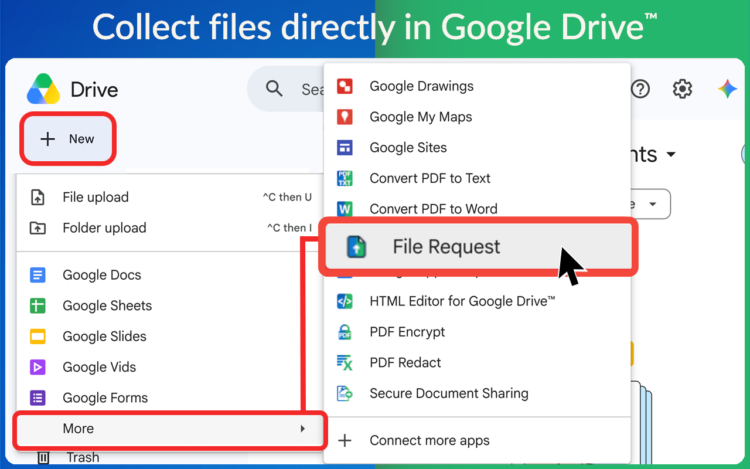
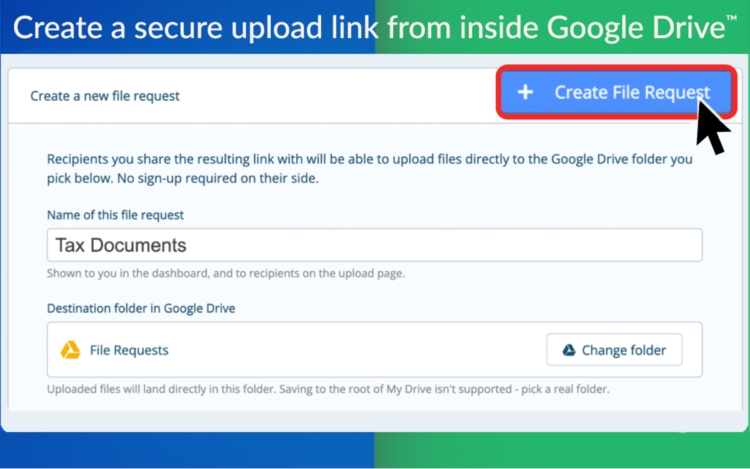
- Name your file request, for example “Tax Documents,” and click Create file request.
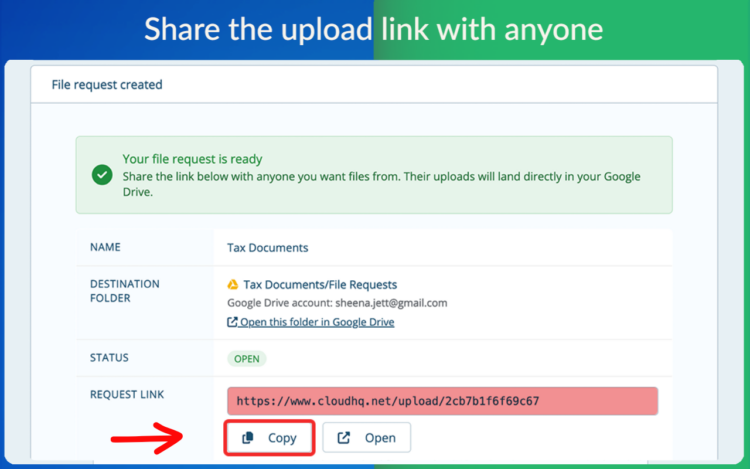
- Copy the link and share it with anyone you need files from.
- In any Google Drive folder, click New > More > File Request.
That is it. From that moment, anyone with the link can send you files, and everything they send flows straight into your Drive.
No Login Required for the People Sending Files
Here is the part your clients will thank you for: they do not need a Google account, a password, or any login at all. The link opens a simple upload page. They pick their files, upload, and they are done.
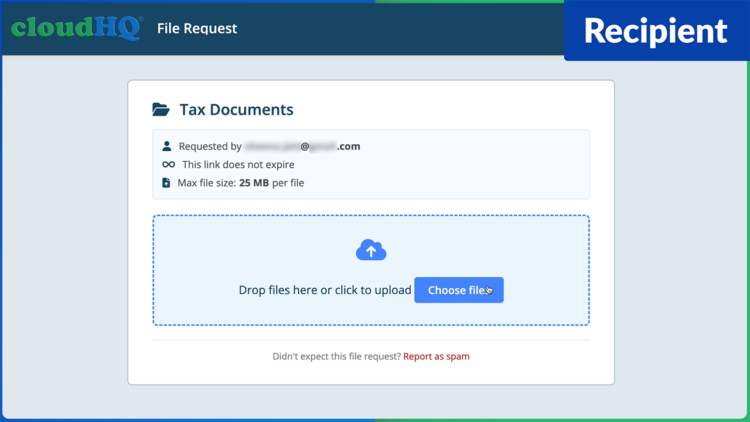
That removes the single biggest point of friction in collecting documents from clients. No “I could not sign in” emails, no walking someone’s grandmother through creating a Google account to send you one W4.
Every File Lands Organized, Automatically
Files uploaded through your link land directly in your Google Drive, automatically organized into a File Request subfolder inside the folder where you created the link. Zero clutter, zero downloading attachments and dragging them into place.
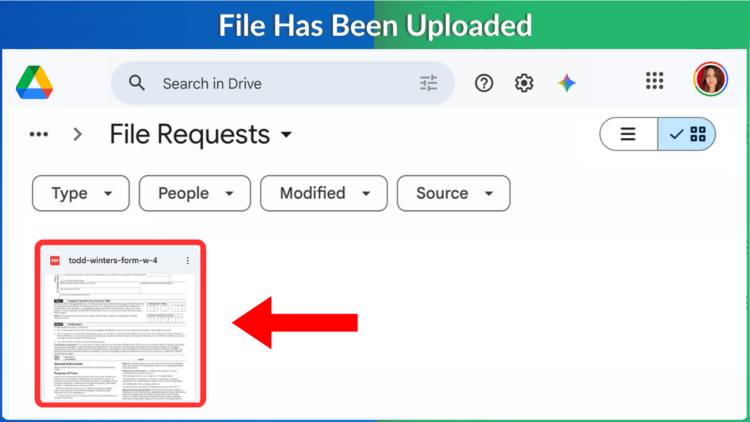
Collecting tax documents from thirty clients? Each request stays organized in its own place, and nothing ever touches your inbox as a stray attachment.
Email Alerts and a Dashboard That Tracks Everything
You will receive an email alert every time a new file is uploaded, so there is no need to keep checking the folder.
And when you click Manage my file requests, you get a central dashboard for every collection link you have created. You can monitor all files and upload activity, including useful details like IP address, upload time, and the number of files uploaded.
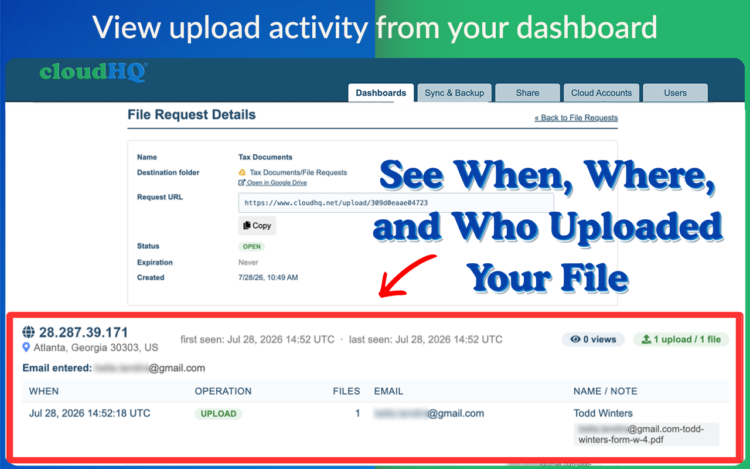
That audit trail matters when you are collecting sensitive documents: you know exactly what arrived, when, and from where.
Who Collects Files This Way
- Accountants and bookkeepers collecting tax documents from a season’s worth of clients
- HR teams gathering paperwork from applicants and new hires
- Teachers receiving assignments and projects from students
- Law and real estate offices collecting signed forms and disclosures
- Teams pulling in deliverables from vendors and contractors
If your work involves other people sending you documents, this replaces the email attachment shuffle entirely.
The Google Workspace App vs. the Gmail Extension
File Request for Google Drive is a Google Workspace app that works inside Google Drive itself: you create collection links from your folders, and files arrive in those folders.
cloudHQ also offers file collection from inside Gmail through the Chrome and Edge extensions, which is a different workflow built around your inbox. If you would rather work from Gmail with a Google Drive upload file share link, that guide covers it. This post is about the Workspace app, where everything happens from Drive.
Frequently Asked Questions
How do I collect files from clients in Google Drive? Install File Request for Google Drive by cloudHQ, open the Drive folder where you want the files, click New, select Create Upload Link, name your request, and share the link. Files your clients upload land in that folder automatically.
Do my clients need a Google account to send me files? No. The link opens a simple upload page with no login or account required. They choose their files and upload.
Where do the uploaded files go? Directly into your Google Drive, automatically organized into a File Request subfolder inside the folder where you created the link.
How do I know when someone has sent me files? You receive an email alert every time a new file is uploaded. You can also review all activity from the dashboard.
Can I track who uploaded what? Yes. The dashboard shows upload activity for every request, including IP address, upload time, and the number of files uploaded.
Can I run more than one file collection at a time? Yes. Create as many collection links as you need, in different folders, and manage them all from one central dashboard.
Is this the same as the Gmail extension? No. This is the Google Workspace app that works inside Google Drive. cloudHQ’s Chrome and Edge extensions handle file collection from inside Gmail, which is a separate workflow.
Stop Chasing Files. Start Collecting Them.
Every document you chase through email is time you are not spending on the actual work. Create a collection link in the folder where files belong, share it once, and let everything arrive organized.