If you have ever needed to convert a PDF to text for an AI tool, a document search, an audit, or just your own records, you know how painful the usual options are. PDFs do not make it easy. You can copy and paste one page at a time, but the text comes out as scattered fragments, and scanned PDFs will not let you copy anything at all. And if you are uploading PDFs to AI tools like ChatGPT or Claude, you are paying for it: a PDF can burn several times more tokens than the exact same content as plain text.
Video transcript
Did you know feeding a PDF to an AI can cost several times more tokens and money than the same text in a TXT file? That’s because PDFs aren’t true text. Words are fragmented and scanned PDFs are just images. So your AI burns extra tokens reading them and they still won’t copy, paste, or search cleanly.
Now, there’s an easy way to convert any PDF to a text file in one click. Just right-click any file in your Google Drive, go to Open With, and select Convert PDF to Text. You’ll get the option to automatically redact sensitive info and automatically keep one combined text file per folder or one for your entire Google Drive.
And when you click Convert to Text, you’ll get a lightweight text version of your PDF that’s easier to work with for AI, automation, and data processing. You’ll also get built-in OCR to extract text from scanned PDFs, photos, and screenshots.
Instantly cut down your token usage by extracting text today. cloudHQ, helping your productivity, one click at a time.

Table of Contents
- Why PDF to Text Matters for AI: Token Savings
- How to Convert Multiple PDFs to Text at Once
- How to Convert a Scanned PDF to Text with OCR
- How to Redact Sensitive Information Automatically
- Text Output Settings and Options
- Full Features List
- Why Use cloudHQ to Convert PDF to Text
- Frequently Asked Questions
Why PDF to Text Matters for AI: Token Savings
Here is the part most people do not realize. When you upload a PDF to an AI tool like ChatGPT, Claude, or Grok, the tool has to work much harder to read it than it would with plain text. A PDF is not really text: the words are broken into scattered fragments, and scanned pages are just images.
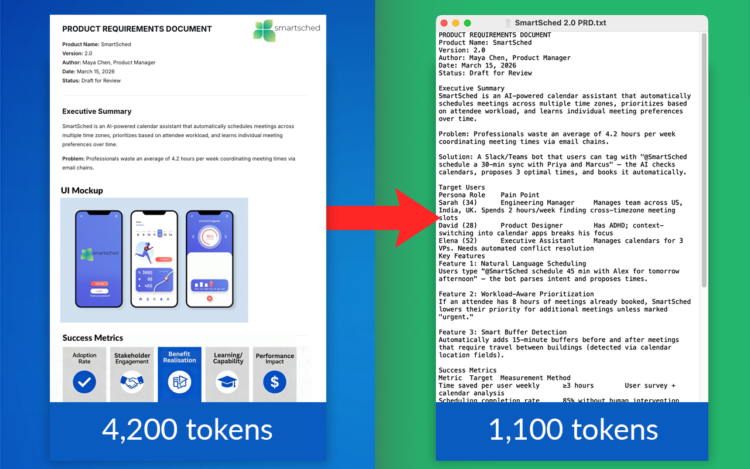
In our testing, a PDF that costs 4,200 tokens contains the same information as a plain text file that costs just 1,100. That is over 250% more tokens for identical content. Converting your PDFs to text before uploading them means faster responses, lower API costs, and far more room inside your usage limits.
How to Convert Multiple PDFs to Text at Once
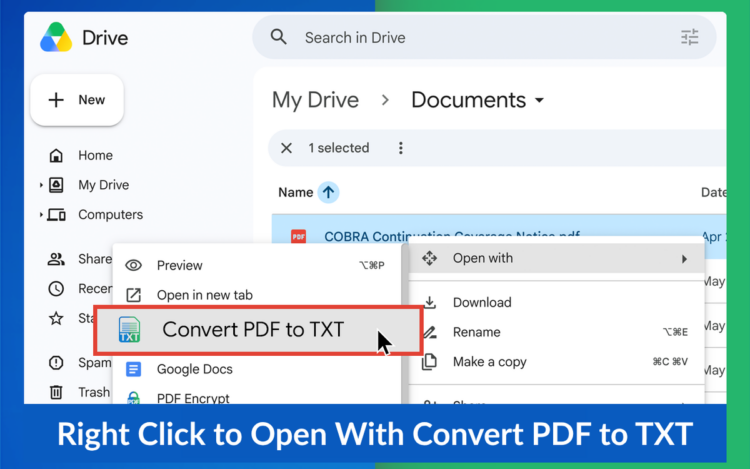
When you need to convert a batch of files, the process is the same. Select multiple PDFs, or an entire folder, and the app handles all of them in one conversion.
- In Google Drive, select the files or folder you want to convert
- Right-click and choose Open with → Convert PDF to Text
- Review your file list in the conversion dialog
- Click Convert to Text
You can also keep a combined text file that is updated automatically: one per folder containing everything converted in that folder, or one master file containing everything you have converted across your Google Drive. That means you can hand an AI tool a single TXT file that represents a whole project.
And if you only need one file, it is the exact same three clicks: right-click the PDF, choose “Open with” → Convert PDF to Text, and click “Convert to Text.” The TXT file is saved right alongside your original.
How to Convert a Scanned PDF to Text with OCR
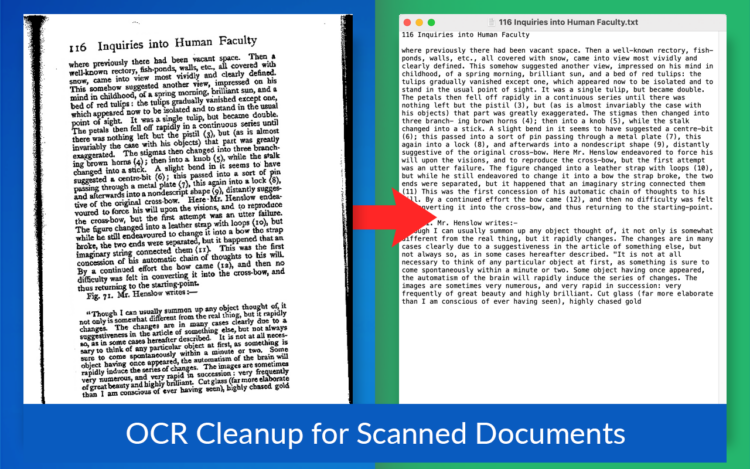
Scanned PDFs are the ones that usually stop people cold. The document looks like text, but it is really just a picture, so there is nothing to copy. Convert PDF to Text includes built-in OCR (optical character recognition) that extracts the text for you.
The process is exactly the same as any other conversion: right-click the file, open it with Convert PDF to Text, and click convert. The OCR runs automatically on scanned PDFs, photos, and screenshots. This is how you copy text from a PDF that will not let you select anything, and it works on old scans, receipts, and photographed documents too.
How to Redact Sensitive Information Automatically
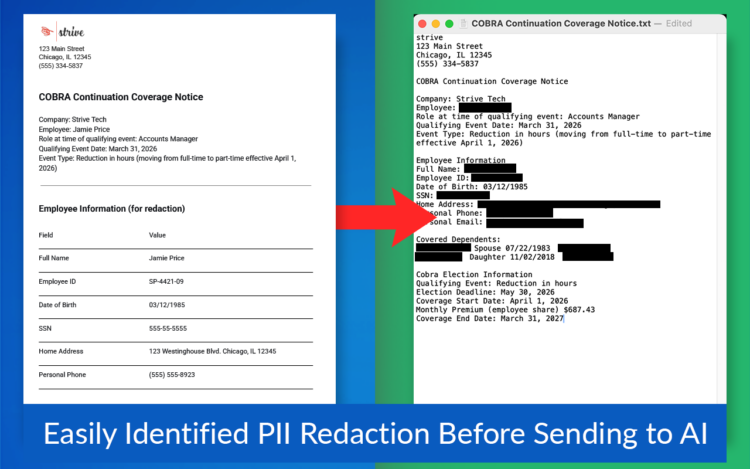
PDFs often contain personal information you do not want floating around, especially if the text is headed to an AI tool. Convert PDF to Text can automatically redact PII from the extracted text before you ever see the output file. You choose what to redact:
- Person names
- Email addresses
- Phone numbers
- Physical addresses
- Social Security numbers
- Bank accounts
- Credit card numbers
- Organizations and dates
If you do not need redaction, uncheck “Redact sensitive information from the extracted text” and your text comes through untouched. Either way, your original PDF in Google Drive is never modified.
Text Output Settings and Options
When you start a conversion, a settings dialog opens first. You can use the defaults or customize everything. Conversion options:
- Convert PDFs, images, screenshots, HTML files, and more to plain text
- OCR runs automatically on scanned documents and photos
- Convert individual files or entire folders at once
Output options:
- One TXT file per converted document
- A combined text file per folder, updated automatically with every conversion
- A master text file containing everything you have converted across your Google Drive
- Optional automatic redaction of sensitive information
Once you set your preferences, they are remembered so you do not have to reconfigure every time.
Full Features List
Here is what is included with Convert PDF to Text:
- Convert any PDF to a clean, lightweight TXT file in one click
- Works right inside Google Drive, with nothing to install on your computer
- Built-in OCR extracts text from scanned PDFs, photos, and screenshots
- Convert multiple files or entire folders at once
- Automatic redaction of names, emails, phone numbers, addresses, SSNs, bank accounts, and credit card numbers
- Combined text file per folder, updated automatically
- One master text file of everything you have converted across your Google Drive
- Original files are never changed
- Output ideal for AI tools, document search, audits, and data extraction
Why Use cloudHQ to Convert PDF to Text
Google Drive does not have a built-in way to convert a PDF to plain text. You can open a PDF with Google Docs, but the formatting often breaks, scanned pages convert unreliably, and there is no way to process a whole folder. Copying and pasting strips structure and falls apart entirely on scanned documents.
cloudHQ’s app adds PDF to text conversion directly into Google Drive. It works on any file, any selection, or any folder. It handles scanned documents with OCR, redacts sensitive information on request, and never touches your originals. AI power users convert their reference documents to cut token costs. Accountants turn folders of receipts into searchable data. Researchers extract text from scanned archives. Teams keep one combined text file per project so anything can be found in seconds. If your documents need to be usable, not just viewable, this is the tool that makes it practical.
Frequently Asked Questions
How do I convert a PDF to text? In Google Drive, right-click the PDF, choose “Open with,” and select Convert PDF to Text. Pick your options in the dialog and click “Convert to Text.” Your TXT file is saved next to the original.
How do I copy text from a PDF that won’t let me select anything? That is a scanned PDF: the pages are images, not text. Convert PDF to Text runs OCR automatically, so just convert the file and you will get a plain text version you can copy, search, and edit.
Can I convert multiple PDFs to text at once? Yes. Select multiple files or an entire folder in Google Drive and convert everything in one action. You can also keep a combined text file per folder, or one master file of everything you have converted, updated automatically.
Does it work on images and screenshots? Yes. The built-in OCR extracts text from photos, screenshots, and scanned documents, not just PDFs.
Will my original PDF be changed? No. Your original files are never modified. The converted TXT file is created alongside them.
Can it remove personal information from the text? Yes. You can automatically redact names, emails, phone numbers, addresses, Social Security numbers, bank accounts, credit card numbers, and more before the text file is created. If you do not need redaction, simply uncheck the option.
Why should I convert PDFs to text before uploading to AI tools? Plain text uses far fewer tokens than a PDF with the same content. In our testing, the difference was 4,200 tokens for a PDF versus 1,100 as plain text, over 250% more for identical information. Text files mean faster responses and lower AI costs.
Do I need to install anything? No software installation is required. Convert PDF to Text works directly inside Google Drive through “Open with.”
Is there a limit to how many files I can convert? That depends on your plan. You can review limits and plan options at convert-pdf-to-text.com/pricing.
Convert Your PDFs to Text Today
Converting a PDF to text no longer has to be painful. One click, and you are done. Whether you need to convert one file or a whole folder, Convert PDF to Text by cloudHQ handles it without slowing you down, and your AI token budget will thank you.