You click and drag across the page, but nothing highlights. You try Ctrl+C anyway. Nothing. The PDF looks like a normal document, but it will not let you copy a single word. If that is where you are right now, here is what is going on and how to get the text out in one click.
Convert PDF to Text by cloudHQ extracts the text from any PDF, including scans and photos that will not let you select anything, right inside Google Drive.
Table of Contents
Why Your PDF Won’t Let You Copy Text
There are two common reasons a PDF refuses to give up its text.
Reason 1: the PDF is a scan. This is the most common cause. When a document is scanned, faxed, or photographed, the resulting PDF contains pictures of pages, not actual text. There is nothing to select because, as far as your computer is concerned, there are no words on the page at all. Old contracts, signed agreements, receipts, and anything that ever passed through a scanner usually falls into this category.
Reason 2: the PDF has copy restrictions. Some PDFs are saved with permissions that disable copying. The text is technically there, but the document blocks you from selecting it.
Either way, the fix is the same: extract the text with a tool instead of fighting the document. The technology that reads words out of a picture is called OCR (optical character recognition), and you do not need to install any software to use it.
How to Copy Text from Any PDF in One Click
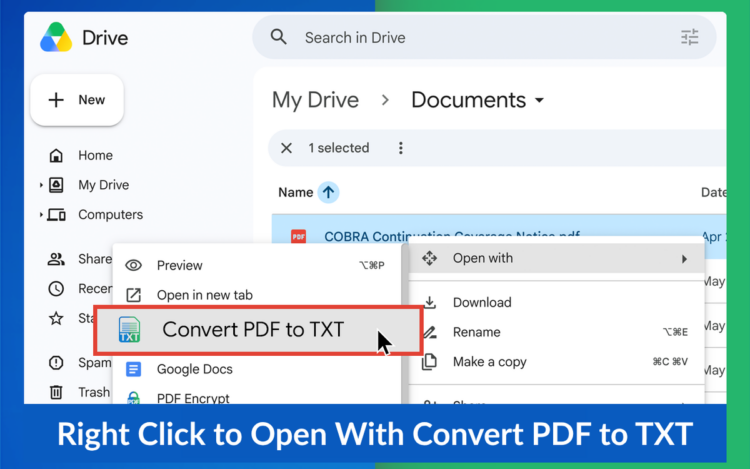
If your PDF is in Google Drive, or you can put it there, the whole process is three clicks:
- Install Convert PDF to Text
- In Google Drive, right-click the PDF
- Choose Open with → Convert PDF to Txt
- Click Convert to Text
You get a clean TXT file saved right next to the original, with all the text ready to copy, search, or edit. The original PDF is never modified. OCR runs automatically when it is needed, so a scanned PDF and a regular PDF work exactly the same way.
How to Copy Text from a Scanned PDF
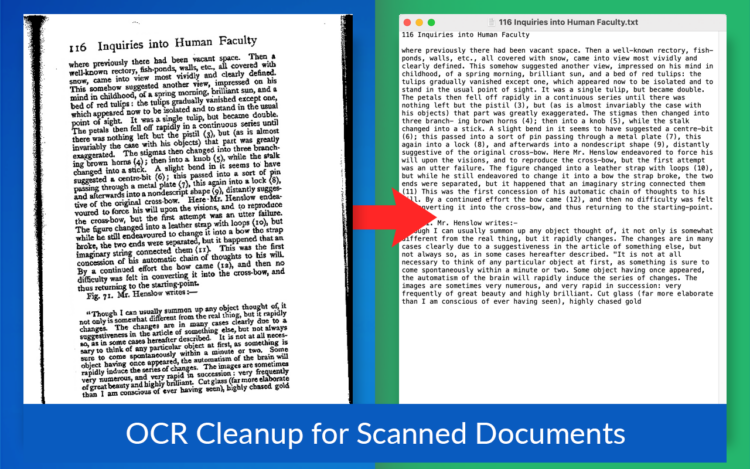
Scanned PDFs are the classic “won’t let me select anything” case. The page looks like text, but it is a photograph of text.
With Convert PDF to Text, there is no separate scan mode and nothing to configure. The built-in OCR detects that the page is an image and reads the words out of it automatically. Scanned contracts, signed forms, faxes, and photocopied records all come out as clean, selectable text.
This works even on older or imperfect scans. Slightly crooked pages, photocopies of photocopies, and low-resolution faxes are exactly what OCR was built for.
How to Extract Text from Photos and Screenshots
The same one-click conversion works on images, not just PDFs. Photos of receipts, screenshots of a webpage or an error message, pictures of a whiteboard after a meeting: drop them in Google Drive, right-click, convert, and the text comes out the other side.
This is the fastest way to turn a phone photo of a document into words you can actually use, without retyping anything.
Why Copy-Paste from PDFs Comes Out Broken
Even when a PDF does let you select text, you have probably noticed that pasting it somewhere else is a mess: line breaks in the middle of sentences, words jammed together, columns scrambled out of order.
That happens because a PDF stores words as positioned fragments on a page, not as flowing sentences. Your paste target receives the fragments, not the meaning.
Extracting to a text file instead of copy-pasting gives you the content as clean, continuous text. No broken line breaks to repair, no columns reading in the wrong order, no invisible characters. For anything longer than a paragraph, conversion beats copy-paste every time.
How to Extract Text from Many PDFs at Once
If you have a folder of documents to get through, you do not need to convert them one at a time. Select multiple files, or an entire folder, and convert everything in one action.
You can also keep a combined text file per folder, updated automatically with every conversion, so a whole folder of scanned records becomes one searchable document. When an audit question or a “which contract mentions this?” moment arrives, the answer is a Ctrl+F away.
And if the text is headed somewhere sensitive, optional automatic redaction can remove names, emails, phone numbers, Social Security numbers, bank accounts, and credit card numbers from the extracted text before you ever see the file.
For more on bulk conversion and the AI cost savings of working with text files, see our full guide: How to Convert PDF to Text and Stop Wasting Money on AI.
Frequently Asked Questions
Why can’t I copy text from my PDF? Your PDF is most likely a scan: the pages are images, and there is no actual text to select. Less commonly, the PDF has copy restrictions enabled. In both cases, running the file through OCR-based conversion extracts the text for you.
How do I copy text from a PDF image? Put the file in Google Drive, right-click it, choose “Open with” → Convert PDF to Text, and click “Convert to Text.” The built-in OCR reads the text out of the image automatically and gives you a clean TXT file.
Does this work on handwriting? OCR is designed for printed and typed text. Clear, printed documents convert reliably; handwriting recognition is much less dependable and results will vary.
Do I need to install OCR software? No. Everything runs in the cloud through Google Drive’s “Open with” menu. There is nothing to install on your computer.
Will converting change my original PDF? No. The original file is never modified. The extracted text is saved as a separate TXT file alongside it.
Can I extract text from many PDFs at once? Yes. Select multiple files or an entire folder and convert everything in one action, with an optional combined text file per folder that updates automatically.
Is it free to try? Yes, every account starts with a free trial with no credit card required. You can review plan options at convert-pdf-to-text.com/pricing.
Get the Text Out of Any PDF Today
A PDF that will not let you copy is not a dead end. Whether it is one stubborn scan or a whole folder of them, Convert PDF to Text by cloudHQ gets the words out in one click.