You spent an hour making that document perfect. But the moment you hit send, you lost control of it. The recipient’s software can mangle your formatting, and worse, anyone can open an editable file and change what it says. Your quote, your contract, your resume: all of it is one accidental keystroke away from saying something you never wrote.
The fix is the oldest trick in professional email: send it as a PDF. And with Attach Files as PDF by cloudHQ, making a document uneditable happens in one click, right inside Gmail, at the moment you attach it.
Video transcript
This is the document you sent and this is what your recipient actually opened. That’s why pros send PDFs, formatting locked on every device and no one can edit them. But a saved PDF raises a new question. Is it really the latest version? Did you export it again after yesterday’s edits or are you about to attach last month’s copy? Attach Files as PDF by cloudHQ removes the export step entirely. Right in Gmail, select the source file, Word, Excel, PowerPoint, even images. The PDF is generated at the moment you attach it, so it always contains your latest edits and it’s automatically compressed to fit Gmail’s limits. Your recipients always get the final polished version, exactly what you made. Make every document look its best. Download Attach Files as PDF by cloudHQ today from the Chrome Web Store. cloudHQ, helping your productivity one click at a time.

Table of Contents
Why Send a Document That Can’t Be Edited
An editable file is an invitation. Send a Word document and the recipient can change your prices, reword your terms, or accidentally delete a paragraph with a stray keystroke. They can also see more than you intended: tracked changes, hidden comments, and metadata often travel with editable files.
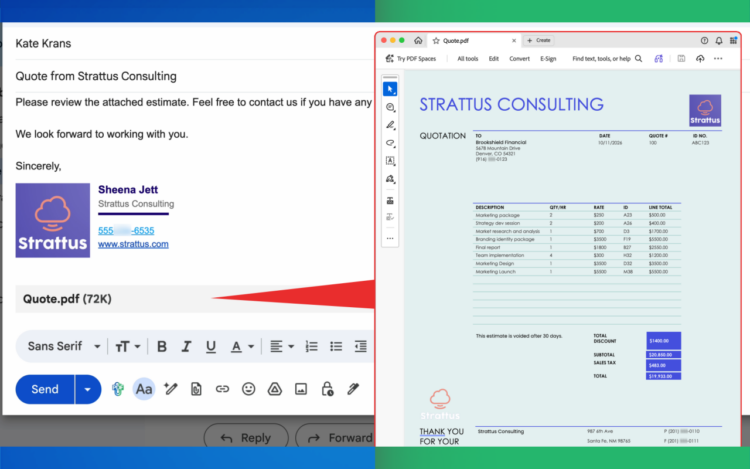
A PDF behaves like paper. Recipients can read it, print it, sign it, and approve it, but the content stays exactly as you wrote it. That is why finished documents go out as PDFs:
- The content is read-only in practice, so no one can alter your quote, contract, or invoice
- Formatting is locked on every device: Windows, Mac, phone, or browser
- It reads as the final version, while an editable file reads as a draft
- No macros, tracked changes, or hidden comments come along for the ride
- It prints exactly as it appears on screen
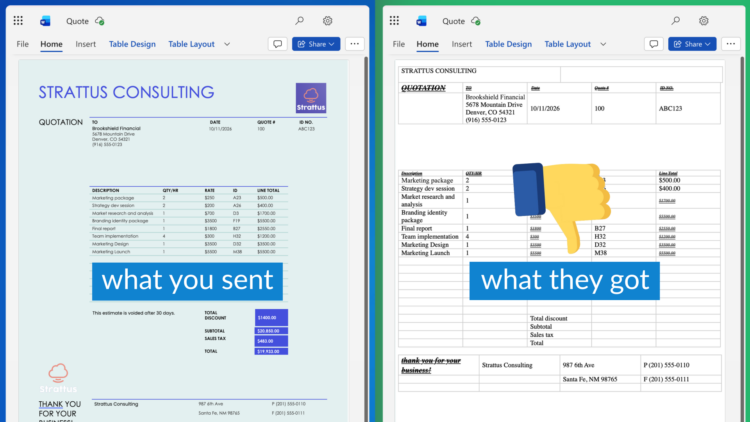
What You Sent vs. What They Got
Even when no one edits your file on purpose, editable documents change on their own. Fonts get substituted, tables shift, page breaks move, and headers wander, all depending on what software the recipient opens it with. The polished quote you sent can arrive looking like a rough draft.
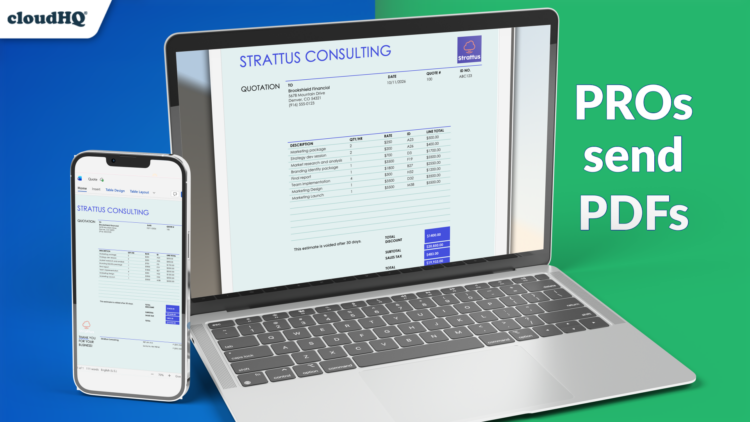
A PDF ends that lottery. What you see when you attach it is exactly what every recipient sees, on every device.
How to Make a PDF Uneditable and Email It in One Click
The old way to send an uneditable document takes five steps: open the file, export it as a PDF, save it somewhere, find it again, and attach it. Attach Files as PDF collapses all of that into the Gmail composer:
- In Gmail, click Compose, then click the Attach Files as PDF button in the composer toolbar.
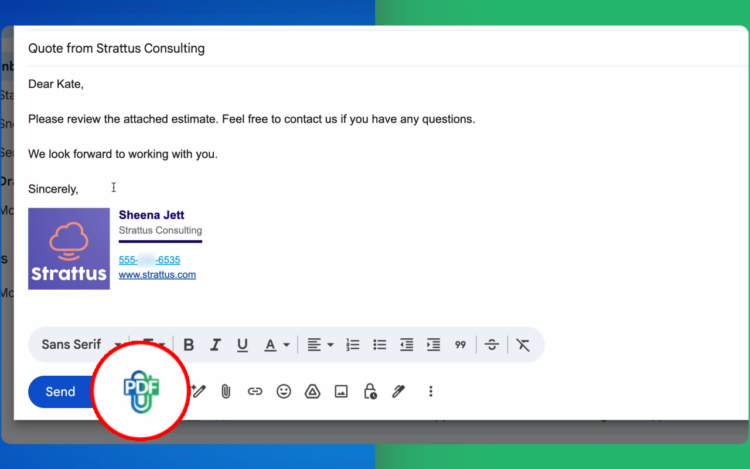
- Choose your source file, or just drag and drop it: a Word document, Excel spreadsheet, PowerPoint deck, or an image.
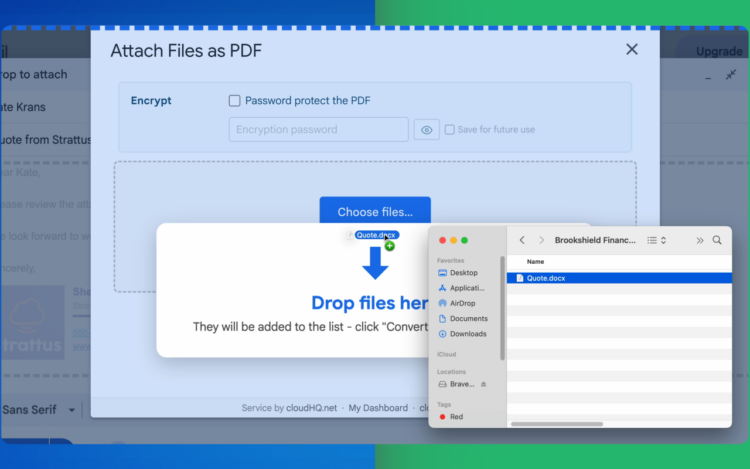
- Optionally, add a password to protect sensitive files, then click Convert and Attach.
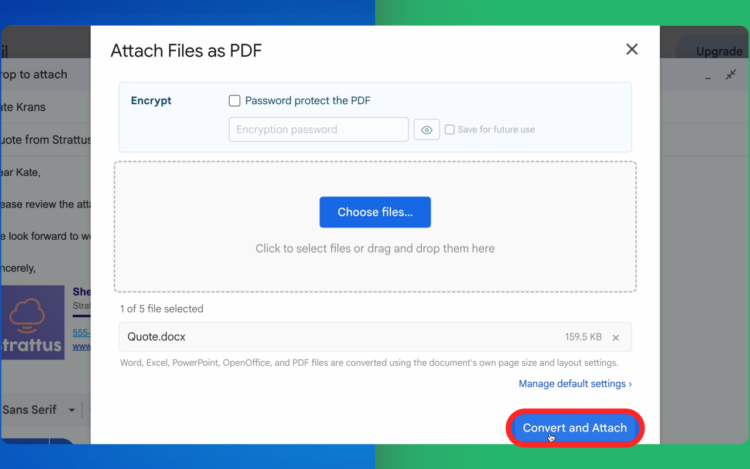
- Your file converts to PDF right in the compose window, no downloading or re-uploading.
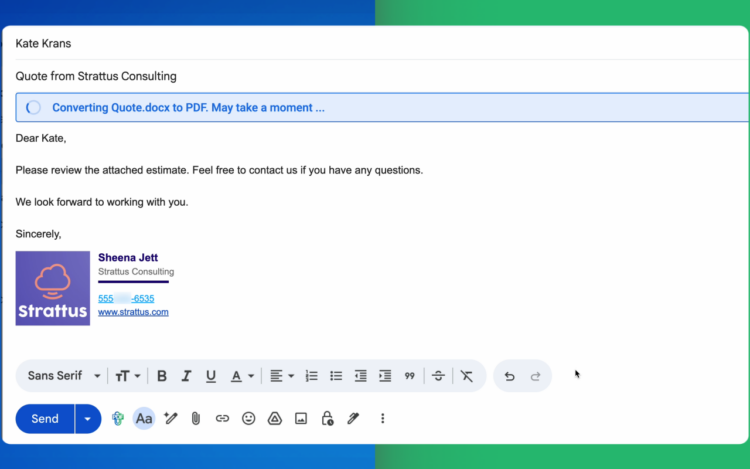
- The finished PDF attaches to your email automatically. Review your message and hit send.
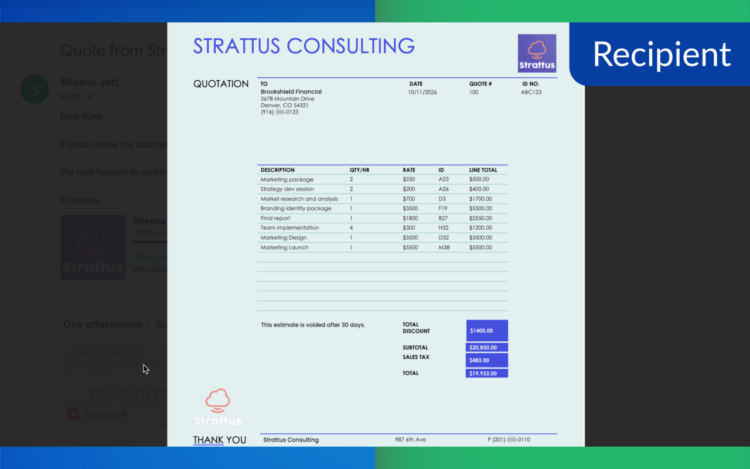
- Your recipient opens a clean, uneditable PDF that looks exactly the way you made it, on any device.
Always the Latest Version, Never a Stale Export
Here is the problem with exporting PDFs manually: the moment you edit the source document, every PDF you exported before is out of date. The file name looks the same, the icon looks the same, and Gmail cannot warn you. You find out when the client replies about last month’s pricing.
Attach Files as PDF removes the export step entirely. You select the source document itself, and the PDF is generated at the moment you attach it. It always contains your latest edits, because there is no separate file to go stale.
Automatic Compression for Gmail’s Size Limits
Gmail caps attachments at 25 MB, and image-heavy decks and brochures blow past that fast. Attach Files as PDF automatically compresses the converted PDF to stay within Gmail’s attachment size limit, so your email actually sends instead of bouncing back with an error.
Password Protection for Sensitive Documents
For contracts, offer letters, and financial documents, uneditable sometimes is not enough. Check the “Password protect the PDF” box before converting and your document is encrypted, so only recipients with the password can open it. You can even save your password for future use.
Frequently Asked Questions
How do I make a PDF uneditable? The simplest way is to send your document as a PDF in the first place. With Attach Files as PDF, click the PDF button in your Gmail composer, choose the source file, and click “Convert and Attach.” The recipient gets a PDF they can read, print, and sign, but the content cannot be casually edited like a Word document.
How do I make a PDF read only? A PDF is read-only in practice for the vast majority of recipients: it opens in a viewer, not an editor. For an extra layer, enable password protection during conversion so the file is encrypted before it leaves your inbox.
How do I send a Word document that can’t be edited? Convert it to PDF at the moment you attach it. In Gmail, click the Attach Files as PDF button, select your Word document, and click “Convert and Attach.” Your text, formatting, and layout are locked, and your original Word file stays untouched on your computer.
Can someone still edit a PDF I send? A determined person with PDF editing software can modify almost any file, but a PDF prevents the two things that actually go wrong: casual edits and accidental changes. Combined with password protection, it is the practical standard for sending final documents.
What file types can I convert? Word documents, Excel spreadsheets, PowerPoint presentations, OpenDocument and rich text files, plain text, web pages, and common image formats all convert the same way.
Does it work with Gmail’s attachment size limit? Yes. The converted PDF is automatically compressed to fit within Gmail’s limits.
Do I need to export the PDF first? No. That is the point: you pick the source file, and the PDF is generated at the moment you attach it, so it always reflects your latest edits.
Is there a free trial? Yes, every account starts with a free trial with no credit card required. You can review plan options at attach-files-as-pdf.com/pricing.
Send Your Next Document as an Uneditable PDF
Every document you email is a small reputation test. Send the version that looks professional on every device, cannot be casually altered, and is always your latest work. Attach Files as PDF by cloudHQ makes it one click in Gmail.