You sent your bank statements to one person: your accountant. So why are they open on five screens?
Every email can be forwarded. Every folder can be reshared. Once an unprotected PDF leaves your hands, you may never know who opens it next.
PDF Encrypt by cloudHQ lets you password protect and encrypt PDFs directly from Google Drive. Encrypt one PDF or hundreds at once, then share the protected files knowing that only people with the password can open them.
Video transcript
You sent your bank statements to one person, your accountant. So why are they open on five screens? Every email gets forwarded. Every folder gets reshared. And you never see it happen. Meet PDF Encrypt by cloudHQ. It adds password protection to your PDFs instantly. Just right-click in your Google Drive. With one strong password, every file in your folder becomes secure and unreadable without it. The encrypted files save securely to your Drive and are ready to share or download whenever you need them. Stop unauthorized access before it starts. Add PDF Encrypt by cloudHQ from the Google Workspace Marketplace today. cloudHQ, helping your productivity one click at a time.

Table of Contents
- How to Password Protect a PDF in Google Drive
- How to Encrypt Multiple PDFs at Once
- Encrypt PDFs From Your Computer or From Google Drive
- Why Password Protect a PDF?
- What Is PDF Encryption?
- How Recipients Open an Encrypted PDF
- How to Choose a Strong PDF Password
- Which PDFs Should Be Encrypted?
- Frequently Asked Questions
How to Password Protect a PDF in Google Drive
You do not need to download your PDF, open separate desktop software, encrypt it, and upload it again.
PDF Encrypt by cloudHQ works directly from Google Drive.
Here is how to password protect a PDF:
- Open Google Drive.
- Select the PDF or PDFs you want to protect.
- Right-click your selected file or files.
- Choose Open with.
- Select PDF Encrypt.
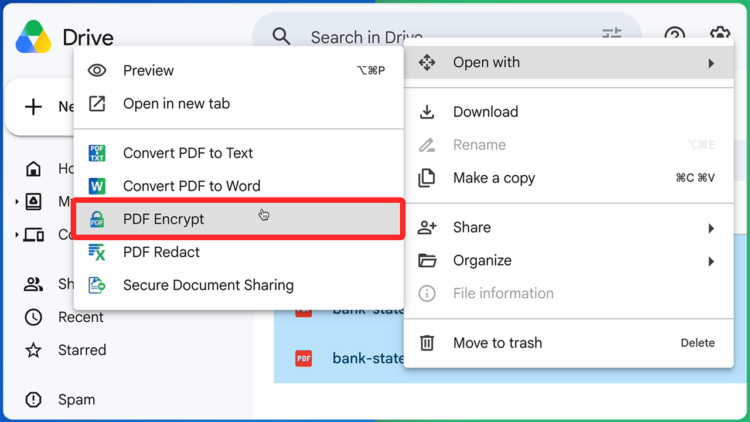
- Enter the password you want to use.
- Copy the password so you can provide it to the intended recipient.
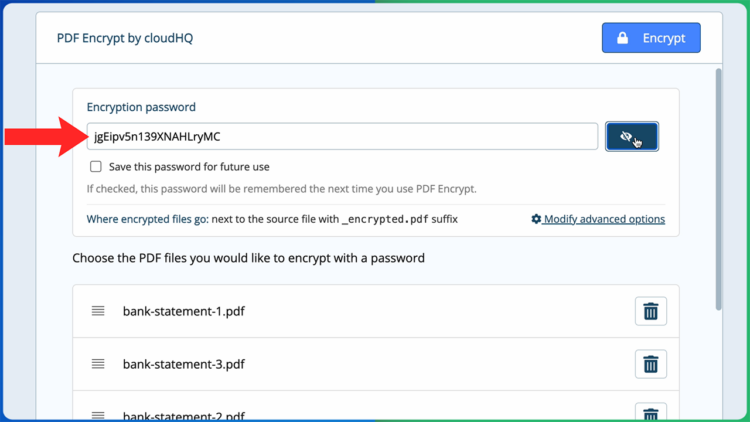
- Click Encrypt.
PDF Encrypt creates protected copies of your selected PDFs. Only someone with the correct password can open them.
How to Encrypt Multiple PDFs at Once
Protecting PDFs one at a time becomes painful when a folder contains dozens or hundreds of sensitive files.
PDF Encrypt supports multiple PDFs in the same workflow.
Select all the PDFs you want to protect in Google Drive, right-click, and choose Open with > PDF Encrypt. Enter one password and click Encrypt.
PDF Encrypt processes the selected files together.
This is useful when you need to protect:
- A folder of monthly bank statements
- Employee tax documents
- Client contracts
- Legal case files
- Patient or customer forms
- Financial reports
- Board meeting documents
- Real estate disclosures
Instead of opening every PDF separately, you can protect the entire group from one screen.
Encrypt PDFs From Your Computer or From Google Drive
PDF Encrypt gives you two ways to work, and the difference decides where your encrypted files end up.
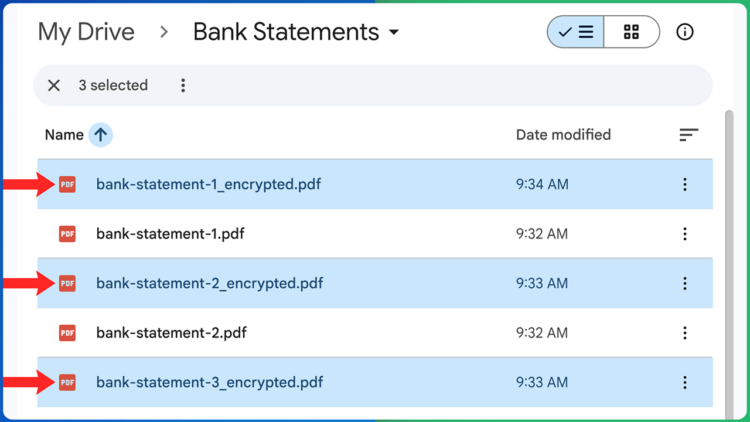
From Google Drive: When you start from files already in your Google Drive, the encrypted copies are saved automatically back to your Drive. Your original PDFs stay right where they were, and the protected versions appear alongside them, ready to share or download whenever you need them.
From your computer: If your PDFs are not in Google Drive, you can upload them from your computer instead. In this case, the encrypted files download straight back to your computer, so you can keep the whole process off Drive if that is what you prefer.
Either way, your originals are never changed. You end up with two versions: the original for your records, and the encrypted copy for secure sharing.
Why Password Protect a PDF?
PDFs often contain information that was never meant for everyone.
Bank statements, tax returns, contracts, payroll records, medical forms, legal files, and employee documents can all expose private information if they reach the wrong person.
The problem is not always a hacker. Sometimes it is one ordinary mistake:
- An email is sent to the wrong recipient
- An attachment is forwarded without permission
- A shared folder is opened to more people
- A downloaded PDF is saved on an unsecured device
- A confidential document is uploaded to the wrong folder
An unprotected PDF can be opened by anyone who receives a copy. Encrypting the PDF with a password changes that. The file may still be forwarded, but it cannot be opened without the correct password.
That extra barrier can keep private information out of the wrong hands.
What Is PDF Encryption?
PDF encryption protects the contents of a PDF so the document cannot be opened normally.
The recipient must enter the correct password before the PDF viewer displays the file.
Password protection and encryption are closely connected. When you password protect a PDF with PDF Encrypt, the file is encrypted. The password is what an authorized recipient uses to open and read it.
This is different from placing a PDF inside a private Google Drive folder. Folder permissions can protect the original file in Drive, but a downloaded or emailed copy may still be opened by anyone who receives it.
An encrypted PDF keeps its password requirement after it is downloaded, attached to an email, or shared outside Google Drive.
How Recipients Open an Encrypted PDF
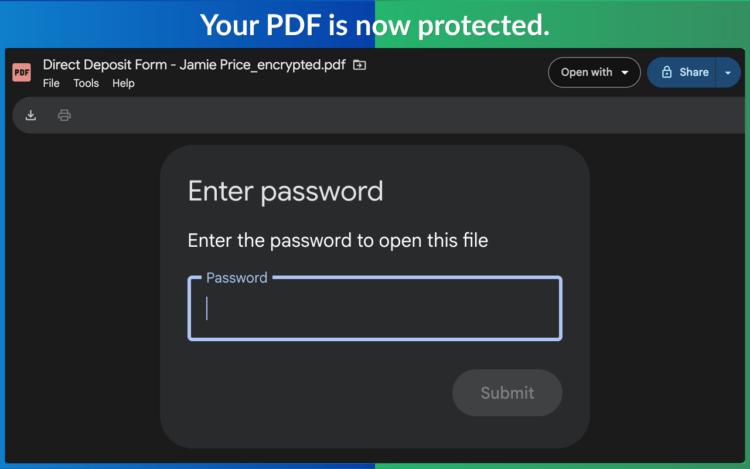
When your recipient opens the encrypted PDF, the document does not immediately display its contents.
The recipient first sees a password request. The PDF opens only after the correct password is entered.
For highly sensitive documents, send the password separately from the PDF.
For example:
- Send the encrypted PDF by email and the password by text message
- Share the PDF through Google Drive and provide the password by phone
- Send the file in one company system and the password through another approved channel
If the email containing the PDF is forwarded, the new recipient will still need the password to open it.
How to Choose a Strong PDF Password
The protection is only as strong as the password you choose.
Avoid passwords that are easy to guess, such as:
- Password123
- The recipient’s first name
- Your company name
- A birthday
- A phone number
- The name of the document
Use a longer password or passphrase that is difficult for someone else to predict.
A strong passphrase can combine several unrelated words with numbers. It should be long enough to resist guessing but easy enough for the intended recipient to enter correctly.
Do not place the password in the PDF filename.
Which PDFs Should Be Encrypted?
Not every PDF needs password protection. A restaurant menu, public brochure, or general product sheet may be intended for anyone to read.
Encrypt PDFs when unauthorized access could create a privacy, financial, legal, or business problem.
Common examples include:
Financial PDFs
- Bank statements
- Tax returns
- Payroll reports
- Invoices with banking details
- Investment statements
- Credit reports
Legal PDFs
- Contracts
- Settlement documents
- Case files
- Confidential agreements
- Signed legal forms
Human Resources PDFs
- Offer letters
- Employee records
- Salary information
- Performance reviews
- Identity documents
- Benefits forms
Healthcare PDFs
- Patient forms
- Medical records
- Billing documents
- Insurance information
- Lab reports
Business PDFs
- Confidential client reports
- Board documents
- Internal financial reports
- Private proposals
- Acquisition documents
- Vendor records
A simple rule is helpful: if you would be concerned about the wrong person opening the PDF, encrypt it before sharing.
Frequently Asked Questions
How do I password protect a PDF?
In Google Drive, select your PDF, right-click, choose Open with, and select PDF Encrypt. Enter a password and click Encrypt. A password protected copy is saved to your Google Drive.
How do I encrypt a PDF in Google Drive?
Use PDF Encrypt by cloudHQ. Select one or more PDFs in Google Drive, right-click, choose Open with > PDF Encrypt, enter a password, and click Encrypt.
Can I password protect multiple PDFs at once?
Yes. Select multiple PDF files in Google Drive and open them with PDF Encrypt. Enter one password and encrypt the selected PDFs together.
Can I encrypt a PDF without using Google Drive?
Yes. You can upload PDFs from your computer instead. When you start from your computer, the encrypted files download straight back to your computer, so you never need to store them in Google Drive.
Where are encrypted PDFs saved?
It depends on where you start. Files encrypted from Google Drive are saved back to your Drive automatically. Files uploaded from your computer download back to your computer. Your original files remain available in both cases.
Can someone open an encrypted PDF without the password?
No. The encrypted PDF requires the correct password before its contents can be viewed.
Can an encrypted PDF still be forwarded?
Yes. A recipient can forward the file, but anyone who receives it will still need the correct password to open it.
Should I send the password in the same email as the PDF?
For highly sensitive information, send the password separately. You can email the encrypted PDF and provide the password by text message, phone, or another approved communication method.
Does the recipient need a Google account?
No. The recipient only needs a PDF viewer that supports password protected PDFs and the correct password.
Does PDF Encrypt change my original PDF?
No. PDF Encrypt creates an encrypted copy and leaves the original PDF available.
What types of documents should I encrypt?
Encrypt PDFs containing financial, legal, medical, employee, customer, or other confidential information that should not be opened by unauthorized people.
Encrypt PDFs Before They Reach the Wrong Hands
A sensitive PDF can travel far beyond its intended recipient. Emails get forwarded, folders get reshared, and downloaded files can remain accessible for years.
PDF Encrypt by cloudHQ lets you encrypt PDFs with a password directly from Google Drive, or from your computer. Protect one PDF or hundreds, keep the encrypted copies wherever you started, and make sure the password is required before anyone can read them.
Add PDF Encrypt by cloudHQ and protect your sensitive PDFs today.