Redacting a PDF should not take hours of manual searching, clicking, and double checking.
With PDF Redact AI by cloudHQ, you can automatically detect and permanently remove sensitive information from PDF documents. It works for one PDF, multiple PDFs, or entire batches of files from Google Drive or your computer.
Whether you need to remove names, addresses, Social Security numbers, credit card numbers, bank details, medical record numbers, or confidential business information, PDF Redact AI helps you do it quickly and securely.
Table of Contents
- What Is PDF Redaction?
- Why PDF Redaction Matters
- How PDF Redact AI Works
- Batch Redact Multiple PDFs at Once
- What Sensitive Information Can Be Redacted?
- Permanent Redaction vs Black Boxes
- Redact PDFs from Google Drive
- Who Should Use PDF Redact AI?
- Frequently Asked Questions
What Is PDF Redaction?
PDF redaction is the process of permanently removing sensitive information from a PDF document. It is commonly used before sharing legal documents, medical records, tax forms, contracts, employee files, financial statements, government records, and customer documents.
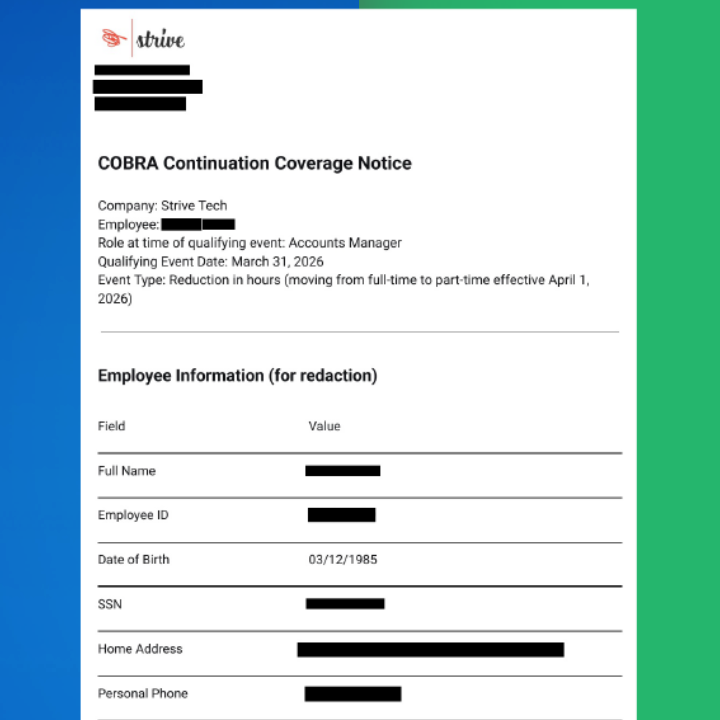
Redaction is not the same as drawing a black box over text. A true PDF redaction removes the underlying content so it cannot be copied, searched, recovered, or exposed later.
That distinction matters. If confidential information is only covered visually, the hidden text may still exist inside the PDF file. Someone may be able to copy it, search for it, inspect the file, or use other methods to uncover what was supposed to be hidden.
PDF Redact AI is designed to help you redact PDFs properly by detecting sensitive information and creating a clean, secure redacted PDF.
Why PDF Redaction Matters
Every organization handles sensitive information. The risk appears when documents need to be shared outside their original context.
A PDF might contain personally identifiable information, otherwise known as PII:
- Customer information
- Employee details
- Client names
- Addresses
- Phone numbers
- Email addresses
- Social Security numbers
- Credit card numbers
- Bank account details
- Dates
- Organizations
Manually finding and removing this information can be slow and error prone, especially when you are working with long PDFs or multiple documents. One missed number, one hidden field, or one forgotten page can expose private data.
That is why AI powered PDF redaction is useful. Instead of forcing you to search every page yourself, PDF Redact AI scans the document and highlights sensitive information for review.
How PDF Redact AI Works
PDF Redact AI gives you a simple workflow for removing sensitive information from PDF files.
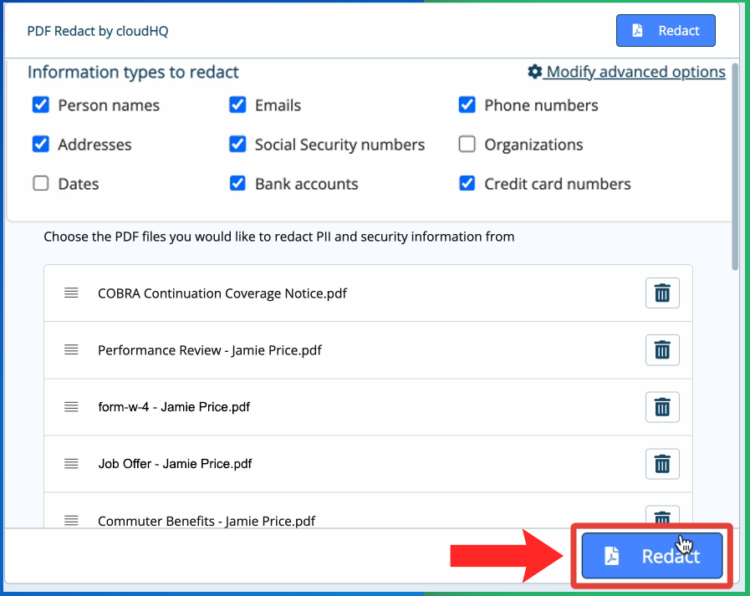
You can start from Google Drive or upload PDFs from your computer. The app scans your files, detects sensitive information, and lets you review what should be removed before creating the final redacted PDF.
The basic process is simple:
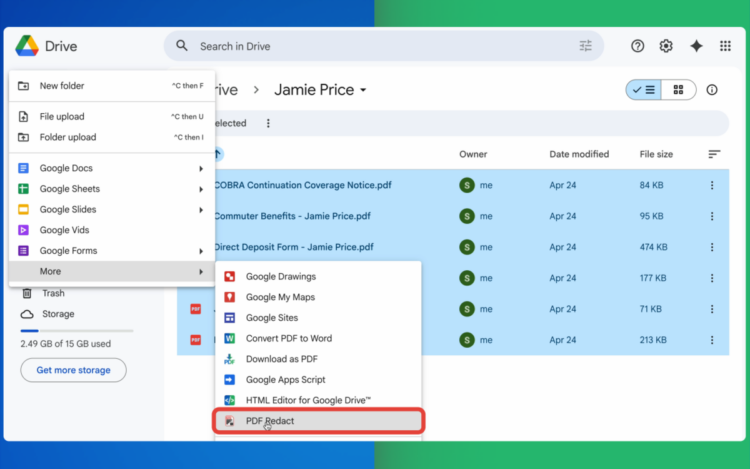
- Select your PDF files from Google Drive or upload them from your device.
- Choose the types of sensitive information you want to redact and click “Redact.”
- Download your clean redacted PDFs.
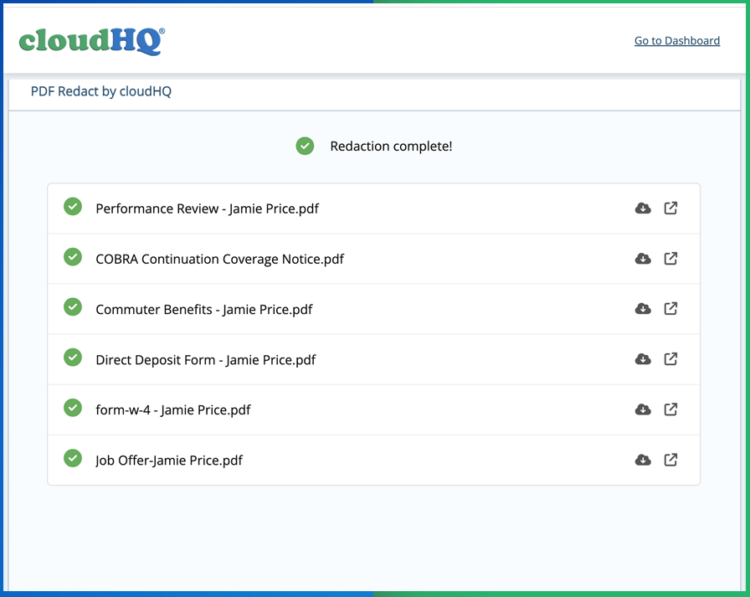
- Each one will have all the information you wanted removed, gone.
No complex PDF software is required. No manual searching through every line. No complicated settings.
If you can select a file and click a button, you can redact a PDF.
Get started with PDF Redact AI.
Batch Redact Multiple PDFs at Once
One of the most useful features of PDF Redact AI is batch redaction.
Instead of redacting one PDF at a time, you can redact multiple PDFs at once. This is especially valuable when you are working with folders of contracts, statements, case files, applications, medical records, invoices, employee documents, or client paperwork.
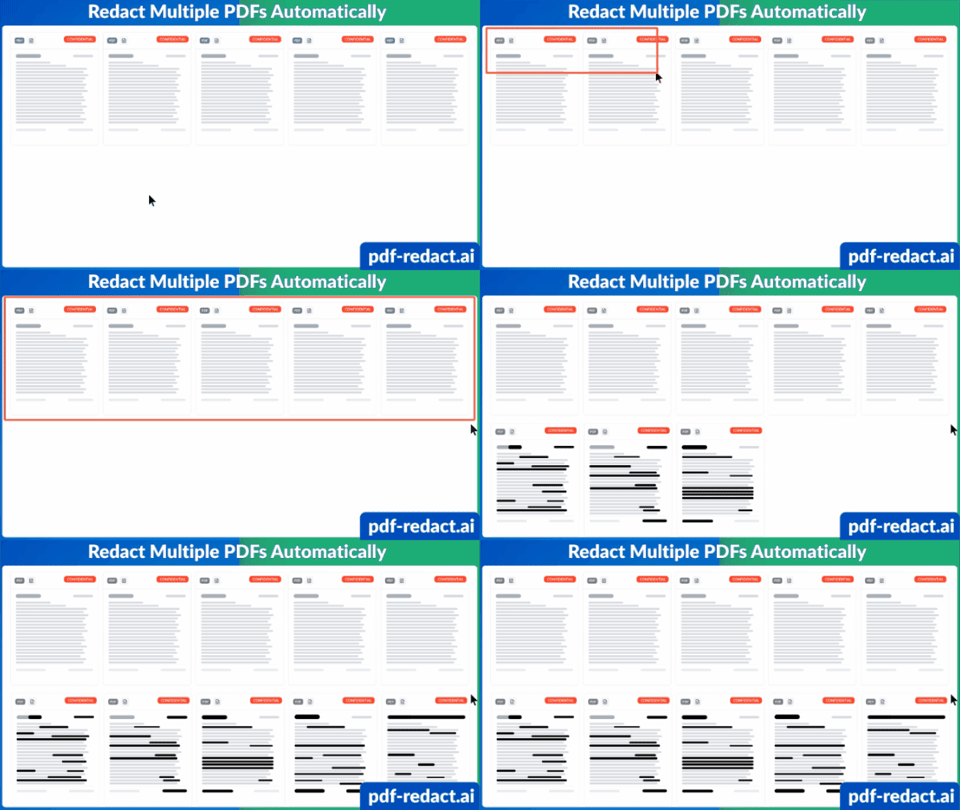
Batch redaction helps you:
- Redact many PDFs in one workflow
- Save time on repetitive document review
- Apply consistent redaction rules across files
- Reduce the risk of missing sensitive information
- Process large document sets more efficiently
For legal, healthcare, finance, HR, government, and compliance teams, batch redaction can save hours of manual work.
Instead of opening each PDF, searching for private information, drawing redaction boxes, saving the file, and repeating the same steps again, PDF Redact AI helps you process multiple documents together.
What Sensitive Information Can Be Redacted?
PDF Redact AI can detect and redact many common types of sensitive information.
This includes:
- Person names
- Email addresses
- Phone numbers
- Physical addresses
- Social Security numbers
- Credit card numbers
- Bank account details
- Confidential business information
You can use AI detection to find sensitive data automatically, and you can also manually choose additional areas to redact.
This gives you both speed and control. The AI helps find what matters, and you stay in charge of the final redaction.
Permanent Redaction vs Black Boxes
Many people assume that redacting a PDF simply means placing a black box over text, but that is often not enough. In many PDFs, the hidden text still exists underneath the box, which means someone may still be able to copy it, search for it, or extract it later.
True PDF redaction should permanently remove sensitive information from the document itself, not just hide it visually on the page. PDF Redact AI is designed for permanent redaction, helping ensure confidential information cannot still be exposed through search, copy and paste, metadata inspection, or hidden document layers.
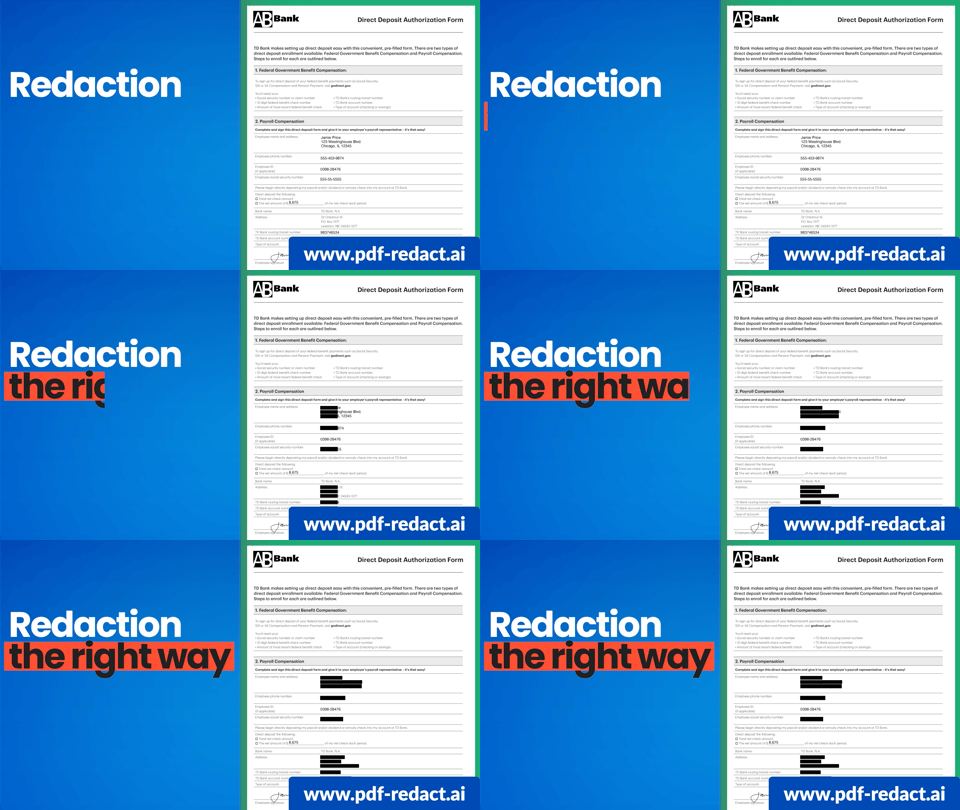 That matters when sharing legal documents, financial records, medical files, contracts, or any PDF containing private information.
Redact PDFs from Google Drive
PDF Redact AI works directly with Google Drive, making it easy to redact files that are already part of your existing workflow. Simply select PDFs from Google Drive, choose what should be removed, and generate securely redacted versions in just a few clicks.
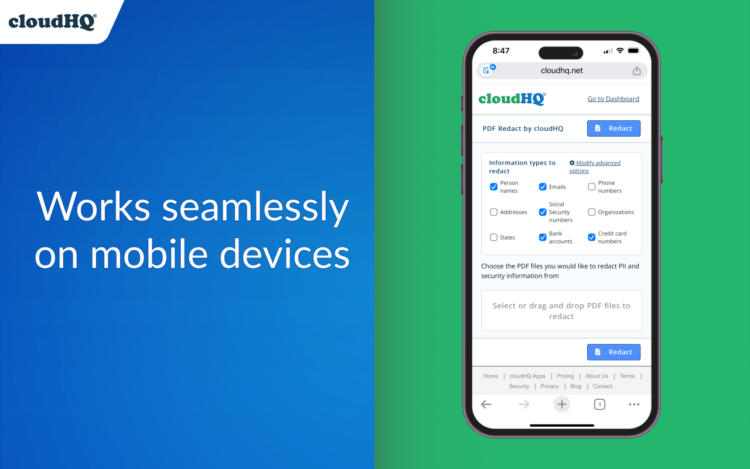
You can also upload PDFs directly from your computer whenever the files are stored locally instead of in the cloud. Whether you work from Google Drive, your desktop, or a mobile device, PDF Redact AI makes secure PDF redaction simple and accessible.
Who Should Use PDF Redact AI?
PDF Redact AI is useful for anyone who needs to remove private or confidential information from PDF documents before sharing them.
Legal professionals
Attorneys, paralegals, and legal teams can redact client names, case details, privileged information, signatures, addresses, and confidential terms before sharing documents.
Healthcare teams
Medical offices, clinics, and healthcare organizations can remove patient identifiers, medical record numbers, dates of birth, and other protected health information.
Financial services
Accountants, banks, advisors, and finance teams can redact Social Security numbers, account numbers, tax IDs, income details, and financial statements.
Human resources
HR teams can redact employee records, salary information, offer letters, identity documents, and sensitive internal files.
Government and public records
Public sector teams can redact personal information before releasing documents, responding to records requests, or sharing internal reports.
Real estate
Real estate professionals can redact tenant applications, mortgage documents, disclosures, contracts, and financial details before sharing files.
Education
Schools and universities can remove student identifiers and private academic information before sharing records for review, research, or compliance.
Small businesses and consultants
Anyone who handles client documents can redact sensitive details before sending PDFs to customers, partners, vendors, or contractors.
Frequently Asked Questions
How do I redact a PDF?
Open PDF Redact AI, select a PDF from Google Drive or upload it from your computer, choose what sensitive information to remove, review the suggestions, and click Redact.
Can I redact multiple PDFs at once?
Yes. PDF Redact AI supports batch redaction, so you can process multiple PDF files together instead of redacting documents one by one.
Does PDF Redact AI use artificial intelligence?
Yes. PDF Redact AI uses AI powered detection to help identify sensitive information such as names, addresses, email addresses, phone numbers, Social Security numbers, financial data, and other confidential content.
Is PDF redaction permanent?
PDF Redact AI is designed for permanent redaction. The goal is to remove sensitive information from the file rather than simply cover it visually.
Can I manually choose what to redact?
Yes. You can review AI suggested redactions and manually select additional content that should be removed.
Can I redact PDFs from Google Drive?
Yes. PDF Redact AI works with Google Drive, so you can select PDFs from Drive and save or download the redacted results.
Can I upload PDFs from my computer?
Yes. You can upload PDFs from your computer if they are not stored in Google Drive.
Who needs PDF redaction?
PDF redaction is useful for legal teams, healthcare providers, finance teams, HR departments, government agencies, real estate professionals, educators, consultants, and anyone who works with sensitive documents.
Start Redacting PDFs with AI
Redacting PDFs manually is slow. Redacting multiple PDFs manually is even worse.
PDF Redact AI by cloudHQ gives you a faster way to detect and permanently remove sensitive information from PDF files. Use it to redact one PDF, batch redact multiple PDFs, or process sensitive documents from Google Drive or your computer. Try it today and protect sensitive information before you share your PDFs.