If you have ever needed to save an Outlook email as a PDF for a legal case, a compliance audit, a client record, or just your own files, you know how painful the native options are. Outlook does not make it easy. You can print to PDF one email at a time, but that falls apart the moment you need to save ten emails, a full thread, or an entire folder.
Save Outlook Emails as PDF by cloudHQ does it in one click. Select one email or an entire folder, click “Save to PDF,” configure your settings, and you are done.

Table of Contents
How to Save One Outlook Email as a PDF
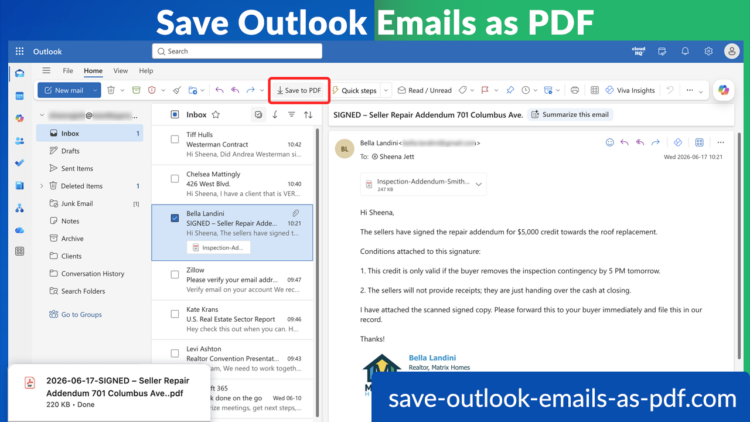
Saving a single Outlook email as a PDF is the simplest use case. Select the email in your inbox, and the “Save to PDF” button appears in the Outlook toolbar. Click it, choose your settings, and click “Start Conversion.” That is it.
- Open Outlook in your browser
- Select the email you want to save
- Click the Save to PDF button in the toolbar
Your email is saved as a PDF, with all formatting intact. Attachments are embedded inside the PDF by default.
How to Save Multiple Outlook Emails as PDF at Once
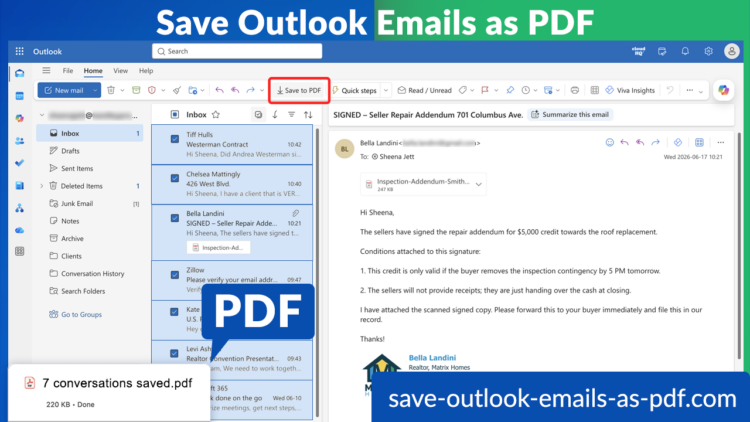
When you need to save a batch of emails, the process is the same. Select multiple emails from your inbox, click “Save to PDF,” and the extension handles all of them in one conversion. You can merge them all into a single PDF or save each one as a separate file.
- In your Outlook inbox, check the box next to each email you want to save
- Click the Save to PDF button in the toolbar
- In the conversion dialog, choose whether to merge all emails into one PDF or save each as a separate PDF file
- Click Start Conversion
The conversion runs in the background. You can continue working in Outlook while it processes. When it is done, your PDFs are ready.
How to Save an Entire Outlook Folder as PDF
This is where the extension saves the most time. Instead of selecting emails one by one, you can save every email in a folder in a single action. Right-click any folder in your Outlook sidebar and select “Save folder as PDF.” Every conversation in that folder is converted and saved.
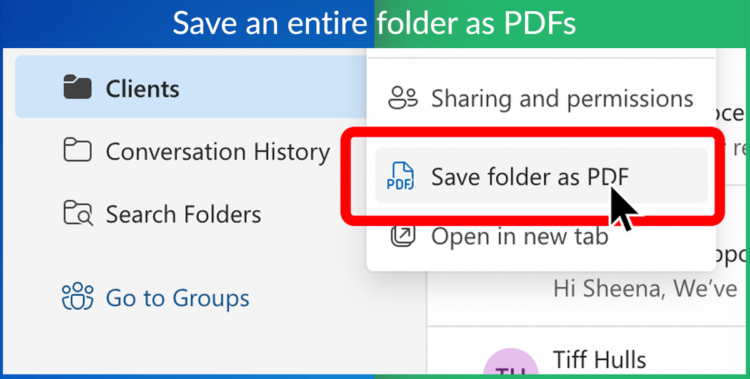
- In Outlook, right-click the folder you want to save in the left sidebar
- Select Save folder as PDF from the context menu
- In the conversion dialog, choose your output format: one combined PDF or individual files per email
- Name your email package and adjust any settings
- Click Start Conversion
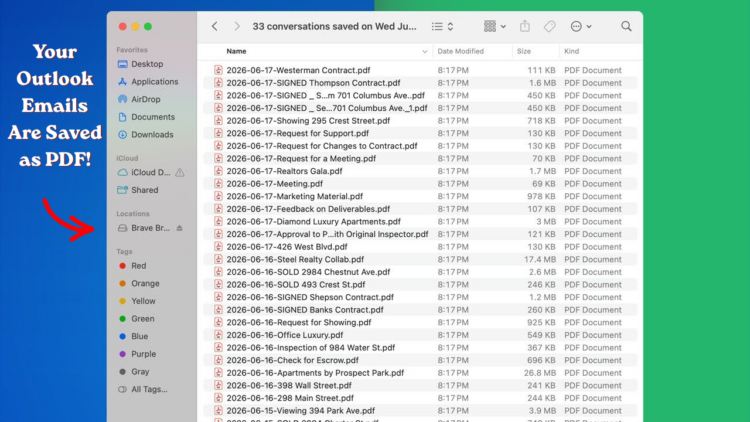
This works for client folders, project folders, compliance archives, and anything else where you need every email in one place. The conversion runs in the background through the cloudHQ dashboard, so there is no waiting around.
PDF Output Settings and Options
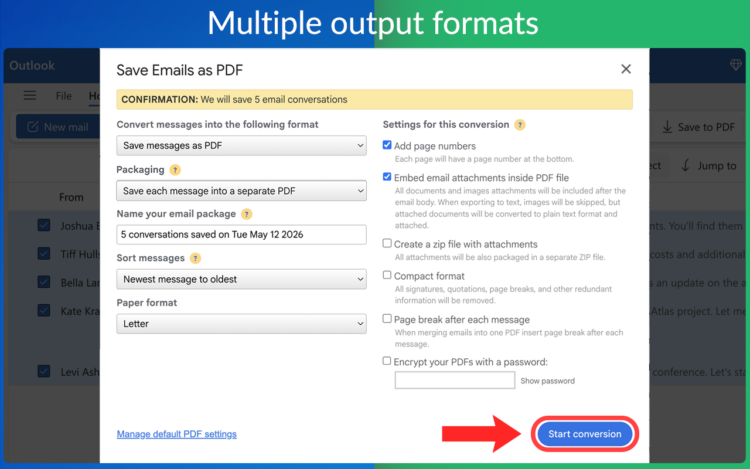
When you click “Save to PDF,” a settings dialog opens before conversion begins. You can use the defaults or customize everything. Output format options:
- Save as PDF, HTML, or plain text
- Merge all emails into one PDF, or save each as a separate PDF file
- Letter, A4, or other paper formats
- Sort messages newest to oldest or oldest to newest
Content options:
- Embed email attachments inside the PDF
- Create a separate zip file of attachments
- Include or skip page numbers
- Add a page break after each message
- Compact format: removes signatures, quotations, and redundant content
- Encrypt your PDF with a password
Once you set your preferences, you can save them as your default so you do not have to reconfigure every time.
Full Features List
Here is what is included with Save Outlook Emails as PDF:
- Save any Outlook email as a PDF in one click
- Save multiple emails at once as separate PDFs or one combined file
- Save an entire Outlook folder as PDF in one action
- Embed email attachments inside the PDF file
- Create a zip file of just the email attachments
- Merge all emails into one PDF or save each as a separate PDF file
- Multiple paper formats to choose from
- Include page numbers or not
- Add a page break after each message
- Encrypt your PDF with a password
- Compact format to remove redundant content
- Sort messages newest to oldest or oldest to newest
- Monitor and manage conversions from the cloudHQ dashboard
- Conversions run in the background while you keep working
Why Use cloudHQ to Save Outlook Emails as PDF
Outlook does not have a built-in way to bulk save emails as PDFs. The native “print to PDF” option works for one email at a time, requires you to be in the email, and strips the formatting. It does not handle attachments, does not work for folders, and does not run in the background. cloudHQ’s extension adds a “Save to PDF” button directly to your Outlook toolbar. It works on any email, any selection, or any folder. It preserves formatting, embeds attachments, and runs the conversion through the cloudHQ dashboard so your computer does not slow down. Lawyers use it to archive client correspondence. HR teams use it to maintain employment records. Realtors use it to document transaction threads. Project managers use it to close out project folders. If you work in a field where email records matter, this is the tool that makes keeping them practical.
Frequently Asked Questions
How do I save an Outlook email as a PDF? With the Save Outlook Emails as PDF extension installed, select the email in your Outlook inbox and click the “Save to PDF” button in the toolbar. A settings dialog opens where you can configure your output. Click “Start Conversion” and your email is saved as a PDF.
Can I save multiple Outlook emails as PDF at once? Yes. Select multiple emails in your inbox using the checkboxes, then click “Save to PDF.” You can save them as individual PDF files or merge them all into one combined PDF.
Can I save an entire Outlook folder as PDF? Yes. Right-click any folder in the Outlook sidebar and select “Save folder as PDF.” Every email in that folder is converted and saved. You choose whether to get one combined PDF or a separate PDF for each email.
Are attachments included in the PDF? By default, yes. Attachments are embedded inside the PDF file. You can also choose to create a separate zip file of the attachments, or opt out of including them entirely.
Can I password-protect the PDF? Yes. In the settings dialog before conversion, you can set a password to encrypt your PDF.
Does the conversion slow down my computer? No. Conversions run through the cloudHQ dashboard in the background. You can keep working in Outlook or close the tab while the conversion processes.
What file formats can I save to? PDF, HTML, and plain text. PDF is the default and the most commonly used format.
Does it work with Outlook on the web? Yes. The extension works with Outlook in Chrome and Microsoft Edge.
Is there a limit to how many emails I can convert? That depends on your cloudHQ plan. You can review limits and plan options at save-outlook-emails-as-pdf.com/pricing.
Save Your Outlook Emails as PDF Today
Saving emails to PDF no longer has to be painful. One click, and you are done. Whether you need to archive one email or an entire folder, Save Outlook Emails as PDF by cloudHQ handles it without slowing you down.