Your client uses a different cloud. Why should that mean more work for you?
Sending another attachment is easy. Keeping everyone working from the latest version is where projects get messy. Updated proposals, revised spreadsheets, and new deliverables end up scattered across inboxes and cloud accounts.
Cross-Cloud Folder Sharing by cloudHQ connects folders across different cloud storage services and automatically syncs files in both directions. You keep working in your cloud. Your client keeps working in theirs. File additions and updates move between your connected folders automatically.
It solves an everyday multi cloud management problem: keeping shared files up to date without switching platforms or manually uploading every revision.
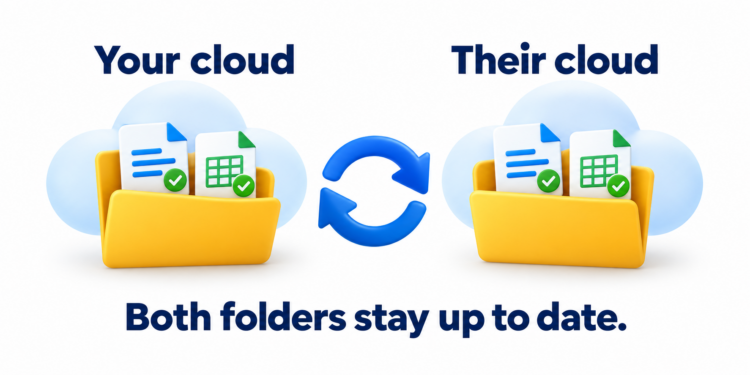
Table of Contents
What Is Cross-Cloud Folder Sharing?
Cross-cloud folder sharing lets people collaborate through connected folders in different cloud storage services. With cloudHQ, the connection uses automatic two-way sync: new files and updates flow between the folders.
For example, you can share a Google Drive folder with a client who uses OneDrive. Your client chooses where the shared content belongs in OneDrive, while you continue working in Google Drive.
Think of “one shared folder” as the working experience. Behind the scenes, there are two connected folders, one in each person’s cloud storage. cloudHQ keeps their contents synchronized.
You still have content in both locations. The benefit is that you do not have to maintain those copies manually.
Watch the Folder-Sharing Walkthrough
This video follows a Google Drive user sharing a folder with a Microsoft OneDrive user. It shows the invitation, the recipient’s folder selection, and how updates sync after the connection is established.

How to Share a Folder Across Clouds
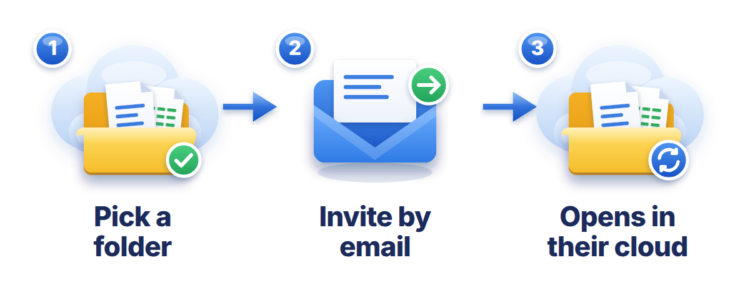
The setup has three main steps: select your folder, invite your collaborator, and have them choose a destination folder.
1. Select the folder you want to share
Open the cloudHQ Cross-Cloud Folder Sharing dashboard, open the Cross-Cloud Folder Sharing tab, and choose Share a Folder. Select the folder from your cloud storage. If your cloud account is not listed, choose Authorize a Cloud Account to connect it.
In the video example, the sender selects a Google Drive folder. Choose a folder containing the work you want your collaborator to access.
2. Invite your collaborator by email
Enter your client’s or teammate’s email address and send the folder-sharing invitation.
Add a short message explaining what you are sharing. “Here are the documents for our current project” gives the recipient useful context.
3. Your collaborator accepts and chooses their folder
The recipient opens the invitation and signs in to cloudHQ, creating a free account if needed. They then select a destination folder in their own cloud storage, authorizing their cloud account if prompted.
For the destination, choose a new, empty folder to keep the shared content separate from existing files.
In the example, the recipient chooses Microsoft OneDrive. Once they click Accept Shared Folder, cloudHQ establishes the connection between the two folders.
Account requirement: Recipients need a free cloudHQ account to accept an invitation. They can continue using their existing cloud storage service.
What Happens After the Folders Connect?
cloudHQ creates a sync pair, which is the connection between your folder and your collaborator’s folder. It keeps file additions and updates moving between both sides automatically.
- You add a file: it syncs to your collaborator’s connected folder.
- Your collaborator adds a file: it syncs to your connected folder.
- Either person updates a file: the update syncs to the other side.
Suppose you add an Excel spreadsheet to your connected Google Drive folder. It syncs to your client’s connected OneDrive folder. When your client saves changes to that file, those updates sync back to your side.
You can spend your next conversation discussing the work, instead of asking someone to send the latest attachment.
Supported Cloud Storage Platforms
Google Drive and OneDrive are the example in the tutorial. cloudHQ’s Cross-Cloud Folder Sharing supports:
- Google Drive
- Google Shared Drives
- Microsoft OneDrive
- Microsoft SharePoint
- Dropbox
- Box
- Egnyte
- Amazon S3
The purpose is the same across supported services: share the work while each collaborator keeps using their preferred cloud storage.
When Is Cross-Cloud Sharing Useful?
Client projects
Your agency uses Google Drive, but your client keeps project documents in OneDrive. Connect the project folders so proposals, deliverables, and updates can move between both teams.
Supplier collaboration
You regularly exchange product documents or order spreadsheets with a supplier. A connected folder gives those recurring exchanges a consistent home.
Work between organizations
A project involves people from companies with different cloud storage preferences. Folder sharing lets the project move forward without making a platform change part of the assignment.
For these situations, multi cloud management starts with a concrete question: how can everyone keep working with up-to-date files in the tools they already use?
Frequently Asked Questions
Can I share a Google Drive folder with a OneDrive user?
Yes. With cloudHQ’s Cross-Cloud Folder Sharing, you select your Google Drive folder and invite the OneDrive user. They accept and choose a destination folder in OneDrive. cloudHQ then syncs files between the connected folders.
Does cross-cloud folder sharing work in both directions?
Yes. File additions and updates from either connected folder automatically sync to the other folder.
Does the recipient need a cloudHQ account?
Yes. The recipient needs a free cloudHQ account and a cloud storage account. They do not need a paid cloudHQ plan to accept a shared folder.
Which plan includes Cross-Cloud Folder Sharing?
Cross-Cloud Folder Sharing is included in the cloudHQ Business Plan. See the official Cross-Cloud Folder Sharing FAQ for current trial details and requirements.
Is this a one-time cloud file transfer?
No. The folders remain connected for ongoing synchronization. Files added or updated after the initial connection also sync between the two sides.
Is “one shared folder” literally one storage location?
No. Each collaborator has a folder in their own cloud storage. cloudHQ connects those folders and synchronizes their contents, creating a shared working experience across clouds.
Start with One Folder
Choose a project you are already working on with someone outside your cloud platform. Share its folder, invite your collaborator, and let cloudHQ handle the ongoing sync.
Different clouds should not get in the way of good teamwork.
Get started with Cross-Cloud Folder Sharing
cloudHQ. Helping your productivity, 1 click at a time.