You open the PDF, press Ctrl+F, type the word you need, and get nothing. The file looks like a document, but to your computer it is a photograph of one. That is a scanned PDF, and until recently, redacting one meant giving up on ever searching it. This guide covers why a scanned PDF won’t search, how to convert it to searchable text, and how to redact the sensitive information without losing that text again.
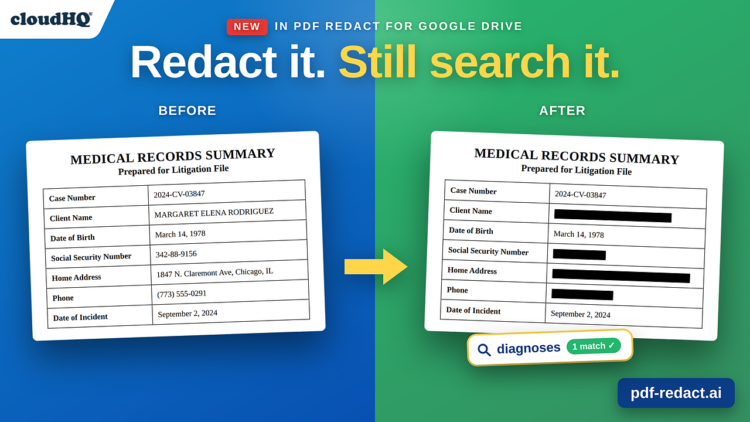
Quick answer: A scanned PDF is an image, so there is no text to search. To redact one and keep it searchable, use PDF Redact by cloudHQ: right-click the file in Google Drive, let AI detect the sensitive information, and choose Searchable PDF as the output. The scan is converted to text, the sensitive information is permanently removed, and everything else stays searchable, selectable, and editable.
In this guide
Why you can’t search a scanned PDF
 A PDF can hold two very different things. One is text: characters your computer knows are letters, which is why you can search them, select them, and copy them. The other is an image: a picture of a page, made of pixels, which your computer knows nothing about beyond their color.
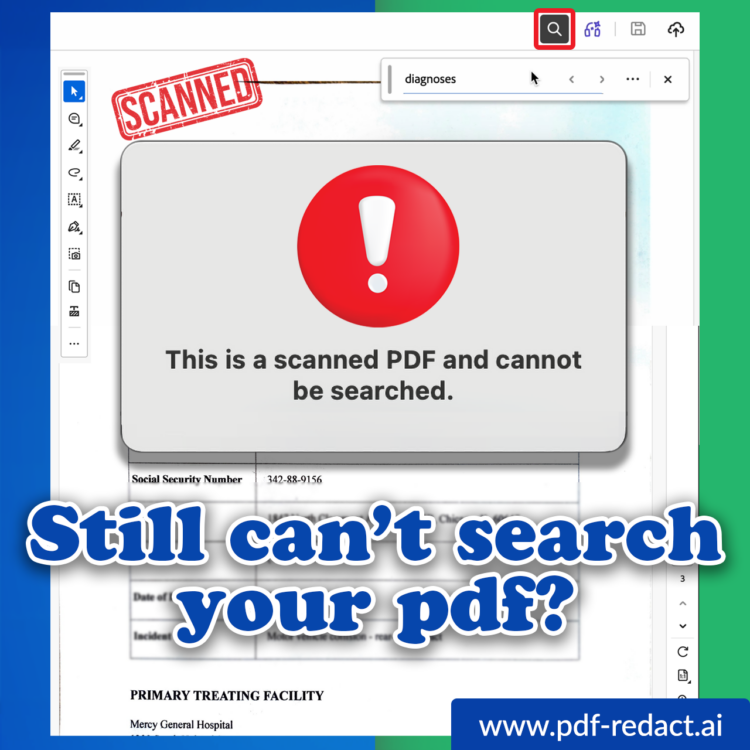
When you scan a paper document, or photograph one with your phone, you get the second kind. The page looks perfect on screen, but there is no text layer underneath. Search finds nothing because, as far as the file is concerned, there is nothing to find. This is also why you can’t copy a paragraph out of a scan, and why “pdf search not working” is such a common complaint. The search is working. The file has no words in it.
Adobe Acrobat says this plainly when you try: “This is a scanned PDF and cannot be searched.”
The fix is OCR, optical character recognition, which reads the picture and rebuilds a text layer behind it. A scanned PDF converted to text behaves like any other PDF: searchable, selectable, editable.
Why redacting a scan used to make it worse
Here is the trap. The documents most likely to arrive as scans are exactly the ones most likely to need redaction: medical records, signed contracts, intake forms, court filings, anything with a signature or a stamp. And most redaction tools handle a scan by flattening the whole page to an image, blacking out the sensitive parts, and saving that image as the new PDF.
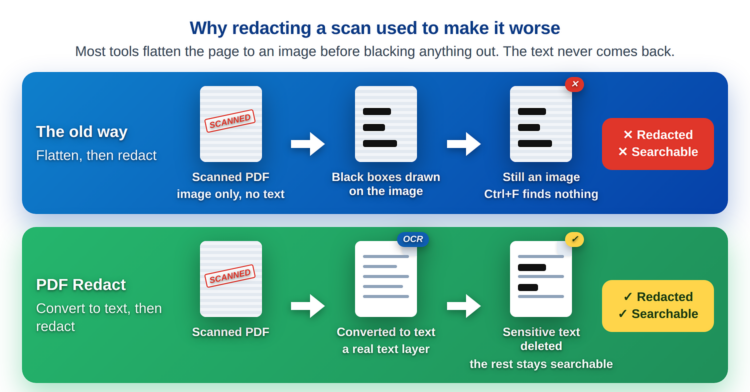
That is safe. It is also permanent in the wrong direction. Once the page is flattened, nobody can search it, ever. A litigation team that redacts a 40-page medical file loses the ability to search it for “diagnoses” or “prior injury” for the rest of the case. This is the daily reality for legal, healthcare, HR, and finance teams, where the files that need redacting are almost always the ones that arrived as scans.
You could run OCR first and redact second, but that is two tools and two passes, and the redaction step often flattens the file again anyway.
If you are new to redaction in general, our guide to how to redact a PDF with AI and batch redact multiple PDFs covers what redaction is, what AI detects, and how to process many files at once. This post is about the scanned-file problem specifically.
How to redact a scanned PDF and keep it searchable
PDF Redact by cloudHQ runs from Google Drive and, as of the 2026 update, does the OCR and the redaction in one pass. Five steps.
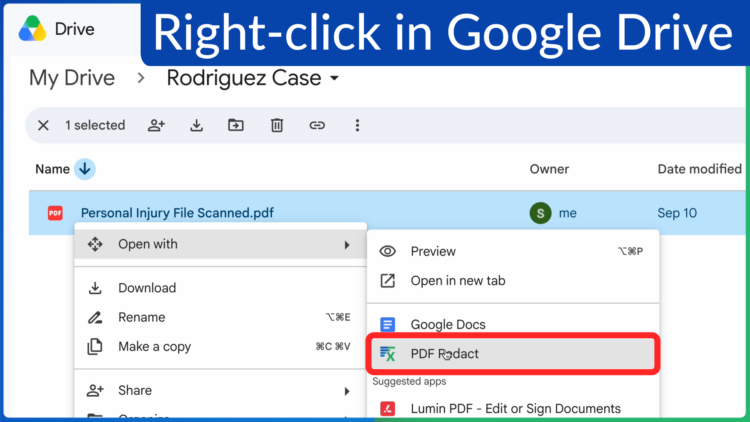
Step 1: Right-click the scanned PDF in Google Drive
Find the file in Drive, right-click it, and choose Open with > PDF Redact. You can also upload a file from your computer from inside the app.
Step 2: Choose what to detect
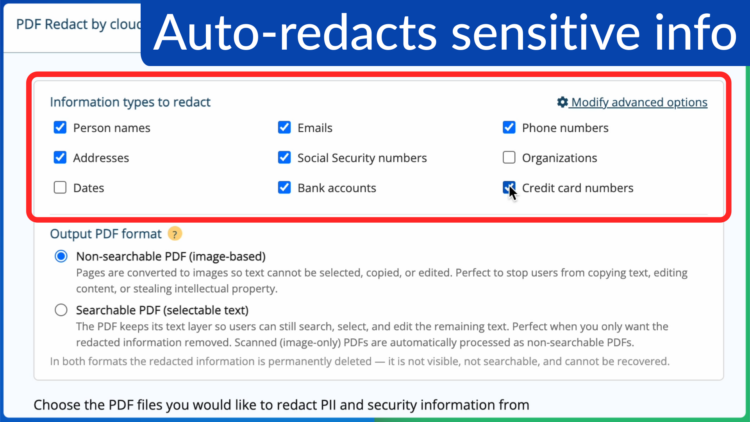
PDF Redact opens with a checklist of information types. Person names, emails, phone numbers, addresses, Social Security numbers, bank accounts, and credit card numbers are on by default; organizations and dates are optional. AI finds every instance across the document, so you are choosing categories, not hunting for individual lines.
Step 3: Choose Searchable PDF as the output
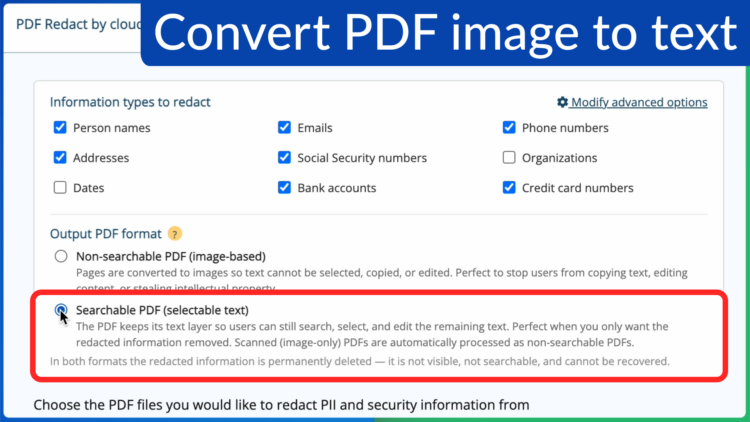
This is the step that matters for a scan. Under Output PDF format, pick Searchable PDF (selectable text). PDF Redact converts the scanned pages to text first, then redacts, so the finished file keeps its text layer. The redacted information is permanently deleted; the remaining text can be searched, selected, and edited.
Step 4: Click Redact
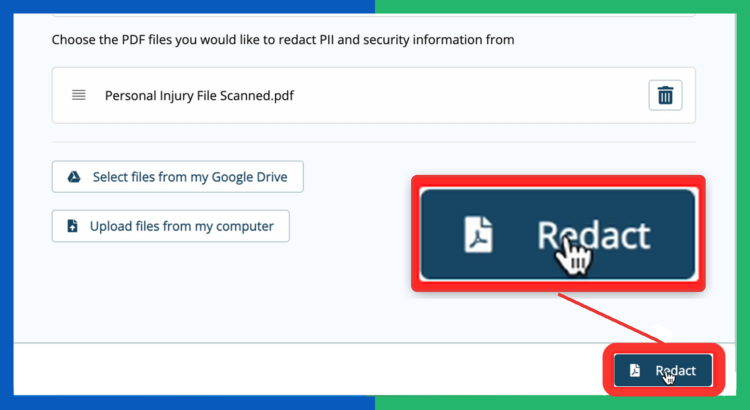
Click Redact at the bottom right. The redacted copy is saved next to the original in Drive, and the original scan is not touched.
Step 5: Open the redacted file and search it
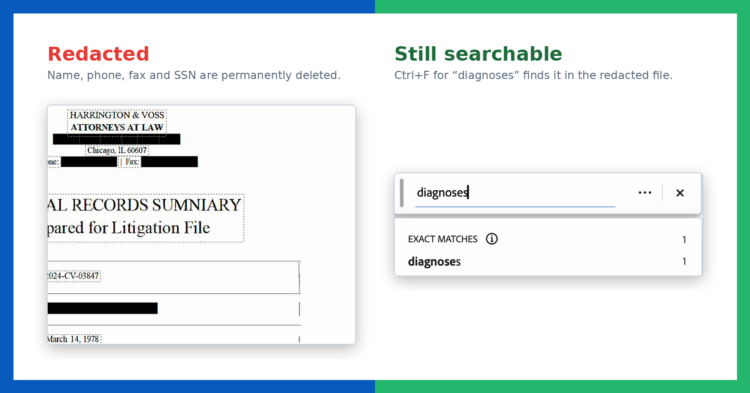
Open the new file, press Ctrl+F, and type a word from the document. The name, phone, fax, and Social Security number are black bars, and there is no text hiding underneath them; that information is gone from the file and cannot be found by search, copy, or any other means. Everything that was not redacted is still real text. The word “diagnoses” is still there, and search finds it.
Searchable or non-searchable: which output to choose
PDF Redact offers two outputs, and they solve different problems.
Searchable PDF (selectable text) keeps the text layer. Choose it when the file will be read, searched, or quoted by people who are allowed to see everything except the redacted parts: your own team, a client, a court. This is the right choice for almost every scanned document, because it is the only way to get search back.
Non-searchable PDF (image-based) converts every page to an image. Nothing can be selected or copied. Choose it when the concern is not just the sensitive fields but the whole text, for example a document you are sharing externally and do not want copied or scraped.
In both formats, the redacted information is permanently deleted. It is not hidden under a black box, it is not in the file’s metadata, and it cannot be recovered.
| Searchable PDF | Non-searchable PDF | |
|---|---|---|
| Redacted info removed permanently | Yes | Yes |
| Remaining text searchable | Yes | No |
| Text can be selected and copied | Yes | No |
| Works on scanned (image-only) PDFs | Yes, converted to text first | Yes |
| Best for | Files your team will keep searching | Files you don’t want copied at all |
What you can do with the redacted file
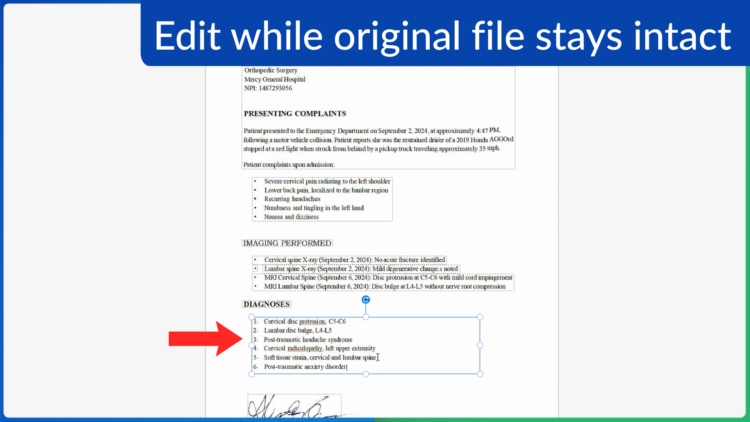
Because the output is a real text PDF, it behaves like one. You can search it, as above. You can select and copy the parts that remain. You can edit it in place, and because PDF Redact always writes a new file, the original scan stays untouched in Drive. If you ever need to redact differently, you go back to the original, not to a copy of a copy.
You can also ask cloudHQ’s AI Assistant about it. Once the file has a text layer, “explain this document to me” or “what are the main themes” work, which they never could on the scan.
Watch it in under a minute
From a scan that won’t search to a redacted file that will, in 58 seconds.
Video transcript
Scan documents. They look like text, but try to search, edit, or copy anything. Image only PDFs lock your text in place. No searching, no editing, no workflow. PDF Redact by cloudHQ now solves this with built-in OCR. It automatically finds names, addresses, social security numbers, then permanently removes them. But here’s what’s new. You can now convert your scanned PDF to searchable text. Your redacted document is now fully searchable and editable. I can make my edits without ever touching the original scan and the text layer is preserved. PDF Redact by cloudHQ, now with OCR. Install free from the Google Workspace marketplace. cloudHQ, helping your productivity one click at a time. Don’t forget to hit the like and subscribe button if you want to know about all the latest apps that make you more productive at work.
Frequently asked questions
Why can’t I search my scanned PDF?
Because a scanned PDF is an image of a page, not text. There are no characters for search to match. Converting the scan to text with OCR adds a text layer, and after that, search works.
How do I make a scanned PDF searchable?
Run it through OCR. PDF Redact does this automatically when you choose the Searchable PDF output: the scan is converted to text as part of the redaction, so you get a searchable, redacted file in one step.
Does redacting a PDF remove the ability to search it?
With most tools, yes, because they flatten the page to an image. With PDF Redact’s Searchable PDF output, no. The redacted information is removed permanently and the rest of the text stays searchable.
Can the redacted information still be found by searching?
No. The redacted information is deleted from the file, not covered up. Searching for a redacted name or number returns nothing, and it cannot be recovered by copying, editing, or inspecting the file.
What is the difference between a searchable and a non-searchable PDF?
A searchable PDF has a text layer, so you can search, select, and copy its text. A non-searchable PDF is made of images, so you can only look at it. PDF Redact lets you choose either as the output.
Does the conversion change my original file?
No. PDF Redact writes a new, redacted file next to the original in Google Drive. The original scan is not modified.
Can I edit the PDF after redacting it?
Yes, if you chose the Searchable PDF output. The remaining text is selectable and editable. The redacted information is gone and cannot be brought back by editing.
Can I redact many scanned PDFs at once?
Yes. Batch redaction works the same way for scanned files. See how to batch redact multiple PDFs for the steps.
Get started
Take the one scanned file your team keeps having to scroll through. Right-click it in Google Drive, choose Searchable PDF, and click Redact. The next time someone needs to find something in it, they can.

cloudHQ. Helping your productivity, 1 click at a time.