cloudHQ

Helping your productivity, 1 click at a time.

  • LinkedIn
  • Facebook
  • Twitter
Log in Sign up
MENUMENU
  • Home
  • Featured Apps
    • Export Emails to Google Sheets
    • Export Emails to Google Docs
    • Gmail Email Templates
    • Save Emails To PDF
    • Multi Email Forward
    • Email Campaigns and Mail Merge
  • Productivity
    • Auto Follow Up for Gmail
    • AutoBCC for Gmail
    • Email Signature Generator
    • Free Email Tracker
    • Free HTML Editor for Gmail
    • Free Screencast recording for Gmail
    • Gmail Label and Email Sharing
    • Gmail Phone
    • Gmail Screenshot
    • Gmail SMS Text Alerts
  • Google Workspace
    • Gmail
    • Google Apps
    • Google Docs
    • Google Sheets
    • Google Slides
    • Google Drive
    • Google Shared Drives
    • Google Contacts
  • Categories
    • Artificial Intelligence
    • Cloud Computing
    • Dropbox
    • Education
    • Egnyte
    • Google Chrome Web Store
    • More ...

How to Save an Email to Google Drive and Share It With Your Team

cloudHQ · How to Save an Email to Google Drive and Share It With Your Team

Someone needs the email. The approval from the client, the quote from the vendor, the thread where the dates were agreed. You could forward it, and then forward the follow-up, and then forward the attachment they say didn’t come through.

Or you could save the email to Google Drive once and send a link. With Save Emails to Google Drive by cloudHQ, that’s one click from inside the email. The message and its attachments land in Drive as a PDF, you get a shareable link on the spot, and the email stays in your inbox exactly as it was.

In this post

  • Watch how it works
  • Install the Chrome extension
  • Save one email to Google Drive with one click
  • What you get: the link, the folder, the file
  • Share the saved email instead of forwarding it
  • Why file emails in Google Drive
  • Saving many emails at once
  • Frequently asked questions

Watch how it works

Install the Chrome extension

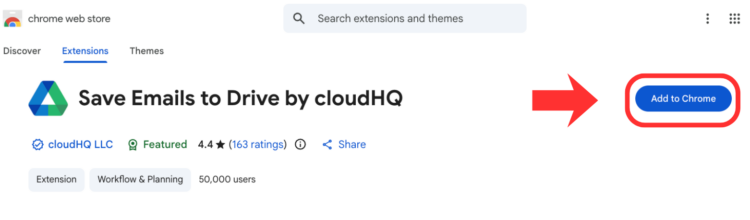
Add Save Emails to Google Drive from the Chrome Web Store by clicking Add to Chrome, then connect it to your Google Drive account. That’s the whole setup. It lives in your browser, not on your hard drive, and there are no settings to work through before you can use it.

Save Emails to Google Drive listing in the Chrome Web Store with the Add to Chrome button
One click to install, and nothing to configure.

Save one email to Google Drive with one click

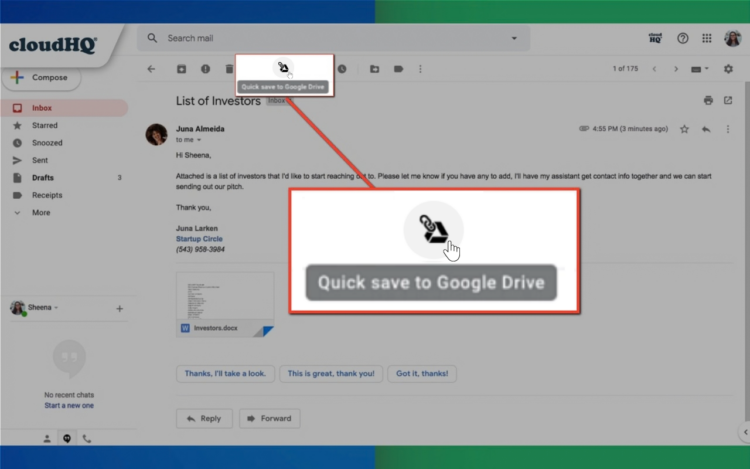
Open the email in Gmail. In the toolbar above the message, you’ll see a new Google Drive icon. Click it and choose Save to Google Drive. The email and its attachments are saved to Drive as a PDF.

An open email in Gmail with the Google Drive icon in the toolbar and the Save to Google Drive option selected
The Google Drive icon sits in the toolbar above every open email.

What you get: the link, the folder, the file

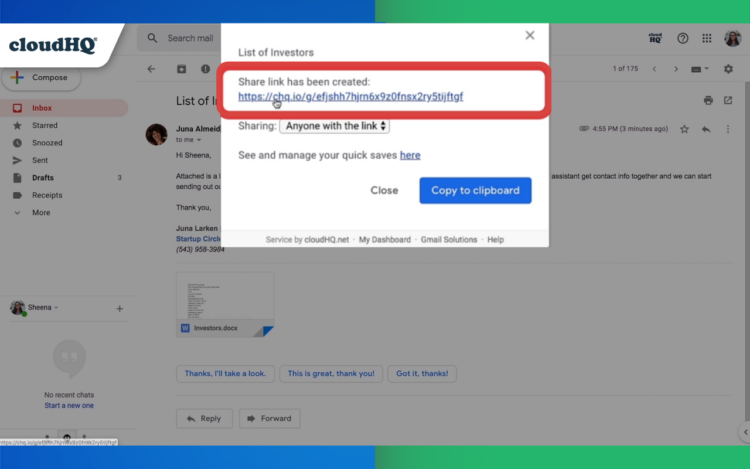
As soon as the save finishes, a confirmation appears with a link to the file in Google Drive. Click it to open the file, or copy it to share.

Confirmation message in Gmail showing the email was saved to Google Drive, with a link to the saved file
The confirmation gives you the Drive link right away.

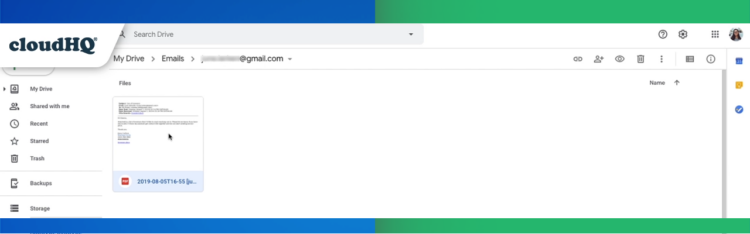
In Google Drive, the email is in a folder called Emails, and the file is named after the sender’s address, so you can tell what it is from the file list without opening it. The PDF contains the full message, the sender and recipients, the date, and the subject, with the attachments saved alongside it.

Google Drive showing the Emails folder with the saved email as a PDF named after the sender's address
The saved email in Drive, filed under Emails and named after the sender.

Share the saved email instead of forwarding it

This is the part that changes how you work. A forwarded email is a copy that goes stale the moment the thread continues. A saved email in Drive is a file, and files can do things emails can’t.

The save dialog lets you pick the folder, share the file with collaborators, or copy its link, before you’ve left Gmail. From there you set access the way you would for any Drive file. You can add comments to the PDF, highlight the line that matters, and assign a comment to a colleague so it shows up in their to-do list. And because it’s a link, you can drop it into Trello, Asana, Slack, or wherever your team tracks work, so the email lives next to the task it belongs to.
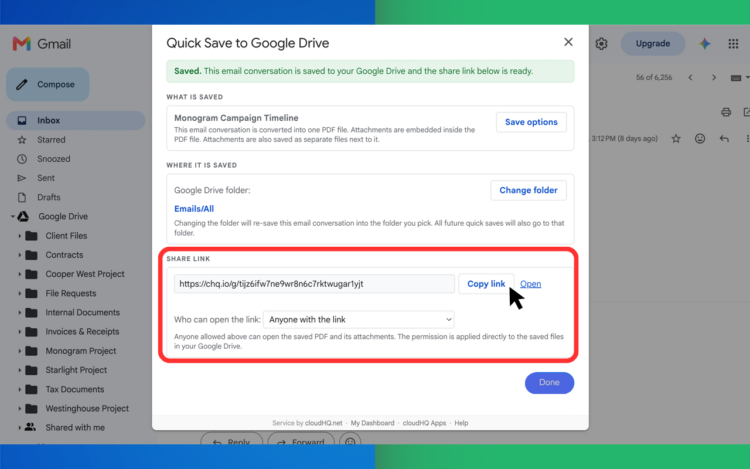
Save to Google Drive dialog with options to choose a folder, share the saved email with collaborators, or copy its link
Choose a folder, share with collaborators, or copy the link, all from the save dialog.

Why file emails in Google Drive

The first reason is finding things. A project’s quotes, timelines, contracts, and the conversation around them can live in one Drive folder, instead of being scattered across a thousand emails that only one person knows how to search.

The second is notes. Once an email is a PDF, you can mark it up: highlight the number you need to question, write yourself a reminder for the next call. You can’t do that in Gmail.

The third is collaboration. Assigning a comment on a Drive file to a colleague is a lightweight way to hand off a task with its context attached, and it works for people who weren’t on the original email.

The fourth is safety. Emails are lost to accidental deletion more than to anything else. A copy in Drive means the thread survives even if the inbox version doesn’t.

The fifth is the link itself. An email you can link to is an email you can put anywhere: in a task card, a Slack channel, a project doc.

Saving many emails at once

This post is about saving one email at a time, because that’s how most sharing happens. When you need to save a batch, there are two ways. Select the emails and click the Google Drive icon to choose between separate PDFs, one merged PDF, or attachments only; that’s covered step by step in How Do I Save Emails to Google Drive? Or, in the current version, select them and drag them onto a Drive folder in Gmail’s sidebar, which we show in Gmail to Google Drive: Drag and Drop Emails Into Your Drive Folders.

Frequently asked questions

How do I save an email in Gmail to Google Drive?

Install Save Emails to Google Drive, open the email, and click the Google Drive icon in the toolbar. The email is saved to Drive as a PDF with its attachments, and you get a link to it.

Does the saved email include attachments?

Yes. The attachments are saved to Google Drive with the email.

Can I share a saved email with someone who doesn’t use Gmail?

Yes. The saved email is an ordinary PDF in Google Drive, so you share it the way you’d share any Drive file, with a link or by adding them as a viewer.

Does saving an email to Drive remove it from Gmail?

No. The email stays in your inbox. Drive gets a copy.

Can I choose which folder the email goes to?

Yes. The save dialog lets you pick any folder in your Google Drive, or create a new one. If you don’t choose, it goes to the Emails folder.

What format is the saved email in?

PDF. Anyone with access to the folder can open it, search it, comment on it, and share it, whether or not they use Gmail.

Get Save Emails to Google Drive

Posted On: 8/13/2019By: Naomi Assaraf

Filed Under: save and backup my emails, Save Emails To Google Drive, Save Emails To PDF Tagged With: connect gmail to google drive, save emails to google drive, save emails to pdf

View AMP version

Footer

cloudHQ Backup, Migration & Sync
cloudHQ Backup, Migration & Sync product can sync, back up, copy, migrate, convert, and replicates data between different cloud service providers.
GET STARTED
cloudHQ Apps

We all hate email, but still, spend most of our day there. Because of that, we created over 60 Gmail productivity tools to help keep you be productive in the email.
All cloudHQ Apps
Contact Us
  • Contact
  • Terms Of Service
  • Privacy
  • Security
  • Table of Content
Subscribe
©2026 cloudHQ - All Rights Reserved.

Categories

  • Amazon S3 (6)
  • Artificial Intelligence (36)
  • Auto Follow Up for Gmail (1)
  • Cloud Computing (216)
  • cloudHQ Apps (475)
    • Attach and Embed YouTube Video in Gmail (2)
    • Attach Files as PDF (1)
    • Auto Follow Up for Gmail (6)
    • auto gmail follow up (4)
    • AutoBCC for Gmail (8)
    • Bulk Email Reply (1)
    • chatgpt for Gmail (13)
    • ChatGPT for Google (1)
    • ChatGPT Sidebar (2)
    • Combine Files to PDF (1)
    • Convert Google Docs To Gmail Drafts (1)
    • Convert PDF to MS Word (2)
    • Convert PDF to Text (2)
    • Display Email Time by cloudHQ (1)
    • Download as PDF (2)
    • Email File Request (2)
    • Email GIFs (2)
    • Email List Builder (20)
    • Email Privacy Protector: Is My Email Tracked? (4)
    • Email Reply Status (1)
    • Email Sender Icons (1)
    • Email Signature Generator (22)
    • Email Templates for Outlook and Gmail (18)
    • Email Tracking Blocker (2)
    • Email Zoom text Reader (2)
    • Export Emails to Google Docs (7)
    • Export Emails to Google Sheets (58)
    • Formatted Email Subject Lines (4)
    • Free Email Tracker (20)
    • Free HTML Editor for Gmail (3)
    • Free Mail Tracker (5)
    • Free Pause Gmail (4)
    • Free Screencast recording for Gmail (11)
    • Get My Receipts (3)
    • Gmail Auto Label (4)
    • Gmail Button (5)
    • Gmail Conversation Thread Reversal (1)
      • Gmail conversation view (1)
    • Gmail Copilot (8)
    • Gmail Email Links (3)
    • Gmail Email Templates (91)
    • Gmail Free Online Polls & Surveys by cloudHQ (4)
    • Gmail Inbox Zero (1)
    • Gmail Label and Email Sharing (25)
    • Gmail Message Preview (1)
    • Gmail Notes (3)
    • Gmail Phone (2)
    • Gmail Screenshot (14)
    • Gmail SMS Text Alerts (13)
    • gmail snippets (2)
    • Gmail Tables (3)
    • Gmail Tabs (5)
    • Gmail Time Tracker (3)
    • Gmail URL Link Preview (5)
    • Gmail Web Clipper (1)
    • Google Docs Templates (15)
    • Google Forms Templates (2)
    • Google Slides Theme Templates (1)
    • Happy Mother's Day Cards (5)
    • Highlight Emails in Gmail (1)
    • Hubspot Templates in Gmail (1)
    • MailKing Email Campaigns and Mail Merge (68)
    • mailking: send mass text from email text message SMS marketing campaigns (16)
    • mailto: (1)
    • meeting scheduler (32)
    • Multi Email Forward (8)
    • Multi Email Forward for Gmail (21)
    • PDF Encrypt (1)
    • PDF Redact (2)
    • Resize Gmail Sidebar (2)
    • save and backup my emails (1)
    • Save Emails To Box (2)
    • Save Emails To Dropbox (3)
    • Save Emails To Egnyte (3)
    • Save Emails To Google Drive (9)
    • Save Emails To OneDrive (2)
    • Save Emails To OneDrive Business (2)
    • Save Emails To OneNote (2)
    • Save Emails To PDF (43)
    • Save Emails To Salesforce (3)
    • Save Emails To SharePoint (6)
    • Save My Email (1)
    • Save My Emails (3)
    • Secure Document Sharing (2)
    • Send Your Email to SMS (text) (6)
    • Share & Attach Files In Gmail (2)
    • Simple email view (4)
    • Sort Gmail inbox by (5)
    • Sync Google Drive With Dropbox (3)
    • Sync Salesforce Contacts To Google (2)
    • Tiny Sketchbook (3)
    • Unique URL Links for Email Conversations (4)
    • Valentines Day (2)
    • Video Email (9)
    • webspage to pdf (1)
  • cybersecurity (1)
  • Dropbox (73)
  • Education (8)
  • Egnyte (9)
  • Email Templates Gmail (4)
  • Email Templates Outlook (4)
  • Google Chrome Web Store (4)
  • Google Sheets Templates (3)
  • Google Workspace (195)
    • Gmail (69)
    • Google AI (3)
    • Google Apps (40)
    • Google Contacts (1)
    • Google Docs (56)
    • Google Drive (73)
    • Google Shared Drives (1)
    • Google Sheets (17)
    • Google Slides (9)
  • Happy Easter Cards (1)
  • HTML editor for Google Drive (1)
  • Microsoft 365 (3)
  • microsoft sharepoint (2)
  • Mobile Text Alerts for Gmail (1)
  • Outlook Email Templates (6)
  • Productivity (1)
  • technology (1)
  • Text Editor for Google Drive (1)