
cloudHQ

Helping your productivity, 1 click at a time.

  • LinkedIn
  • Facebook
  • Twitter
Log in Sign up
MENUMENU
  • Home
  • Featured Apps
    • Export Emails to Google Sheets
    • Export Emails to Google Docs
    • Gmail Email Templates
    • Save Emails To PDF
    • Multi Email Forward
    • Email Campaigns and Mail Merge
  • Productivity
    • Auto Follow Up for Gmail
    • AutoBCC for Gmail
    • Email Signature Generator
    • Free Email Tracker
    • Free HTML Editor for Gmail
    • Free Screencast recording for Gmail
    • Gmail Label and Email Sharing
    • Gmail Phone
    • Gmail Screenshot
    • Gmail SMS Text Alerts
  • Google Workspace
    • Gmail
    • Google Apps
    • Google Docs
    • Google Sheets
    • Google Slides
    • Google Drive
    • Google Shared Drives
    • Google Contacts
  • Categories
    • Artificial Intelligence
    • Cloud Computing
    • Dropbox
    • Education
    • Egnyte
    • Google Chrome Web Store
    • More ...

Screenshot Tool: Capture, Mark Up, and Share What Matters

cloudHQ · Screenshot Tool: Capture, Mark Up, and Share

Table of Contents

  1. Why Screenshots Matter More Than Words
  2. Why Explaining With Text Breaks Down
  3. What a Screenshot Tool Should Actually Do
  4. How to Capture Screenshots in Your Browser
  5. Mark Up Screenshots for Clarity
  6. Who Uses Screenshot Tools Daily
  7. A Clearer Way to Communicate Online


Screenshot Tool Video Transcript

A complex support question just landed in your inbox. Instead of writing a long explanation, you can capture your screen directly from your browser. With Screenshot Tool by cloudHQ, you click once, choose what to capture, and visually explain what matters. Capture full pages, selected areas, or timed menus, then add arrows, highlights, or notes for clarity. Share or save your screenshot instantly to communicate faster and avoid back and forth messages. Screenshot Tool helps you explain clearly, in seconds.

Get Screenshot Tool by cloudHQ logo

Screenshot Tool Video Transcript

Explaining something with text alone often leads to confusion. Screenshot Tool by cloudHQ lets you capture anything on your screen, add visual context, and share it instantly. Instead of long explanations or back and forth emails, you can point directly to what matters. Capture full pages, selected areas, or timed menus, then mark them up with arrows, highlights, or notes. Share your screenshot or save it wherever you need. Clear communication starts with showing, not explaining.

Why Screenshots Matter More Than Words

  • People process visual information up to 60,000 times faster than text
  • Most misunderstandings in digital communication come from missing context
  • Email, chat, and tickets often require multiple replies to clarify one detail
  • Screenshots reduce back and forth by showing the exact issue or instruction
  • A visual explanation is easier to understand, remember, and act on

Why Explaining With Text Breaks Down

Written explanations assume the reader sees the same thing you do. In reality, screens differ, pages scroll, menus hide, and details get missed. That is why instructions like “click the button on the right” or “scroll down a bit” often fail. What feels obvious to one person can be confusing to another. Screenshots remove ambiguity.

Instead of describing where something is, you show it. Instead of writing long explanations, you highlight the exact area that matters.

What a Screenshot Tool Should Actually Do

A modern screenshot tool should do more than just capture pixels. It should help you communicate clearly. Screenshot Tool by cloudHQ is designed for this purpose.

It works directly in your browser and lets you:

  • Capture full pages, visible areas, windows, or selected regions
  • Use timed captures for menus, tooltips, and hover states
  • Add arrows, text, shapes, highlights, magnification, or blur
  • Control image quality, colors, and clarity
  • Share or save screenshots instantly

You are not just taking a screenshot. You are creating a visual explanation.

How to Capture Screenshots in Your Browser

Getting started is simple:

  1. Install Screenshot Tool from the Chrome Web Store
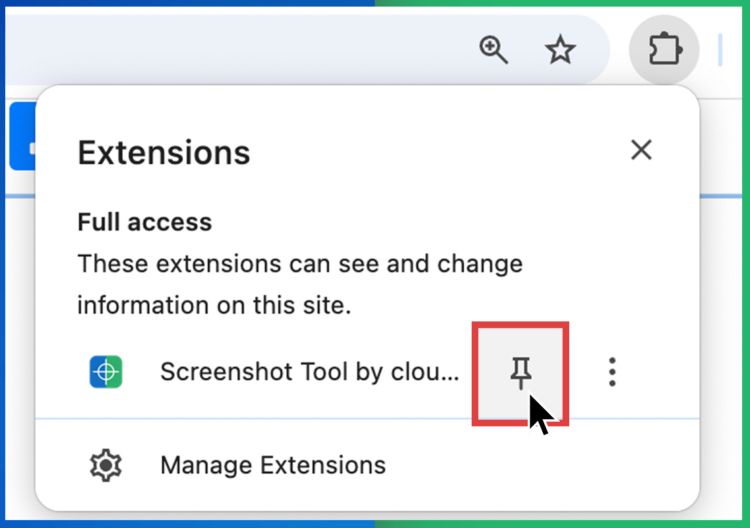
  2. Pin the extension to your browser toolbar
  3. Click the Screenshot Tool icon
  4. Select how you want to capture your screen
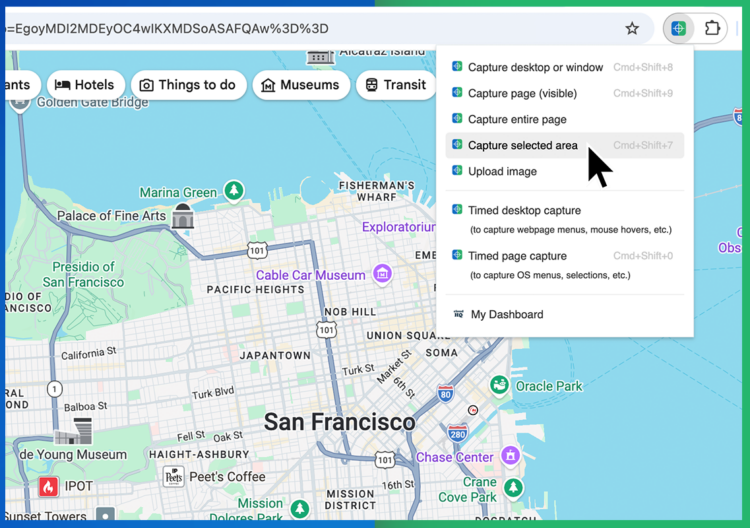
You can capture:

  • The entire page, even below the fold
  • Only what is currently visible
  • A selected area
  • Menus and hover states with timed capture

Mark Up Screenshots for Clarity

Once captured, your screenshot opens in an editor where you can immediately add context.


You can:

  • Draw arrows to point attention
  • Add text notes or labels
  • Highlight or box important areas
  • Magnify details
  • Blur sensitive information

These tools turn a static image into a clear instruction.

Who Uses Screenshot Tools Daily

  • Customer support teams explain steps, troubleshoot issues, and resolve tickets faster.
  • Product managers and designers give visual feedback without long explanations.
  • Sales teams highlight pricing, features, or changes clearly for prospects.
  • Remote teams reduce misunderstandings across time zones.
  • Anyone communicating online who wants fewer follow up messages.

Frequently Asked Questions

What is a screenshot tool?
A screenshot tool lets you capture what is on your screen and often annotate or share it. Screenshot Tool by cloudHQ focuses on clarity and communication, not just capture.

Does Screenshot Tool work only in Gmail?
No. It works anywhere in your browser and can be used from the pinned toolbar icon.

Can I edit screenshots after capturing?
Yes. You can re edit, annotate, or update screenshots before sharing or saving them.

Is Screenshot Tool free?
The extension is free to install and use. Additional features are available for advanced workflows.

A Clearer Way to Communicate Online

Most digital communication problems come down to one issue: people cannot see what you see.

Screenshot Tool solves that by letting you show, not explain.

Instead of long messages, confusing instructions, or repeated clarifications, you capture the screen, mark it up, and send it. Clear, fast, and easy.

Try Screenshot Tool today at www.gmail-screenshot.com

Posted On: 2/2/2026By: Naomi Assaraf

Filed Under: Gmail Screenshot Tagged With: best screen capture

View AMP version

Footer

cloudHQ Backup, Migration & Sync
cloudHQ Backup, Migration & Sync product can sync, back up, copy, migrate, convert, and replicates data between different cloud service providers.
GET STARTED
cloudHQ Apps

We all hate email, but still, spend most of our day there. Because of that, we created over 60 Gmail productivity tools to help keep you be productive in the email.
All cloudHQ Apps
Contact Us
  • Contact
  • Terms Of Service
  • Privacy
  • Security
  • Table of Content
Subscribe
©2026 cloudHQ - All Rights Reserved.

Categories

  • Amazon S3 (5)
  • Artificial Intelligence (34)
  • Auto Follow Up for Gmail (1)
  • Cloud Computing (213)
  • cloudHQ Apps (454)
    • Attach and Embed YouTube Video in Gmail (2)
    • Auto Follow Up for Gmail (6)
    • auto gmail follow up (4)
    • AutoBCC for Gmail (8)
    • Bulk Email Reply (1)
    • chatgpt for Gmail (13)
    • ChatGPT for Google (1)
    • ChatGPT Sidebar (2)
    • Combine Files to PDF (1)
    • Convert Google Docs To Gmail Drafts (1)
    • Convert PDF to MS Word (2)
    • Display Email Time by cloudHQ (1)
    • Download as PDF (1)
    • Email List Builder (20)
    • Email Privacy Protector: Is My Email Tracked? (4)
    • Email Reply Status (1)
    • Email Sender Icons (1)
    • Email Signature Generator (21)
    • Email Templates for Outlook and Gmail (15)
    • Email Tracking Blocker (2)
    • Email Zoom text Reader (2)
    • Export Emails to Google Docs (7)
    • Export Emails to Google Sheets (58)
    • Formatted Email Subject Lines (4)
    • Free Email Tracker (20)
    • Free HTML Editor for Gmail (3)
    • Free Mail Tracker (5)
    • Free Pause Gmail (4)
    • Free Screencast recording for Gmail (11)
    • Get My Receipts (3)
    • Gmail Auto Label (4)
    • Gmail Button (5)
    • Gmail Conversation Thread Reversal (1)
      • Gmail conversation view (1)
    • Gmail Copilot (8)
    • Gmail Email Links (3)
    • Gmail Email Templates (89)
    • Gmail Free Online Polls & Surveys by cloudHQ (4)
    • Gmail Inbox Zero (1)
    • Gmail Label and Email Sharing (25)
    • Gmail Message Preview (1)
    • Gmail Notes (3)
    • Gmail Phone (2)
    • Gmail Screenshot (14)
    • Gmail SMS Text Alerts (13)
    • gmail snippets (2)
    • Gmail Tables (3)
    • Gmail Tabs (5)
    • Gmail Time Tracker (3)
    • Gmail URL Link Preview (5)
    • Gmail Web Clipper (1)
    • Google Docs Templates (15)
    • Google Forms Templates (2)
    • Google Slides Theme Templates (1)
    • Happy Mother's Day Cards (5)
    • Highlight Emails in Gmail (1)
    • Hubspot Templates in Gmail (1)
    • MailKing Email Campaigns and Mail Merge (67)
    • mailking: send mass text from email text message SMS marketing campaigns (16)
    • mailto: (1)
    • meeting scheduler (32)
    • Multi Email Forward (8)
    • Multi Email Forward for Gmail (21)
    • Resize Gmail Sidebar (2)
    • save and backup my emails (1)
    • Save Emails To Box (2)
    • Save Emails To Dropbox (3)
    • Save Emails To Egnyte (3)
    • Save Emails To Google Drive (8)
    • Save Emails To OneDrive (2)
    • Save Emails To OneDrive Business (2)
    • Save Emails To OneNote (2)
    • Save Emails To PDF (43)
    • Save Emails To Salesforce (3)
    • Save Emails To SharePoint (6)
    • Save My Email (1)
    • Save My Emails (3)
    • Send Your Email to SMS (text) (6)
    • Share & Attach Files In Gmail (2)
    • Simple email view (4)
    • Sort Gmail inbox by (5)
    • Sync Google Drive With Dropbox (3)
    • Sync Salesforce Contacts To Google (2)
    • Tiny Sketchbook (3)
    • Unique URL Links for Email Conversations (4)
    • Valentines Day (2)
    • Video Email (9)
    • webspage to pdf (1)
  • cybersecurity (1)
  • Dropbox (73)
  • Education (8)
  • Egnyte (9)
  • Email Templates Gmail (4)
  • Email Templates Outlook (4)
  • Google Chrome Web Store (4)
  • Google Sheets Templates (3)
  • Google Workspace (195)
    • Gmail (69)
    • Google AI (3)
    • Google Apps (40)
    • Google Contacts (1)
    • Google Docs (56)
    • Google Drive (73)
    • Google Shared Drives (1)
    • Google Sheets (17)
    • Google Slides (9)
  • Happy Easter Cards (1)
  • HTML editor for Google Drive (1)
  • Microsoft 365 (3)
  • microsoft sharepoint (2)
  • Mobile Text Alerts for Gmail (1)
  • Outlook Email Templates (4)
  • Productivity (1)
  • technology (1)
  • Text Editor for Google Drive (1)