Email is still one of the fastest ways to send important files.
Contracts, tax forms, financial reports, HR documents, legal agreements, client proposals, spreadsheets, PDFs, and confidential business files move through inboxes every day. The process feels simple. Attach the file, add a message, click Send, and move on.
But the real question is not whether the file was sent.
The real question is what happens after it leaves your inbox.
Was the file opened by the right person? Was it forwarded to someone else? Was it downloaded more than once? Is access still available months later? Could someone outside the intended audience open it without you knowing?
With Secure Document Sharing by cloudHQ, you can send secure files directly from Gmail, add password protection, set expiration dates, track downloads, and review access activity after the email has been sent.
The goal is simple: make files easy for the right people to access, and harder for everyone else.
Table of Contents
What Is Secure File Sharing?
Secure file sharing means sending files with controls that help protect access after the file is sent.
A regular attachment or basic file link is often too simple. Once it leaves your inbox, it can be forwarded, saved, downloaded, or reopened later. That may be fine for everyday documents, but it is not enough for sensitive files.
Secure file sharing adds extra controls, such as:
- Password protection
- Expiration dates
- Download tracking
- Access logs
- Location visibility
- The ability to manage or pause access
Instead of hoping a file stays with the right person, you get more control over how it can be accessed.
Secure Document Sharing by cloudHQ brings these controls into Gmail, so you can create secure file links without leaving the email you are writing.
Why Email Attachments Can Be Risky
Email attachments are convenient, but they are also easy to lose control of.
Imagine sending a contract to one client. That client forwards it to an assistant. The assistant forwards it to an accountant. Someone downloads it. Someone else saves the email thread. Weeks later, the file is still sitting in multiple inboxes.
No one meant to create a problem. No one hacked anything. The file simply traveled farther than expected.
That is the quiet risk of ordinary file sharing. It often feels safe because it feels normal.
The Federal Trade Commission advises businesses to know what personal information they collect, where it is stored, who has access to it, and how it is protected. The same thinking applies to shared documents. If you do not know who can access a file after sending it, you do not fully control the risk.
You can read the FTC guide here: Protecting Personal Information: A Guide for Business.
A good rule is simple: if you would worry about a file being forwarded, do not send it as a normal attachment.
Why Password Protection Helps
Password protection adds a second gate between the file link and the document.
Without a password, a link may be enough to access the file. With password protection, the recipient needs both the secure link and the password you provide.
That matters because links are easy to forward. A password gives you another layer of control.
For example, you can send the secure file link by email and provide the password through another channel, such as text message, phone, or a separate message. That way, if the email is forwarded, the file is still protected by another step.
A password is not magic. Weak passwords can still be guessed or shared. But a strong password can reduce accidental access and make ordinary forwarding much less risky.
The National Institute of Standards and Technology recommends longer passwords and passphrases instead of confusing short passwords with forced character rules. Longer passphrases are often easier for people to remember and harder for others to guess.
You can read NIST guidance here: NIST Digital Identity Guidelines.
Simple trick: use a short phrase instead of a tiny password. Something like green invoice folder 82 is easier to type than random symbols and harder to guess than one common word.
Why Expiration Dates Matter
One of the most overlooked file sharing risks is old access.
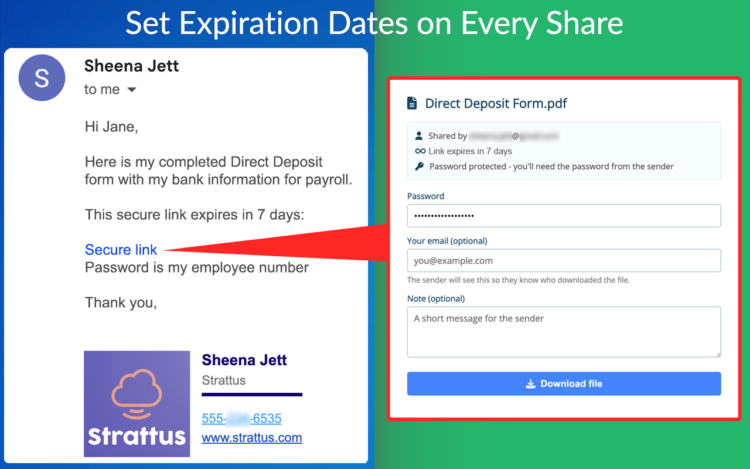
A document may only need to be available for a few days, but a normal link can remain active much longer than necessary. That means a file shared for one purpose may still be accessible long after that purpose is gone.
Expiration dates solve that problem by making access temporary.
This is useful for:
- Contract review
- Client proposals
- Payroll documents
- Tax forms
- Financial reports
- HR documents
- Legal paperwork
- Vendor files
- Time sensitive offers
If someone only needs a file this week, the link should not work forever.
That one habit can remove a lot of unnecessary exposure.
Why Download Tracking Matters
Most people know when they send a file.
They do not always know what happened next.
Download tracking helps answer the questions that matter after sending:
- Was the file opened?
- Was it downloaded?
- When did access happen?
- Where was it opened from?
- Was it downloaded more than once?
- Should the share still be active?
This is especially useful when you are sending contracts, invoices, legal documents, financial reports, HR files, or client deliverables.
Download tracking is not just about security. It is also about visibility. You can confirm activity, follow up at the right time, and manage access with more confidence.
With Secure Document Sharing, you can track every download, see where files were accessed, and review detailed access logs.
How to Send Secure Files from Gmail
Secure Document Sharing works directly inside Gmail.
You do not need to download the file, upload it somewhere else, create a separate account, or copy links between multiple tools. You can create the secure share from the same Gmail compose window you are already using.
Here is how it works:
- Open Gmail.
- Start a new email.
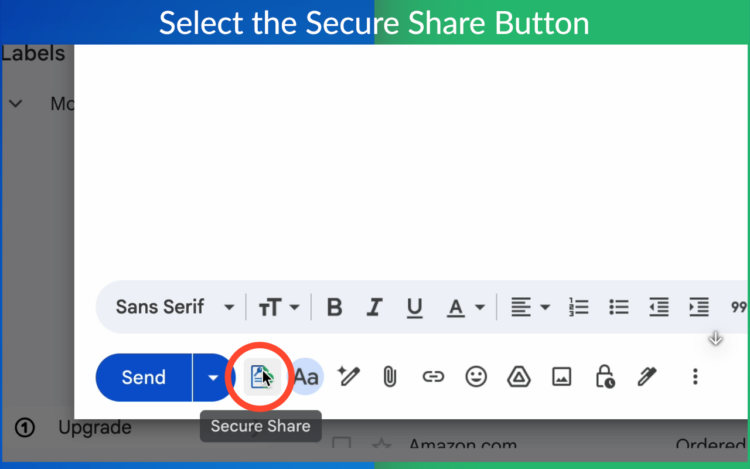
- Click the Secure Share button in the compose window.
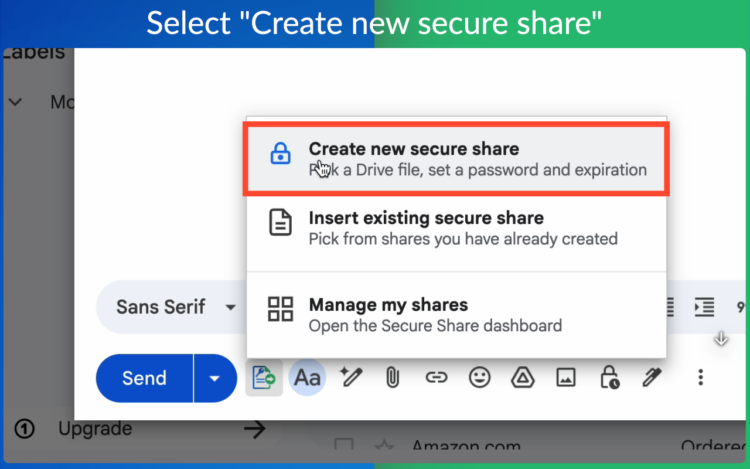
- Select “Create new secure share.”
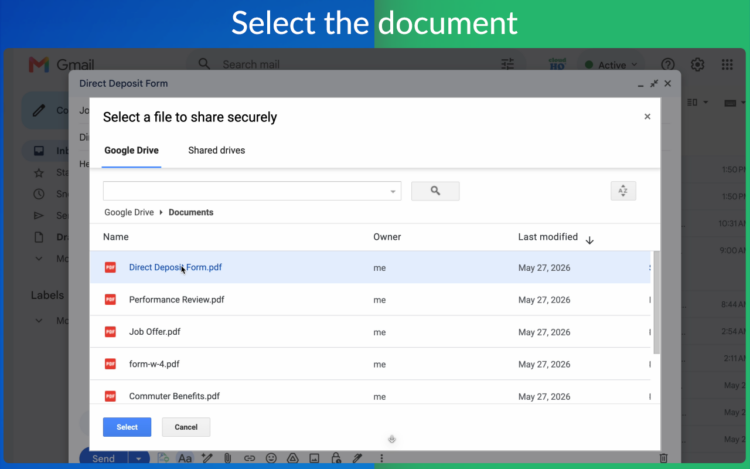
- Select the file you want to send.
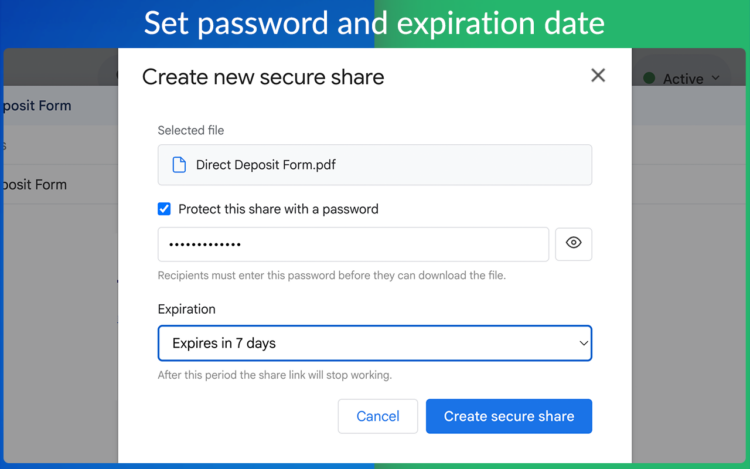
- Add a password and expiration date if needed. Click on “Create secure share” when you’re done.
- Insert the secure link directly into your email.
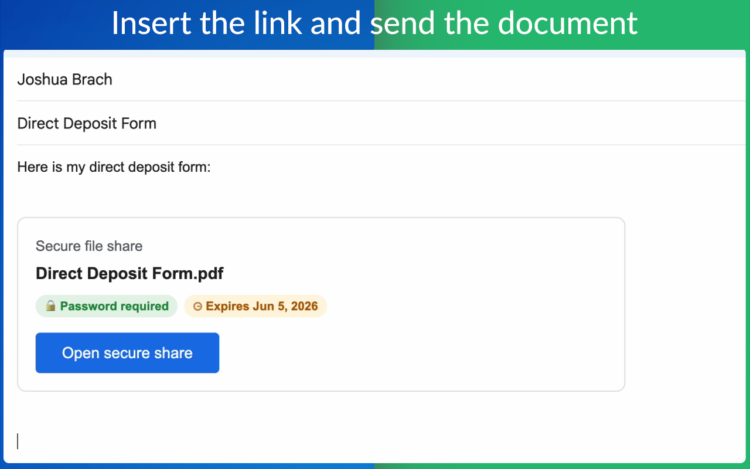
Your recipient receives a secure download link. They enter the password you provide and access the file through a secure page.
After the file is sent, you can monitor activity, track downloads, and manage the share.
Get started with Secure Document Sharing
Files You Should Send Securely
Not every file needs extra protection.
A public flyer probably does not need a password. A lunch menu does not need download tracking.
But some documents should not travel through email without controls.
Secure file sharing is especially helpful for:
- PDF documents
- Excel spreadsheets
- Word documents
- Contracts and agreements
- Financial reports
- Tax forms
- Payroll documents
- HR files
- Legal documents
- Client proposals
- Real estate documents
- Healthcare and administrative files
- Confidential business files
Here is the easiest test: if you would be uncomfortable with the file being forwarded to the wrong person, send it securely.
6 Simple Ways to Make File Sharing More Secure
Most file sharing mistakes are not caused by hackers. They happen because links get forwarded, files remain accessible longer than intended, or people simply make mistakes. Fortunately, a few simple habits can significantly reduce risk.
- Send the password separately. For highly sensitive files, send the secure link by email and the password through another channel.
- Use expiration dates by default. If a file only needs to be available for a limited time, there is no reason for the link to stay active forever.
- Choose longer passphrases. A memorable phrase is often easier to type and harder to guess than a short password.
- Track downloads when proof matters. If you need to know whether someone accessed a file, use download tracking instead of assumptions.
- Review active shares regularly. Remove access to files that no longer need to be available.
- Match the protection to the document. A public brochure may not need a password. A contract, payroll file, financial report, or tax document probably should.
Secure file sharing is not about making access difficult. It is about making sure the right people have access for the right amount of time, and nobody else.
Frequently Asked Questions
How do I send secure files by email?
You can send secure files by email by creating a secure file link with password protection, expiration dates, and download tracking. Secure Document Sharing lets you do this directly from Gmail.
Can I send password protected files in Gmail?
Yes. Secure Document Sharing lets you create password protected file links directly from Gmail.
Can I set an expiration date on a file I send by email?
Yes. You can set an expiration date so the secure link stops working after the selected time period.
Can I track downloads after sending a file?
Yes. Secure Document Sharing lets you track downloads, view access activity, and review access logs after the file has been sent.
Do recipients need special software?
No. Recipients only need a browser. They open the secure link and enter the password you provide.
What types of files can I send securely?
You can send PDFs, spreadsheets, Word documents, contracts, proposals, HR documents, legal files, financial reports, and many other sensitive business files.
Is password protection better than a normal attachment?
Password protection gives you more control than a normal attachment because the file link alone is not enough. The recipient also needs the password.
Should I use secure file sharing for every email attachment?
Not necessarily. Use secure file sharing when the file contains sensitive, confidential, financial, legal, personal, or business critical information.
Start Sending Secure Files by Email
Email makes file sharing fast. Secure Document Sharing makes it safer.
With Secure Document Sharing by cloudHQ, you can send secure files directly from Gmail with password protection, expiration dates, download tracking, access logs, and file activity visibility.
Use it when a normal attachment is not enough.