Your project is scattered across your inbox. The signed contract is in one thread, the invoice is in another, the client’s revised brief is three replies deep in a conversation from last month. Everyone on the team knows the documents exist. Only one person knows where.
Getting those emails from Gmail into Google Drive, where the whole team can find them, has always meant the same loop: download the attachment, open Drive, find the folder, upload, go back to Gmail, repeat. So it doesn’t get done, and the inbox quietly becomes the archive.
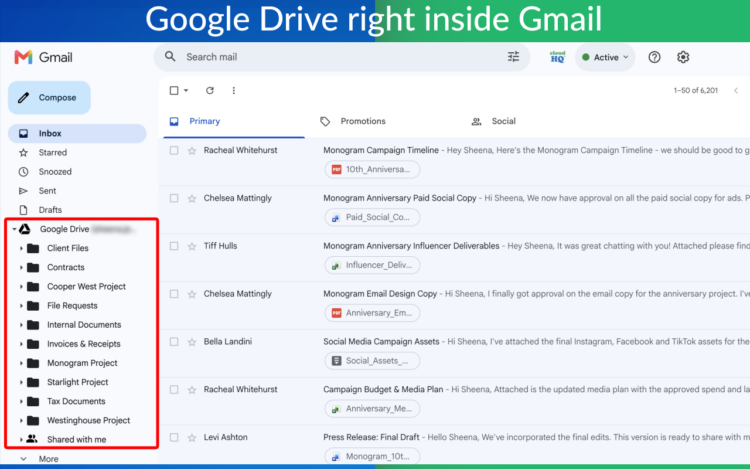
The newest update to Save Emails to Google Drive replaces that loop with one motion. Your Google Drive folders appear in Gmail. You drag the emails over. That’s the whole process.
Watch it work (60 seconds)
Read the video transcript
Your project is scattered across your inbox. Managing important emails shouldn’t feel like a full-time job. With Save Emails to Google Drive by cloudHQ, your Google Drive folders appear directly in Gmail. Need to save multiple emails to Google Drive? No problem. Just select them, drag them to any Google Drive folder label, and they’re instantly saved to the right place. You can also access your Google Drive folders at any time from your inbox by right-clicking. Just drag, drop, and stay organized. Turn your inbox into an organized archive. Try Save Emails to Google Drive by cloudHQ today. cloudHQ, helping your productivity one click at a time.
Prefer to read? Everything in the video is below, step by step.
Why getting emails from Gmail to Google Drive has been a chore
Gmail and Google Drive are both Google products, both tied to the same account, and both open in the same browser. It’s reasonable to expect that moving an email from one to the other would be simple. It isn’t, because Gmail has no built-in way to save an email to Drive. You can save an attachment to Drive with the hover button, but the email itself, the message that explains what the attachment is and who agreed to what, stays behind.
So the workaround is manual. Print the email to PDF, save it to your computer, open Drive, upload it to the right folder, then do the attachments separately. Multiply that by every invoice, contract, and approval that lands in your inbox in a week, and you can see why most people stop trying and just search their email when they need something.
That works until someone else needs the document. Or until you leave the company and your inbox goes with you.
What’s new: your Google Drive folders inside Gmail
Save Emails to Google Drive has let you save emails to Drive from a button in Gmail for years. The new version goes a step further: it brings your Google Drive folders into Gmail.
After you install the extension, a Google Drive section appears in Gmail’s left sidebar, underneath your labels. Your Drive folders are listed there, and they behave the way labels do. If you’ve ever dragged an email onto a Gmail label to file it, you already know how to save an email to Google Drive.
How to drag and drop emails from Gmail to Google Drive
1. Install Save Emails to Google Drive
Add the Save Emails to Google Drive extension from the Chrome Web Store and connect it to the Google Drive account you want to save to. When you return to Gmail, a Google Drive section with your folders is waiting in the left sidebar.
2. Select the emails you want to save
Tick the checkbox next to each email in your inbox or in a search result. One email or fifty, it makes no difference. If you want everything from a client, search for their address, select all, and move on to step 3.
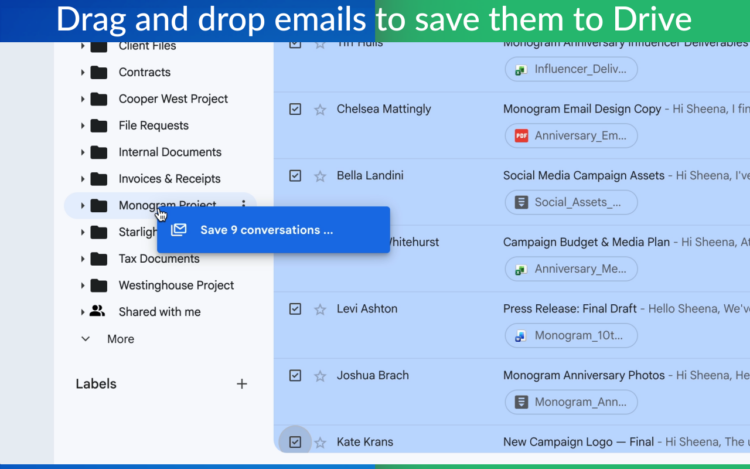
3. Drag them onto a Google Drive folder
Click and hold any of the selected emails, drag them to the Google Drive folder in the sidebar, and let go. The emails are saved to that folder in Google Drive.
4. Keep working
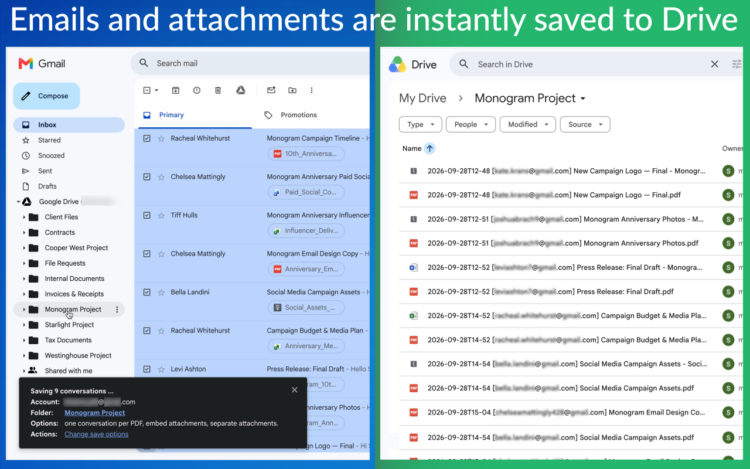
There’s no dialog to fill in and nothing to download. The emails are in Drive, in the folder you chose, and they’re still in your inbox too. Nothing was moved or deleted on the Gmail side.
Open any Drive folder without leaving your inbox
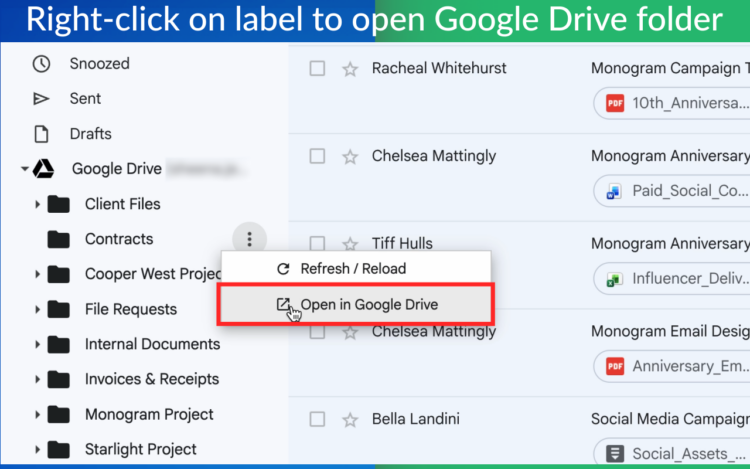
The Drive folders in your sidebar aren’t only drop targets. Right-click any of them to open that folder in Google Drive. If you’ve just dragged a batch of invoices over and want to confirm they landed, that’s one right-click rather than a new tab and a hunt through Drive.
What gets saved
Each email is saved to Google Drive as a PDF, with its attachments. The PDF includes the message, the sender and recipients, the date, and the subject, so anyone who opens the file later has the full context, not just a loose attachment with no explanation of where it came from.
The original email stays in Gmail exactly as it was. Saving to Drive is a copy, not a move.
Who this is for
Anyone who files receipts and invoices. Drag the month’s receipts onto your Expenses folder in one go and your accountant has them without a single forwarded email.
Teams that share a Drive. The contract lives in the shared Contracts folder, not in whichever inbox it happened to arrive in. When the person who received it is on vacation, the team can still find it.
Anyone who needs a record. HR requests, legal holds, client approvals, and the thread where the scope was agreed to. Dragging them to Drive puts them somewhere that doesn’t depend on a Gmail search working six months from now.
If you’d rather save from inside an open email, the Save to Google Drive button is still there. We cover that method in How Do I Save Emails to Google Drive? and Save Emails to Google Drive and File Important Emails. Drag and drop is the fast path when you’re filing more than one.
Frequently asked questions
Can I drag more than one email at a time from Gmail to Google Drive?
Yes. Select as many emails as you want, then drag any one of them onto the Drive folder. All of the selected emails are saved.
Do the emails get removed from Gmail when I drag them to Drive?
No. Saving to Google Drive creates a copy in Drive. The original emails stay in your inbox, with their labels, exactly as they were.
Which Google Drive folders show up in Gmail?
The folders from the Google Drive account you connected to the extension. They appear in a Google Drive section in Gmail’s left sidebar.
Do I need to download anything to my computer?
Only the Chrome extension. After that, emails go from Gmail to Google Drive directly, with nothing saved to your computer along the way.
What’s the difference between drag and drop and the Save to Google Drive button?
Both save emails to Drive as PDFs. The button is handy when you’re reading a single email and want to save it right then. Drag and drop is for filing in batches: select the emails, drop them on a folder, and skip the dialog.
Does this work in browsers other than Chrome?
Save Emails to Google Drive is a Chrome extension, so you’ll need Google Chrome with Gmail open in it.
Turn your inbox into an organized archive
Think of the folder in Google Drive that’s always a few documents behind because the documents are sitting in someone’s email. Install Save Emails to Google Drive, select those emails, and drag them over. The folder is current, and it took less time than reading this sentence.